You unlock your phone to check a message and a full-screen ad for a game you have never heard of jumps in front of you. You close it. Thirty seconds later, there is another one. It is maddening, and it can make a perfectly good phone feel broken. The good news is that you can stop pop-up ads on Android without buying anything. In most cases, a single app or website is to blame, and once you find it the ads stop. This guide shows you how to track it down.
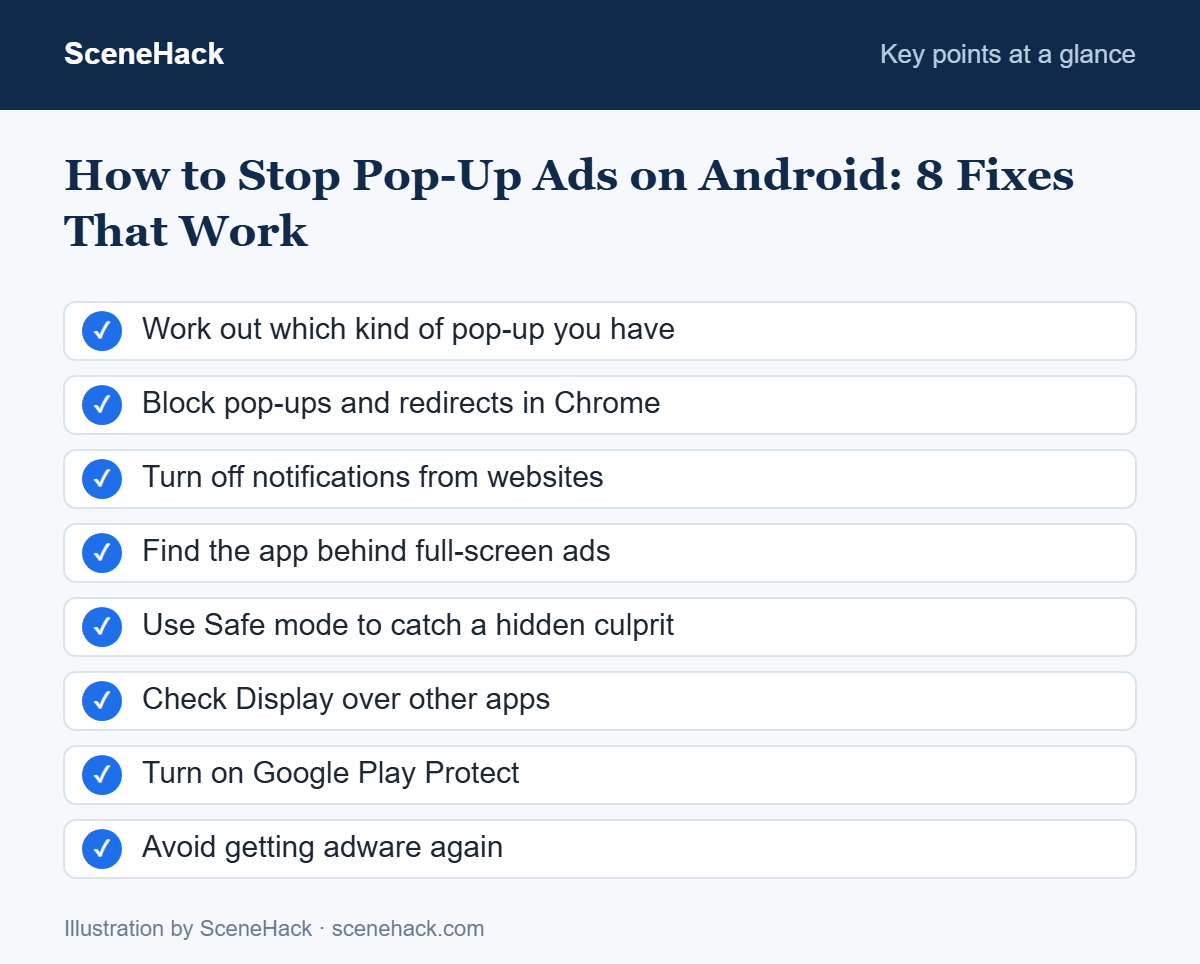
First, Work Out Which Kind of Pop-Up You Have
Not every ad has the same cause, so the fix depends on where it appears. Take a moment to notice when the ads show up. That clue saves a lot of guessing.
| Where the ad appears | Most likely cause | Go to |
|---|---|---|
| Only while browsing in Chrome | A website opening pop-ups or redirects | Block pop-ups in Chrome |
| As notifications, even when Chrome is closed | A website you allowed to send notifications | Turn off site notifications |
| Full screen, over the home screen or other apps | An installed app with adware | Find the app |
| Inside one free game or app only | Normal in-app advertising | Usually not a problem |
That last row deserves a word. Many free apps pay for themselves with ads. Those are annoying, but they are not a sign that something is wrong. If the ads stay inside the app, the real choice is between living with them and paying for the ad-free version.
Block Pop-Ups and Redirects in Chrome
Chrome blocks most pop-ups by default, but the setting can be switched off. These steps come from Google’s Chrome help page.
- Open Chrome and tap the three-dot menu.
- Tap Settings, then Site settings.
- Tap Pop-ups and redirects.
- Make sure the toggle is off, so pop-ups are blocked.
When Chrome stops a pop-up, it shows a small Pop-up blocked message. If a site you trust, such as your bank, genuinely needs one, tap Always show for that site only.
Turn Off Notifications From Websites
This is the cause people almost never suspect. At some point, a website asked “Allow notifications?” and someone tapped Allow, often by accident. Now that site can push ads straight to your notification bar, even when Chrome is closed. They often look like warnings, such as “Your phone is infected!”, which is exactly why they work.
Google’s guide to unwanted ads and pop-ups explains how to stop one site:
- Open Chrome and go to the site sending the notifications.
- Tap the icon to the left of the address to open Page info, then tap Permissions.
- Tap Notifications and turn off Show notifications.
To review every site at once, open Chrome Settings > Site settings > Notifications and remove any site you do not recognize. A fake “virus” alert in your notifications is an ad, not a diagnosis. Do not tap it.
Find the App Behind Full-Screen Ads
If ads cover your home screen or pop up over other apps, an installed app is almost certainly responsible. Usually, it is something you installed shortly before the ads began, like a flashlight, a “cleaner”, a battery booster, a wallpaper pack or a free VPN.
Start with the obvious check. Right after an ad appears, open the Recent apps screen. On many phones, the app that displayed the ad shows up there, sometimes with no name or a blank icon. Long-press it and tap App info to see what it really is, and then uninstall it.
Next, open Settings > Apps and sort or scroll through the list. Look for apps you do not remember installing, apps with generic names, and anything installed around the time the ads started.
Use Safe Mode to Catch a Hidden Culprit
Some adware hides well. Google recommends Safe mode for this, because it starts the phone without any downloaded apps running.
- Press and hold the power button.
- Touch and hold Power off until the Safe mode prompt appears, and then confirm. On some phones, the steps differ slightly.
- Use the phone for a while. If the ads have stopped, a downloaded app is definitely the cause.
- Uninstall recently downloaded apps one at a time, restarting normally after each one, until the ads disappear.
A small tip from Google that is worth following: write down the apps you remove, so you can reinstall the innocent ones afterwards.
Check Which Apps Can Draw Over Other Apps
Full-screen ads need a special permission called Display over other apps. Very few apps genuinely need it. To check, open Settings > Apps > Special app access > Display over other apps. The exact path varies between phone brands, so use the search bar in Settings if you cannot find it.
Messaging bubbles, screen recorders and accessibility tools have good reasons to be there. A torch app or a puzzle game does not. Turn the permission off for anything suspicious.
If an app refuses to uninstall, it may have made itself a device administrator. Search Settings for Device admin apps, switch it off there, and then uninstall it normally.
Turn On Google Play Protect
Play Protect scans your apps for harmful behaviour. Google says to make sure it is on:
- Open the Google Play Store.
- Tap your profile picture, then Play Protect, then the settings icon.
- Turn on Scan apps with Play Protect.
Then tap Scan to check your phone now. Play Protect will not catch everything, but it is free, built in and worth having on.
Still Seeing Pop-Up Ads? The Last Resort
If you have removed every suspicious app and the ads keep coming back, a factory reset will clear them. It also erases everything else, so back up your Android phone first. After the reset, reinstall apps slowly, a few at a time, and only from the Play Store. If the ads return, the last app you installed is your answer.
How to Stop Pop-Up Ads on Android Coming Back
Once your phone is quiet again, a few habits keep it that way:
- Be wary of “cleaner” and “booster” apps. Android manages memory itself. Many of these apps exist mainly to show ads.
- Avoid installing APK files from websites or messages. Stick to the Play Store.
- Read the reviews before you install. Comments like “full of ads” or “ads on my home screen” are a clear warning.
- Say no to website notifications unless you truly want them.
- Review permissions now and then, especially Display over other apps.
Pop-ups that come with other strange behaviour, such as unknown messages sent from your phone, may point to something more serious. Our guide to signs your phone is hacked covers what to check next.
Pop-Up Ads on Android: Common Questions
Why do I get ads on my lock screen?
Usually, it is an app with adware. On some phones, though, the manufacturer shows news or content on the lock screen by default. Check your lock screen settings for a content or wallpaper service and turn it off.
Can a pop-up ad give my phone a virus?
Simply seeing an ad does not infect your phone. The danger comes from tapping it, downloading what it offers, or entering your details on the page it opens.
Do ad blocker apps help?
Some do, inside a browser. However, many so-called ad blockers in app stores are themselves full of ads. Removing the cause is a better fix than adding another app.
Will a factory reset remove adware?
Yes, because it removes every app you installed. Use it only after the other steps have failed, and back up first.
Get Your Phone Back
In most cases, the whole problem comes down to one app or one website you allowed by accident. Spend ten minutes going through these steps in order, and you will very likely find it. Your phone should feel like yours again.