Your phone holds years of photos, contacts, chats and important files. If it’s lost, stolen or suddenly stops working, all of that could disappear in a second — unless you have a backup. The good news is that backing up an Android phone is free and mostly automatic once you set it up. It only takes a few minutes to back up your Android phone properly.
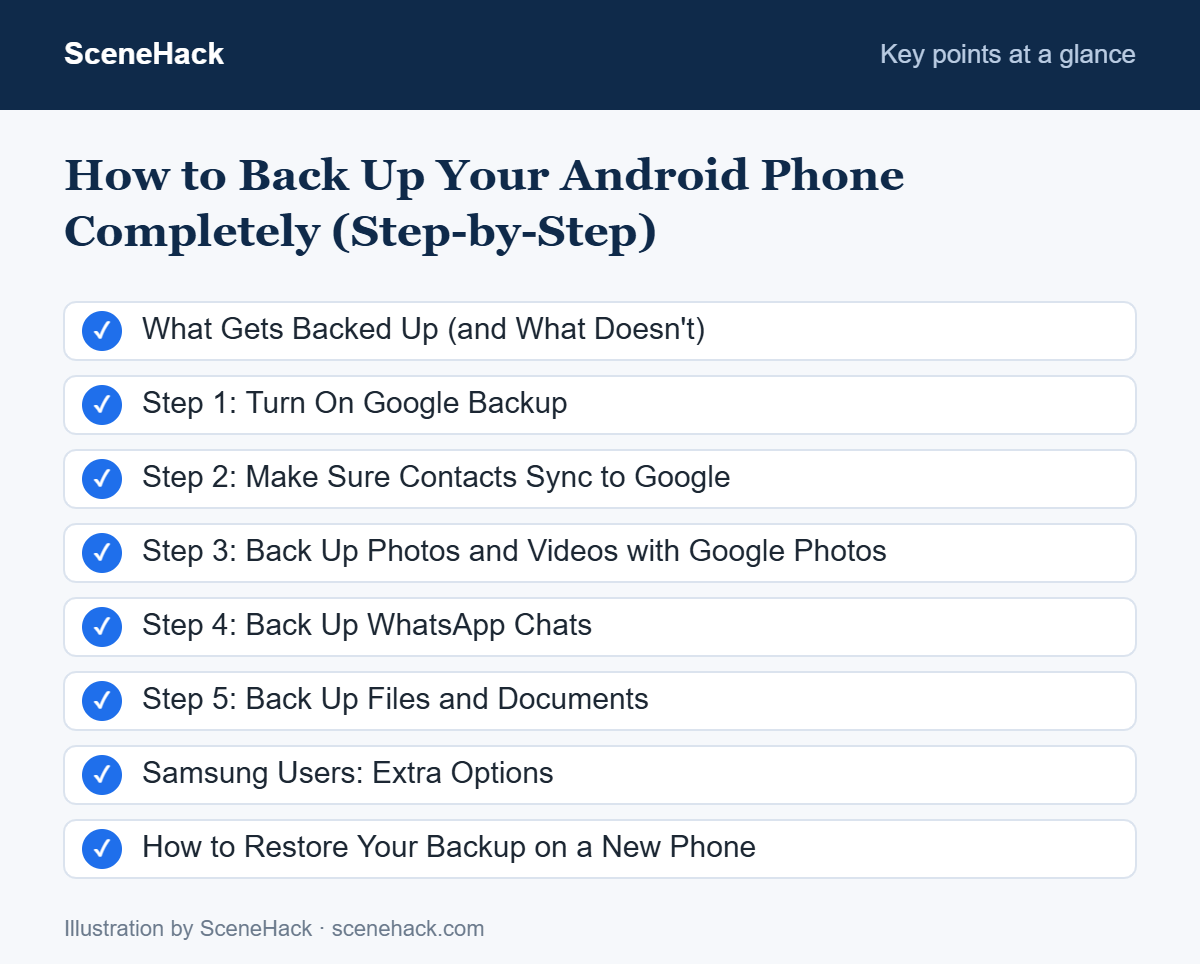
This guide shows you how to back up everything: your settings and apps, contacts, photos and videos, WhatsApp chats and personal files.
What Gets Backed Up (and What Doesn’t)
| Data | Backed Up By |
|---|---|
| Apps, app data, call history, device settings, SMS | Google backup (built into Android) |
| Contacts, calendar | Your Google account sync |
| Photos and videos | Google Photos (must be turned on) |
| WhatsApp chats | WhatsApp’s own chat backup |
| Downloads, documents, music files | Not automatic — back up manually or to cloud storage |
Step 1: Turn On Google Backup
Android’s built-in backup saves your apps, settings, call history and messages to your Google account.
- Open Settings.
- Go to Google → Backup (on some phones: System → Backup, or Accounts and backup on Samsung).
- Turn on Backup by Google One (sometimes just called Google backup).
- Tap Back up now to create your first backup immediately.
After this, your phone backs up automatically, usually when it’s charging and connected to Wi-Fi.
Step 2: Make Sure Contacts Sync to Google
Contacts saved only to your SIM card or “Phone” storage won’t move to a new device. Open the Contacts app, go to its settings, and check that the default account for new contacts is your Google account. If you have old contacts saved on the phone only, most contacts apps offer an option to move contacts to your Google account.
Step 3: Back Up Photos and Videos with Google Photos
Photos are usually the most precious — and the largest — part of your data.
- Open the Google Photos app.
- Tap your profile picture in the top-right corner.
- Tap Turn on backup (or check that backup is already on).
- Choose your backup quality. Storage saver uses less space; Original quality keeps full resolution.
Step 4: Back Up WhatsApp Chats
WhatsApp handles its own backup separately from Android.
- Open WhatsApp and tap the three-dot menu → Settings.
- Go to Chats → Chat backup.
- Choose your Google account and set how often to back up (daily is best).
- Decide whether to include videos, then tap Back up.
For extra security, turn on End-to-end encrypted backup in the same menu — just make sure you remember the password or keep the encryption key safe.
Step 5: Back Up Files and Documents
Files in your Downloads or Documents folders, voice recordings and music you’ve copied to your phone are not included in Google backup. You have two options:
Option A: Upload to Cloud Storage
Open the Google Drive app, tap + → Upload, and select the files you want to keep. Other cloud services like OneDrive or Dropbox work the same way.
Option B: Copy to Your Computer
- Connect your phone to your computer with a USB cable.
- On your phone, tap the USB notification and choose File transfer.
- Your phone appears as a drive on your computer. Copy the DCIM (camera photos), Download, Documents and any other important folders.
Samsung Users: Extra Options
Samsung phones also include Samsung Cloud (under Settings → Accounts and backup) and the Smart Switch app, which can create a complete backup on your computer or transfer everything directly to a new Galaxy phone.
How to Restore Your Backup on a New Phone
When you set up a new Android phone, sign in with the same Google account. The setup wizard offers to restore your apps, settings and data from your latest backup — or to copy directly from your old phone with a cable or wirelessly. Your photos will appear in Google Photos automatically, and WhatsApp will offer to restore your chats when you verify your phone number.
Troubleshooting: Common Problems and Fixes
“Back up now” does nothing or says “waiting”
Backups usually need Wi-Fi and enough free Google storage. Connect to Wi-Fi, check your storage in the Google One app, and try again from Settings → Google → Backup.
Google storage is full
Your free 15 GB is shared by Gmail, Google Drive and Google Photos. Clear large items with the Google One storage manager, or upgrade, otherwise new backups will stop.
WhatsApp backup is stuck
Check that the right Google account is selected in WhatsApp’s chat backup settings, update Google Play services, and try excluding videos to make the backup smaller.
The restore option doesn’t appear on your new phone
Android offers to restore only during initial setup. If you skipped it, you would need to reset the new phone and sign in with the same Google account during setup. Restoring to a phone with an older Android version than the backup may not work.
What Google’s Backup Covers and Where It Stops
According to Google’s Android backup help page, the built-in backup saves apps and app data, call history, contacts, device settings, and SMS and MMS messages. Photos and videos are a separate choice in the same Backup screen, so check that both options are turned on.
The limits matter as much as the coverage. A free Google Account includes 15 GB, shared across services, so a large photo library can fill it quickly. Google says a backup can take up to 24 hours to complete, which means turning it on an hour before a factory reset is not enough. And you cannot restore a backup made on a newer Android version to a phone running an older one. Before you reset or sell a phone, open the Backup screen and confirm each data type shows as backed up.
Android Backups: Common Questions
How do I check when my last backup happened?
Go to Settings → Google → Backup. The date and time of the last successful backup is shown there.
Is Google backup free?
Yes, but it uses your Google account storage. Most people’s app and settings backups are small; photos and videos take the most space.
Sources and further reading: Android Help: Back up or restore data on your Android device.
Related guides: 15 Hidden Android Settings You Should Change Right Now and 14 Tips to Make Your Phone Battery Last Longer.
Make Backups a Habit
Setting up backups takes about 15 minutes, and then it mostly runs by itself. Turn on Google backup and Google Photos today, set WhatsApp to back up daily, and copy your important files to your computer once a month. If your phone ever goes missing, you’ll be glad you did. Set it up once, and you can back up your Android phone automatically every day.