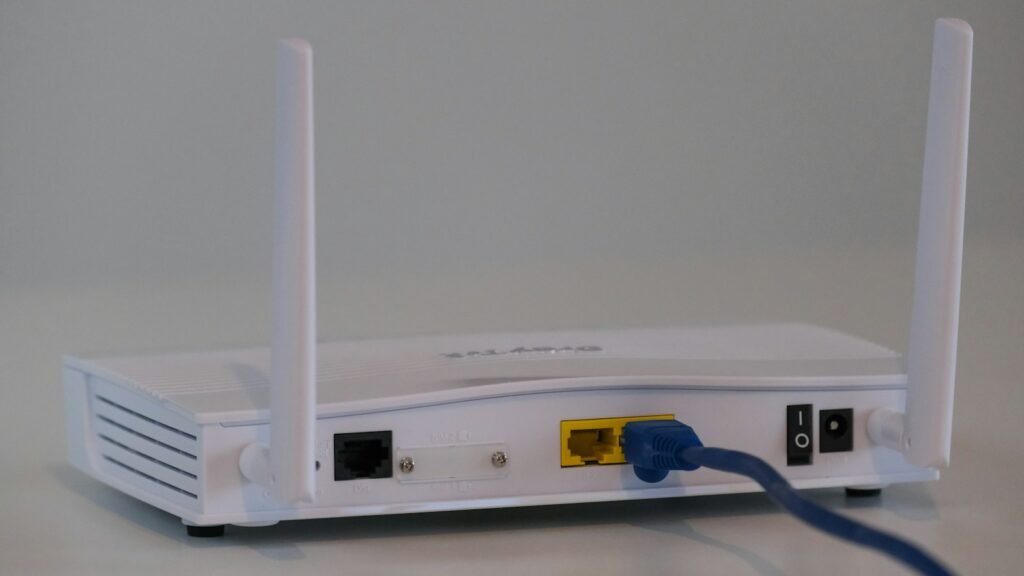
Slow Wi-Fi is frustrating — videos buffer, video calls freeze and downloads crawl. Before you call your internet provider or buy a new router, try these fixes. Most take only a few minutes and cost nothing. Most of the ways to speed up your home Wi-Fi cost nothing at all.
Tested by Ayzaz Khan: I followed the steps in this guide on my Lenovo ThinkPad (Intel Core i7, 5th generation) running Windows 11 on my home Wi-Fi network. Router menus vary by brand and model, and they worked as described. Last checked: September 2026.
Step 1: Test Your Actual Speed
First, find out whether the problem is your Wi-Fi or your internet connection itself. Run a speed test (for example at fast.com or speedtest.net) in two places:
- Standing right next to your router
- In the room where Wi-Fi feels slow
If the speed is low even next to the router, the issue is likely your internet plan or provider. If it’s fast near the router but slow elsewhere, it’s a Wi-Fi coverage problem — and the fixes below will help most.
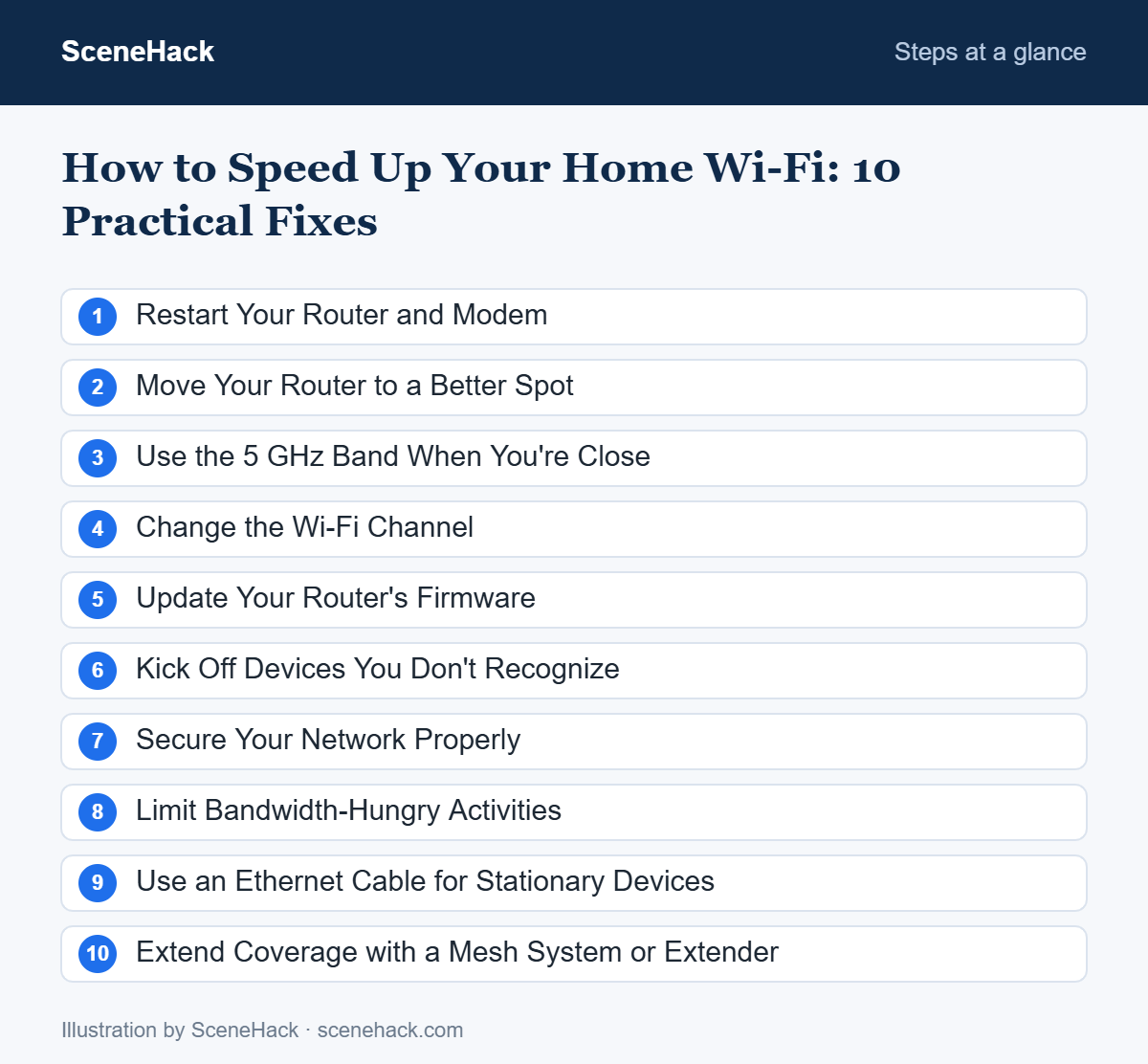
1. Restart Your Router and Modem
Routers are small computers, and they benefit from a restart. Unplug the router (and modem, if separate), wait 30 seconds, and plug it back in. Give it two to three minutes to fully reconnect.
2. Move Your Router to a Better Spot
Router placement makes a huge difference. Wi-Fi signals get weaker through walls, floors and large objects.
- Place the router in a central, open location in your home.
- Put it up high, like on a shelf, not on the floor.
- Keep it away from thick concrete walls, metal objects, mirrors and fish tanks.
- Keep it away from microwaves and cordless phones, which can interfere with the 2.4 GHz band.
- Don’t hide it inside a cabinet or behind the TV.
3. Use the 5 GHz Band When You’re Close
Most modern routers broadcast two networks:
| Band | Speed | Range | Best For |
|---|---|---|---|
| 2.4 GHz | Slower | Longer, better through walls | Distant rooms, smart devices |
| 5 GHz | Much faster | Shorter | Streaming, gaming, calls near the router |
If your phone or laptop is in the same room or next room, connect to the 5 GHz network (often labeled with “5G” or “5GHz” in the name — not to be confused with 5G mobile data).
4. Change the Wi-Fi Channel
In apartment buildings, dozens of routers may compete on the same channel. Log in to your router’s settings page (the address is usually printed on a sticker on the router, commonly 192.168.0.1 or 192.168.1.1) and look for the wireless channel setting. On 2.4 GHz, channels 1, 6 and 11 don’t overlap, so try each one. Many routers also have an “Auto” option that picks the least crowded channel.
5. Update Your Router’s Firmware
Router makers release firmware updates that fix bugs, improve performance and close security holes. In your router’s settings page, look for Firmware Update or System Update. Some newer routers update automatically through their mobile app.
6. Kick Off Devices You Don’t Recognize
If neighbors are using your Wi-Fi, your speed suffers. Check the list of connected devices in your router’s settings or app. If you see unknown devices, change your Wi-Fi password.
7. Secure Your Network Properly
Use WPA2 or, if available, WPA3 security with a strong password. Also change the router’s default admin password — the one used to log in to the settings page — so nobody else can change your settings.
8. Limit Bandwidth-Hungry Activities
Large downloads, cloud backups, game updates and 4K streaming on one device can slow down everyone else. Schedule big downloads for night-time, and pause cloud backups during important video calls. Some routers have a QoS (Quality of Service) setting that lets you prioritize devices or activities, like work calls.
9. Use an Ethernet Cable for Stationary Devices
For a desktop PC, smart TV or game console near the router, a wired Ethernet connection is faster and more stable than Wi-Fi. It also frees up wireless capacity for your phones and laptops.
10. Extend Coverage with a Mesh System or Extender
If your home is large or has multiple floors, one router may simply not reach everywhere. You have two main options:
- Wi-Fi extender: An affordable device that repeats your signal. Place it halfway between the router and the dead zone.
- Mesh Wi-Fi system: Multiple units that work together to create one seamless network. More expensive, but the best solution for large homes.
When to Contact Your Internet Provider
If speeds are still slow even with a wired connection next to the router, the problem is likely outside your home. Contact your provider, share your speed test results, and ask them to check the line — or consider whether your plan’s speed matches your household’s needs.
Troubleshooting: Common Problems and Fixes
Connected to Wi-Fi but no internet
Check whether other devices work. If none do, the problem is the router or your provider: restart the modem and router and look at the indicator lights. If only one Windows PC is affected, run ipconfig /release, ipconfig /renew and netsh winsock reset in an administrator Command Prompt, then restart.
Only one device is slow
Update its Wi-Fi driver and, in Device Manager, open the Wi-Fi adapter’s properties and untick the power-saving option under Power Management. Also check it is not stuck on the 2.4 GHz band.
The 5 GHz network doesn’t appear
Older devices may not support 5 GHz at all. If newer devices can’t see it either, some 5 GHz channels are restricted in certain regions; setting the router to a lower 5 GHz channel (such as 36 to 48) often makes it visible.
Wi-Fi drops every few minutes
Try moving the router away from microwaves and cordless phones, make sure it is not overheating, and update its firmware. If your router combines both bands under one name, giving them separate names can stop devices from switching back and forth.
What We Found When Testing
We tested these fixes on our own home network with our ThinkPad. Restarting the router, moving it to a more open spot and switching the laptop to the 5 GHz band gave the most noticeable improvement in everyday browsing and video calls — the typical result you can expect from these quick changes.
Home Wi-Fi Speed: Common Questions
How often should I restart my router?
Restarting once every week or two can help older routers. If you need to restart it daily, the router may be failing or overheating.
Does a new router make internet faster?
A new router can improve Wi-Fi speed and coverage inside your home, especially if yours is more than five years old. It won’t increase the speed your provider delivers to your home.
Sources and further reading: Microsoft Support: Fix Wi-Fi connection issues in Windows.
Related guides: How to Create Strong Passwords You Can Actually Remember and How to Speed Up a Slow Windows 11 PC: 12 Proven Fixes.
Where to Start With Slow Wi-Fi
Start with the free fixes: restart your router, move it to a central spot, and use the 5 GHz band nearby. Those three steps solve most home Wi-Fi problems. If you still have dead zones, a mesh system is a worthwhile upgrade. Work through these fixes in order and you will speed up your home Wi-Fi without calling your provider.

