Your phone holds your messages, photos, bank apps and passwords, which makes it a valuable target. The good news is that truly “hacked” phones are less common than people fear, and most problems come from a bad app or a compromised account rather than a sophisticated attack. This guide explains the 9 most common warning signs, how to tell a real threat from a normal glitch, and what to do if something is wrong. If you keep asking yourself “is my phone hacked?”, the checks below will give you a clear answer.
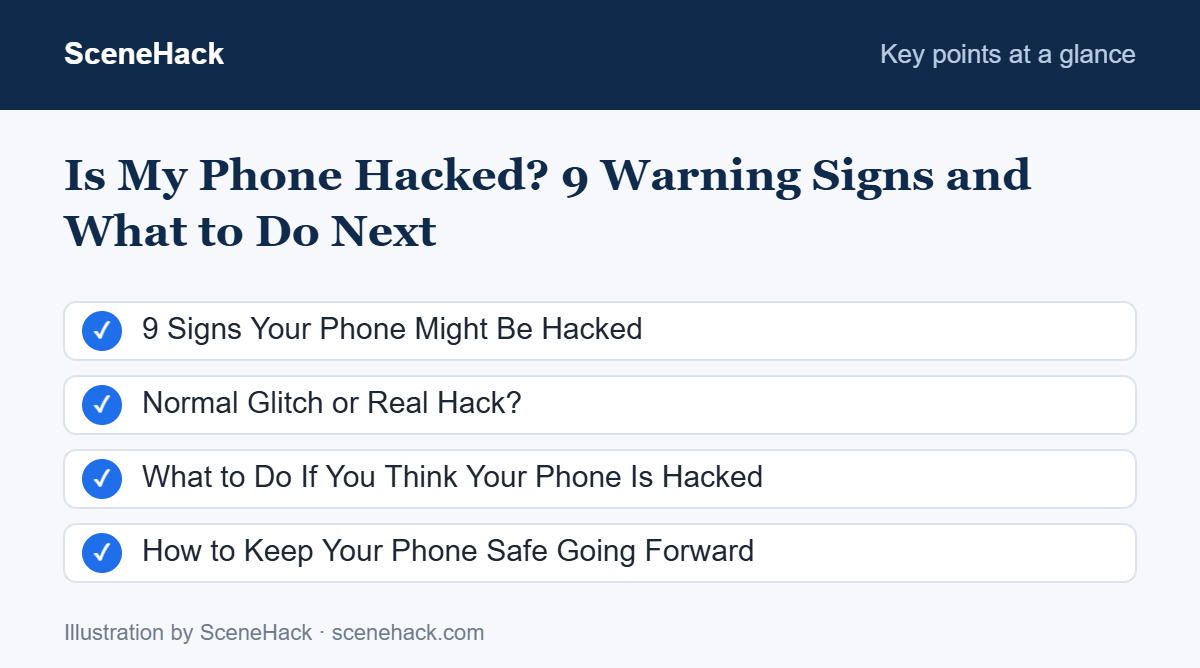
9 Signs Your Phone Might Be Hacked
1. Battery Drains Much Faster Than Usual
Malware and spyware run in the background, using power constantly. Check Settings > Battery > Battery usage. If an app you barely use sits near the top, investigate it. Keep in mind that an ageing battery also drains faster — see our battery life tips to rule out normal causes.
2. Unusually High Data Usage
Spyware has to send what it collects somewhere. Open Settings > Network & internet > Data usage (the exact path varies by phone) and look for apps using far more mobile data than expected.
3. The Phone Runs Hot or Slow for No Reason
A phone that feels warm while idle, or suddenly lags, may be running hidden processes. Heavy games and charging also cause heat, so look for this sign together with others.
4. Apps You Don’t Remember Installing
Go to Settings > Apps > See all apps and scroll through the list. Anything unfamiliar — especially apps with generic names like “System Service” or no icon — deserves a closer look.
5. Pop-Ups and Ads Everywhere
Full-screen ads appearing on your home screen or lock screen, outside any app, are a classic sign of adware.
6. Strange Messages or Calls From Your Number
If friends receive texts or WhatsApp messages you never sent, your phone or one of your accounts may be compromised.
7. Unknown Activity in Your Accounts
Password-reset emails you didn’t request, new logins from unfamiliar locations, or purchases you didn’t make are strong red flags. Check your Google account’s Security > Your devices page for devices you don’t recognise.
8. Settings Changed on Their Own
Watch for security features that were turned off, a new default browser or home screen, or Play Protect being disabled.
9. An App Has Accessibility or Device Admin Access
This is one of the most important checks. Malicious apps often ask for Accessibility permissions so they can read your screen and tap buttons for you. Open Settings > Accessibility and Settings > Security > Device admin apps (sometimes under “More security settings”). Only trusted apps like password managers should appear there.
Normal Glitch or Real Hack?
| Symptom | Usually harmless if… | Worrying if… |
|---|---|---|
| Battery drain | Phone is 2+ years old or you recently updated | An unknown app tops battery usage |
| Slowness | Storage is almost full | It comes with pop-ups or unknown apps |
| Pop-ups | They only appear inside one free app | They appear on the home or lock screen |
| Odd messages | A contact’s account was hacked, not yours | Messages come from your own number or account |
What to Do If You Think Your Phone Is Hacked
- Run a Play Protect scan. Open the Play Store, tap your profile picture, select Play Protect and tap Scan. Remove anything it flags.
- Remove suspicious apps. Uninstall any app you don’t recognise. If the Uninstall button is greyed out, first remove it from Device admin apps, then uninstall it.
- Revoke Accessibility access for any app that shouldn’t have it.
- Update your phone. Go to Settings > System > Software update and install all available updates.
- Change your passwords from a different, safe device — starting with your Google account, email and banking apps.
- Turn on two-factor authentication. Follow our guide on how to enable 2FA.
- Sign out unknown devices from your Google, WhatsApp (Linked devices) and social media accounts.
- Factory reset as a last resort. If problems continue, back up your photos and contacts (not apps you suspect), then go to Settings > System > Reset options > Erase all data.
How to Keep Your Phone Safe Going Forward
- Install apps only from the Google Play Store and avoid “modded” or unofficial APK files — they are one of the most common sources of malware.
- Keep Play Protect turned on and install system updates promptly.
- Don’t tap links in unexpected SMS or WhatsApp messages. Learn to spot phishing messages.
- Use a screen lock and never leave your phone unlocked with strangers.
- Review app permissions every few months and remove apps you no longer use.
The Warning Signs Google Lists
We compared the signs in this guide with Google’s help page on malware and unsafe software. Google lists these as signs to act on: pop-up ads that will not go away, a device that has become slow or is suddenly short of storage, a browser homepage or search engine that changed without you, extensions you did not install, and contacts receiving messages you never sent.
One sign on Google’s list is easy to misread. If Google signs you out of your account by itself, that can be a protective step it takes when it detects a risk on your device, not proof that someone has taken over the account. Sign back in, change your password and review recent security activity. A single symptom such as a slow phone usually has an ordinary cause. Several of these signs together are the pattern that deserves the full checklist in this guide.
Phone Hacking: Common Questions
Can someone hack my phone just by calling me?
For ordinary users, this is extremely unlikely. Most attacks require you to install an app, tap a link or share a code.
Does a factory reset remove all malware?
A factory reset removes almost all malware found on typical phones. Afterwards, avoid restoring apps from untrusted sources.
Do I need a paid antivirus app for Android?
For most people, Google Play Protect plus safe habits is enough. A reputable security app can add extra scanning, but avoid unknown “cleaner” or “booster” apps.
Sources and further reading: Google Play Help: Use Google Play Protect to help keep your apps safe.
Staying Safe After a Scare
One odd sign on its own is rarely proof of a hack, but several signs together deserve action. Scan with Play Protect, remove suspicious apps, update your phone and secure your accounts with new passwords and 2FA. Those steps fix the vast majority of problems. Next time you wonder “is my phone hacked?”, run through these signs before you panic.