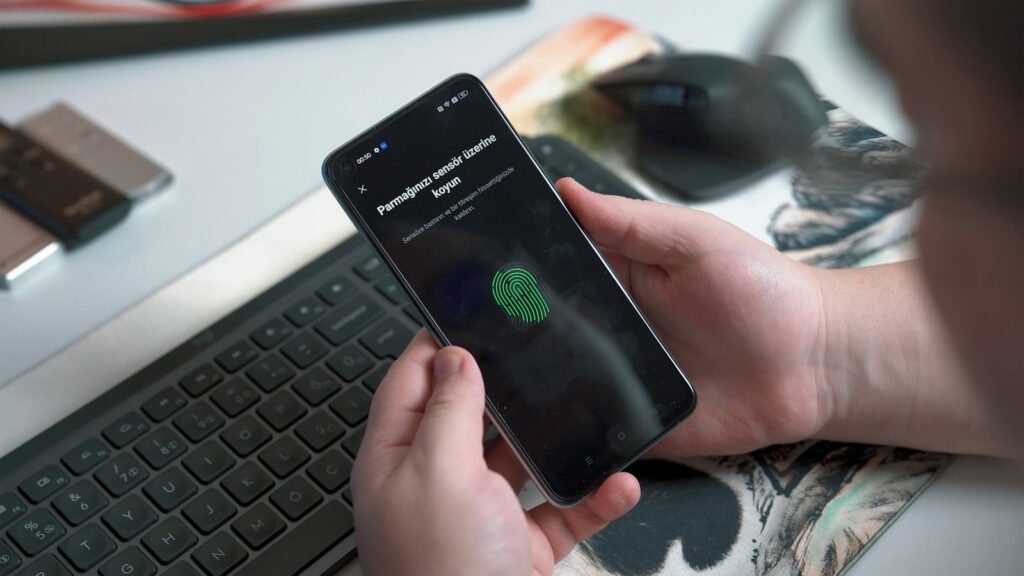
A strong password is a great start, but passwords get leaked, guessed and phished every day. Two-factor authentication (2FA) adds a second lock to your accounts, so even if someone steals your password, they still cannot get in. It takes about two minutes per account to set up, and it is one of the most effective security steps you can take. Setting up two-factor authentication takes only a couple of minutes per account.
Tested by Ayzaz Khan: I followed the steps in this guide on my Lenovo ThinkPad (Intel Core i7, 5th generation) running Windows 11 and on my iPhone 14 Pro Max, and they worked as described. Last checked: September 2026.
What Is Two-Factor Authentication?
2FA means you need two different things to log in: something you know (your password) and something you have (your phone or a security key). When you sign in on a new device, the service asks for a code or an approval on your phone after you type your password. You may also see it called 2-Step Verification or multi-factor authentication (MFA) — they all mean the same idea.
Which 2FA Method Should You Use?
| Method | Security | Convenience | Notes |
|---|---|---|---|
| Passkey or security key | Highest | High | Resistant to phishing; uses your fingerprint, face or a USB/NFC key |
| Authenticator app | High | High | Google Authenticator, Microsoft Authenticator and similar apps; works offline |
| Phone prompt | High | Very high | Tap “Yes, it’s me” on your phone — never approve a prompt you didn’t start |
| SMS code | Medium | High | Better than nothing, but vulnerable to SIM-swap attacks |
Our recommendation: use an authenticator app or passkey where available, and keep SMS only as a backup.
Before You Start: Save Your Backup Codes
Most services give you a set of one-time backup codes when you turn on 2FA. Write them down or store them in a password manager. If you lose your phone, these codes are how you get back in. Never store them only on the same phone you use for 2FA.
How to Turn On 2FA for Your Google Account
- Go to myaccount.google.com and open Security.
- Under “How you sign in to Google”, select 2-Step Verification and follow the steps.
- Add a second step such as Google prompts, an authenticator app or a passkey.
- Download your backup codes from the same page.
Your Google account protects Gmail, Drive, YouTube and your Android phone, so this is the most important account to secure first.
How to Turn On 2FA for WhatsApp
WhatsApp calls it Two-step verification, and it uses a six-digit PIN.
- Open WhatsApp and go to Settings > Account > Two-step verification.
- Tap Turn on and create a PIN you will remember.
- Add an email address so you can reset the PIN if you forget it.
For more WhatsApp protection, see our guide to securing your WhatsApp account.
How to Turn On 2FA for Facebook and Instagram
Both apps now manage security through Meta’s Accounts Center.
- Open the app and go to Settings > Accounts Center > Password and security.
- Tap Two-factor authentication and choose your account.
- Select Authentication app (recommended) or Text message and follow the prompts.
How to Turn On 2FA for Your Microsoft Account
- Sign in at account.microsoft.com and open Security.
- Find Two-step verification under additional security options and turn it on.
- Set up the Microsoft Authenticator app when prompted.
Set Up an Authenticator App in 3 Steps
- Install an authenticator app such as Google Authenticator or Microsoft Authenticator from the Play Store or App Store.
- When a website shows a QR code during 2FA setup, open the app, tap + and scan it.
- Type the six-digit code the app shows to confirm. From now on, the app generates a new code every 30 seconds.
Tip: turn on cloud backup inside your authenticator app, so your codes move with you when you change phones.
Common 2FA Mistakes to Avoid
- Approving prompts you didn’t request. If you get a login prompt out of nowhere, someone has your password. Deny it and change your password immediately.
- Sharing codes with anyone. No bank, company or support agent will ever ask for your 2FA code. Requests for codes are a classic scam — learn the other warning signs of phishing.
- Losing backup codes. Without them, recovering an account after losing your phone can take days.
- Relying on 2FA with a weak password. 2FA works best alongside strong, unique passwords.
What We Found When Testing
We turned on two-factor authentication for our own Google, WhatsApp, Microsoft and social media accounts using the steps in this guide, on our ThinkPad and our iPhone 14 Pro Max. Setting up an authenticator app took a few minutes per account, and we saved the backup codes in our password manager as recommended.
Which Second Step Google Recommends
Not every form of 2FA gives the same protection, and Google’s 2-Step Verification page is direct about it: any second step adds security, but verification codes sent by text or call can be vulnerable to phone number-based hacks such as SIM swapping. Google recommends Google prompts as the second step, because a prompt is easier than typing a code and helps protect against those attacks. Passkeys go further, since they exist only on your devices and cannot be intercepted.
A practical order follows from that: use a passkey or an app prompt where the service offers one, an authenticator app next, and SMS codes only when nothing else is available. SMS is still far better than no second step. Google also provides printable 8-digit backup codes. Save them when you turn 2FA on, because they are how you get back in if your phone is lost.
Two-Factor Authentication: Common Questions
Is SMS 2FA still worth using?
Yes. SMS codes are weaker than an app or passkey, but they still block the vast majority of automated attacks. Use them if nothing better is offered.
What happens if I lose my phone?
Sign in using a backup code or another second step you added, then remove the lost phone from your account’s security settings.
Do I have to enter a code every time I log in?
Usually not. Most services let you mark a device as trusted, so you only see 2FA on new devices or browsers.
Sources and further reading: Google Account Help: Turn on 2-Step Verification.
Which Accounts to Protect First
Turning on two-factor authentication is a small effort with a huge payoff. Start with your email account, then move on to WhatsApp, social media and banking apps. In less than 15 minutes, you can make your accounts dramatically harder to break into. Turn on two-factor authentication today, starting with your email account.

