A friend comes over, asks for the Wi-Fi, and you go blank. Someone set the password up years ago, it is long and random, and the sticker on the router is either faded or hidden behind the TV. We have all been there. Fortunately, if any of your devices has ever connected to that network, it has saved the password, and you can usually see it in a few taps. This guide shows you how to find Wi-Fi password details on Windows 11, iPhone and Android, and what to do when none of them work.
One quick note before we start: these methods are for networks that belong to you or that you are allowed to use. They only reveal passwords your own device already knows.
Find Wi-Fi Password on Windows 11 in Settings
Recent versions of Windows 11 show the password right in Settings. According to Microsoft’s Wi-Fi support page, there are two places to look.
For the network you are connected to now
- Open Settings and go to Network & internet.
- Select Properties for your Wi-Fi connection.
- Next to Wi-Fi network password, select Show.
For a network you used before
- Go to Settings > Network & internet > Wi-Fi.
- Select Manage known networks and choose the network.
- Select Show next to Wi-Fi network password.
If you do not see a Show option, your copy of Windows may not have the update that added it yet. In that case, the Command Prompt method below works on every version.
Find Any Saved Wi-Fi Password With Command Prompt
This is the method IT people tend to use, and it is less scary than it looks. It shows the password for any network your PC has saved, even ones you are not connected to right now. The commands are part of Windows’ built-in netsh wlan tool.
- Select Start, type cmd and open Command Prompt.
- Type this command and press Enter to list every saved network:
netsh wlan show profilesThen type the next command, replacing HomeWiFi with the exact network name from the list. Keep the quotation marks if the name contains spaces.
netsh wlan show profile name="HomeWiFi" key=clearScroll to the Security settings section. You will find the password next to Key Content. If the line is missing, close the window and open Command Prompt again with Run as administrator.
Find Wi-Fi Password on iPhone
Apple made this much easier in iOS 16. Before that, there was simply no way to see a saved password on the phone. These steps follow Apple’s support article.
For the network you are on
- Open Settings and tap Wi-Fi.
- Tap the info button next to your network.
- Tap the Password field, and then confirm with Face ID, Touch ID or your passcode.
For a network you joined before
In Settings > Wi-Fi, tap Edit in the top corner and authenticate. Then tap the info button next to the network and tap Password. On iOS 18 and later, you can also open the Passwords app and tap Wi-Fi to see every saved network in one list.
If a friend also has an iPhone, there is an even quicker trick. Bring your unlocked iPhone near theirs while they try to join, and iOS usually offers to share the password with a single tap.
Find Wi-Fi Password on Android
On Android, the easiest route is the share option, which turns the saved network into a QR code. Google’s Android help page describes it like this:
- Open Settings and go to Network & internet > Internet.
- Tap your Wi-Fi network.
- Tap Share and confirm with your fingerprint, face or PIN.
A QR code appears. The other person can simply point their camera at it to connect, so you may never need the password itself. On many phones, you will also see the password in plain text underneath the code. Menu names differ between Samsung, Xiaomi and other brands, so if you get lost, search Settings for Wi-Fi and look for a QR or share icon.
No Device Remembers It? Check the Router
If none of your devices has connected before, the router is your last stop.
- The sticker. Most routers have a label on the back or bottom showing the network name and default password. The label may call it the WPA key, Wireless key or Network key. This only works if nobody changed the password after setup.
- The admin page. Connect a device to the router with a cable, or use any device that is still online, and open the router address in a browser. It is often 192.168.0.1 or 192.168.1.1, and the same sticker usually lists it. Sign in, open the wireless or Wi-Fi settings, and you will see the password there.
- Your internet provider. If you rent the router from your provider, their app or helpline can often show or reset it.
As a last resort, a factory reset of the router restores the password on the sticker. However, it also wipes every other setting, so treat it as the final option.
Is Your Wi-Fi Password Strong Enough?
While you are looking at it, ask yourself one honest question: is it still the default, or have you shared it with half the street? If so, now is a good time to change it in the router’s admin page. Use a long passphrase rather than a short, clever word. Our guide to strong passwords you can remember shows how to build one.
A stronger password also keeps freeloaders off your connection. If the Wi-Fi has felt slow lately, that might be part of the reason, and our tips to speed up home Wi-Fi can help with the rest.
Find Wi-Fi Password: Common Questions
Can I see a Wi-Fi password without admin rights on Windows?
Often, yes. The Settings method works for a normal user on recent versions of Windows 11. If the Command Prompt method hides the key, you need an administrator account.
Why can’t I see the password on my iPhone?
The feature needs iOS 16 or later. Update the phone in Settings > General > Software Update, and then try again.
Can I find the password for a network I have never joined?
No. These methods only reveal passwords your device has already saved. For a new network, ask the owner or check the router label.
Is it safe to share my Wi-Fi with a QR code?
Yes, as long as you share it with people you trust. Anyone who scans the code gets the same access as someone who types the password.
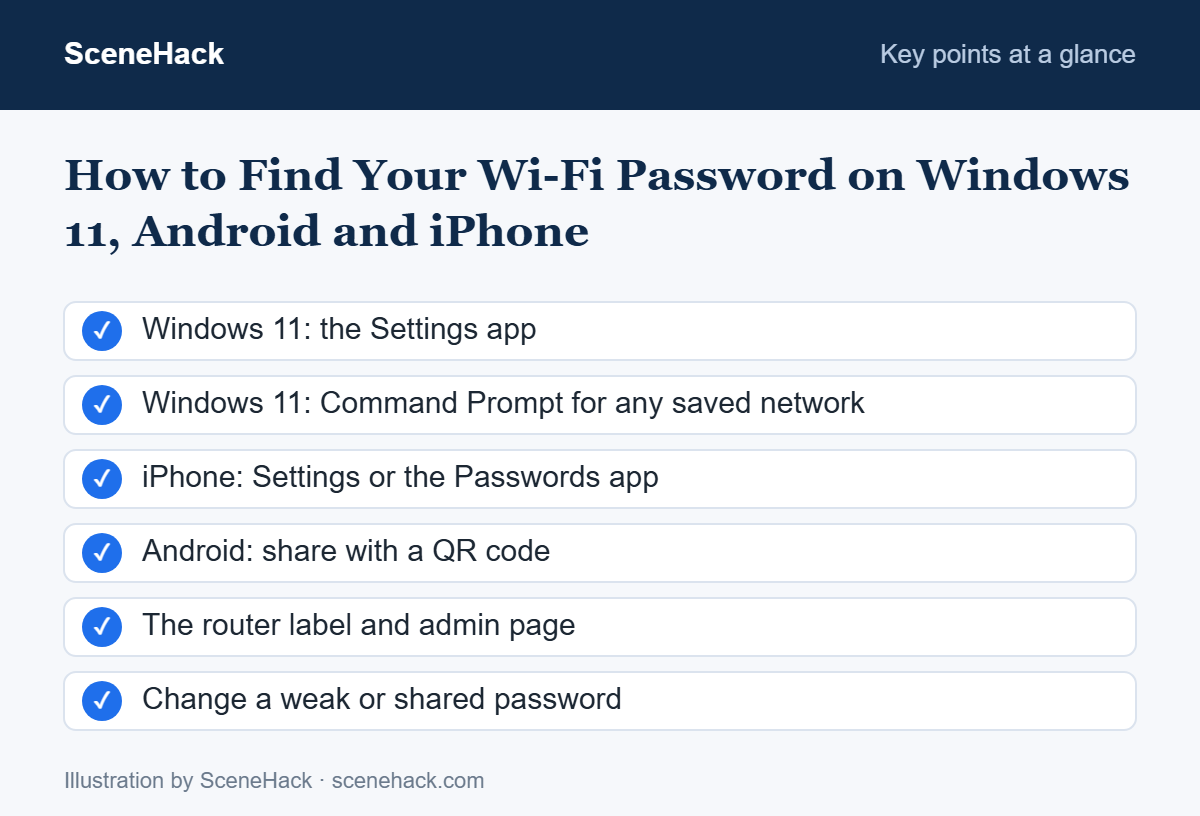
In Short
Start with whichever device is already connected. On Windows 11, check Settings or use one Command Prompt line. iPhone users can tap the network’s info button, while Android users can use the Share QR code. And if nothing remembers it, the router sticker or admin page will. Once you have it, save it in a password manager, so next time a friend asks, you will not have to read this again.

