Bluetooth problems on Windows 11 come in a few frustrating forms: the Bluetooth toggle disappears from Quick Settings, your headphones refuse to pair, a mouse keeps disconnecting, or the device connects but no sound comes out. When Bluetooth is not working, the cause is usually a driver, a power-saving setting or a pairing record that has gone stale. Here is the order we work through when fixing Bluetooth on a Windows laptop.
Quick Diagnosis
| What you see | Likely cause | Try first |
|---|---|---|
| No Bluetooth toggle anywhere | Adapter disabled or driver missing | Fixes 3, 6, 7 |
| Device won’t pair | Device not in pairing mode or old pairing record | Fixes 2, 4 |
| Keeps disconnecting | Power saving, interference or distance | Fixes 8, 9 |
| Connected but no sound | Wrong output device | Fix 10 |
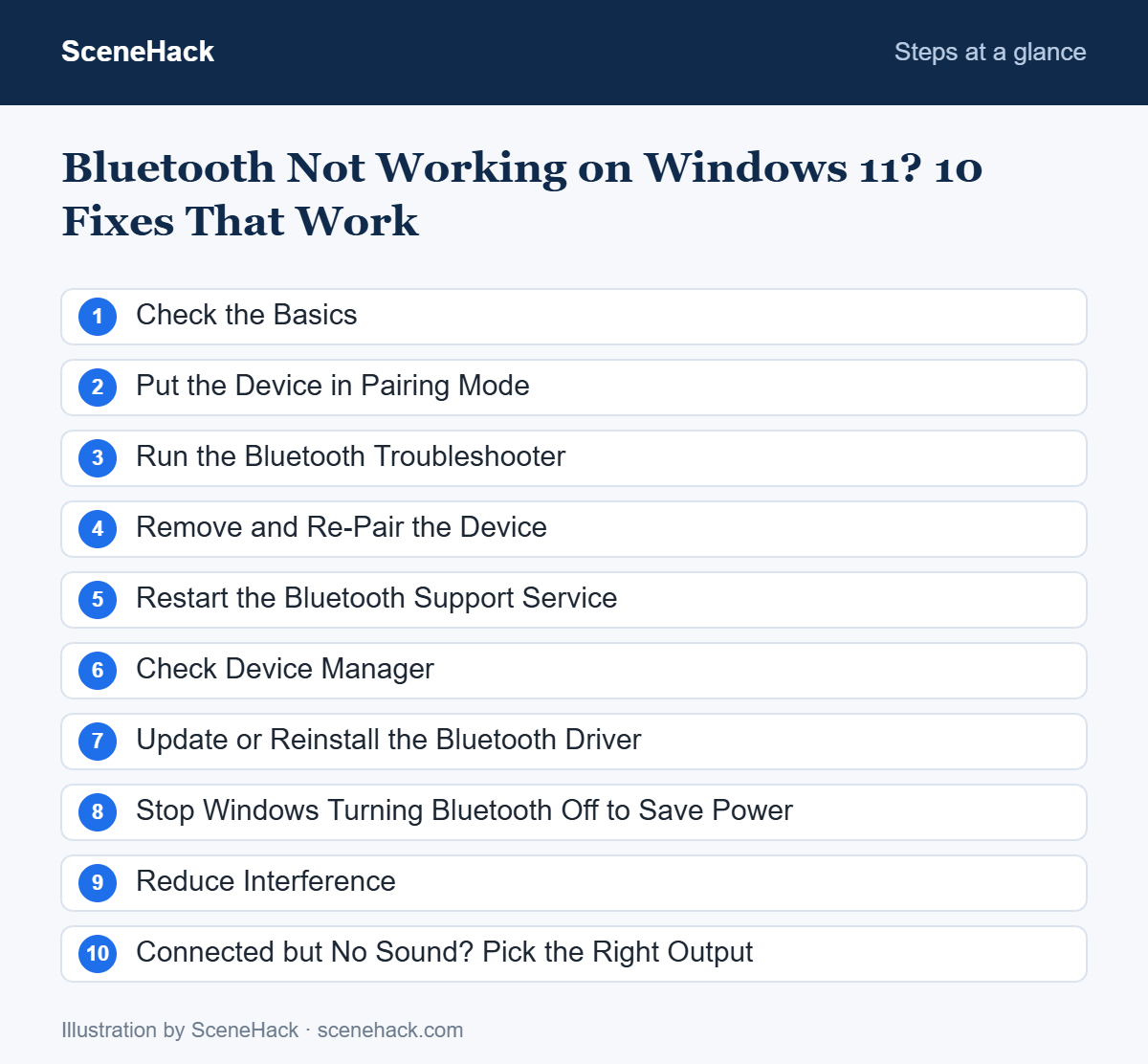
1. Check the Basics
- Make sure Bluetooth is on: press Win + A and check the Bluetooth tile, or open Settings > Bluetooth & devices.
- Turn Airplane mode off.
- Charge the Bluetooth device and keep it within a couple of metres of the PC while pairing.
- Restart both the PC and the device.
2. Put the Device in Pairing Mode
Many earbuds, speakers and mice must be in pairing mode to appear in Windows — usually by holding the power or pairing button until a light flashes. Check the device’s manual. If it is still connected to your phone, turn Bluetooth off on the phone first, as many devices only pair with one host at a time.
3. Run the Bluetooth Troubleshooter
Go to Settings > System > Troubleshoot > Other troubleshooters and run Bluetooth. It checks the adapter, services and settings and fixes common issues automatically.
4. Remove and Re-Pair the Device
A corrupted pairing record is a common reason Bluetooth is not working with one specific device.
- Open Settings > Bluetooth & devices > Devices.
- Click the three dots next to the device and choose Remove device.
- Restart the PC, put the device in pairing mode, and select Add device > Bluetooth.
5. Restart the Bluetooth Support Service
Press Win + R, type services.msc, find Bluetooth Support Service, right-click it and choose Restart. Set its startup type to Automatic if it isn’t already.
6. Check Device Manager
- Right-click Start and open Device Manager.
- Expand Bluetooth. If your adapter shows a down arrow, right-click it and choose Enable device.
- If there is no Bluetooth section, click View > Show hidden devices, or check under Network adapters and Other devices for an unknown device.
7. Update or Reinstall the Bluetooth Driver
In Device Manager, right-click the Bluetooth adapter and choose Update driver. If that doesn’t help, choose Uninstall device and restart — Windows reinstalls it automatically. On laptops, Bluetooth often shares a chip with Wi-Fi, so the best driver usually comes from your laptop maker’s support tool or website. See how to update drivers in Windows 11 safely.
8. Stop Windows Turning Bluetooth Off to Save Power
If devices keep disconnecting, power management may be switching the adapter off. In Device Manager, open your Bluetooth adapter’s Properties > Power Management tab and untick Allow the computer to turn off this device to save power. Do the same for USB Root Hub entries under Universal Serial Bus controllers if your adapter is USB-based.
9. Reduce Interference
Bluetooth shares the 2.4 GHz band with many Wi-Fi routers, microwaves and USB 3.0 ports. Move closer to the PC, keep USB 3.0 devices and hubs away from a USB Bluetooth dongle, and if your router supports it, connect your laptop to the 5 GHz Wi-Fi network instead. More tips in our guide to speeding up home Wi-Fi.
10. Connected but No Sound? Pick the Right Output
Open Settings > System > Sound and select your Bluetooth headphones or speaker under Output. Some headsets show two entries — one for stereo music and one “hands-free” for calls. Choose the stereo one for better audio. If sound broke after an update, see our guide to fixing no sound after a Windows 11 update.
What Microsoft Says Causes Most Bluetooth Problems
According to Microsoft’s Bluetooth troubleshooting page, an outdated or incompatible driver is one of the most common causes of Bluetooth connection problems. Microsoft’s own sequence is: confirm Bluetooth is on and airplane mode is off, check that the device is charged and in range, remove and re-add the device, run the Bluetooth troubleshooter, update the driver, and finally uninstall the Bluetooth adapter in Device Manager so Windows reinstalls it.
Microsoft also names a cause that many people never suspect: unshielded USB 3.0 devices plugged in close to the adapter can interfere with Bluetooth. If your mouse or headphones cut out mainly when a USB drive or hub is connected, move that device to another port before you touch the drivers.
Windows 11 Bluetooth Problems: Common Questions
Why did the Bluetooth option disappear completely?
Usually the adapter was disabled or its driver failed to load. Enabling it in Device Manager or reinstalling the driver brings it back. A full shutdown (not restart) with the charger unplugged for a minute can also reset the hardware on some laptops.
Can I add Bluetooth to a PC that doesn’t have it?
Yes. A small USB Bluetooth adapter works on most desktop PCs and older laptops and installs automatically in Windows 11.
Why does my Bluetooth mouse lag?
Low battery and interference are the most common causes. Replace the battery and move USB 3.0 devices away from the receiver.
Sources and further reading: Microsoft Support: Fix Bluetooth problems in Windows and Bluetooth keeps disconnecting in Windows.
Getting Bluetooth Connected Again
When Bluetooth is not working on Windows 11, start simple: check the toggle, re-pair the device and run the troubleshooter. If the adapter itself is missing or unstable, the driver and power settings are where the real fix usually lies.

