
You send a document to print and nothing happens. Windows shows your printer as Offline, even though it’s switched on and sitting right next to you. A printer offline error is one of the most common office and home IT headaches we deal with, and it’s almost always a communication problem between Windows and the printer rather than a broken printer. Here’s how to get it printing again.
Why Does Windows Say the Printer Is Offline?
“Offline” simply means Windows can’t talk to the printer right now. Common reasons include:
- The printer went to sleep or lost its Wi-Fi connection.
- The printer’s IP address changed after a router restart.
- A stuck print job is blocking the queue.
- The Print Spooler service has frozen.
- Windows has “Use Printer Offline” turned on, or a driver problem.
Quick Checks by Connection Type
| Connection | Check |
|---|---|
| USB | Cable firmly connected; try a different USB port and cable |
| Wi-Fi | Printer and PC on the same network; printer’s Wi-Fi light is solid |
| Ethernet | Network cable connected and link lights on at both ends |
| Shared printer | The PC sharing the printer is turned on and awake |
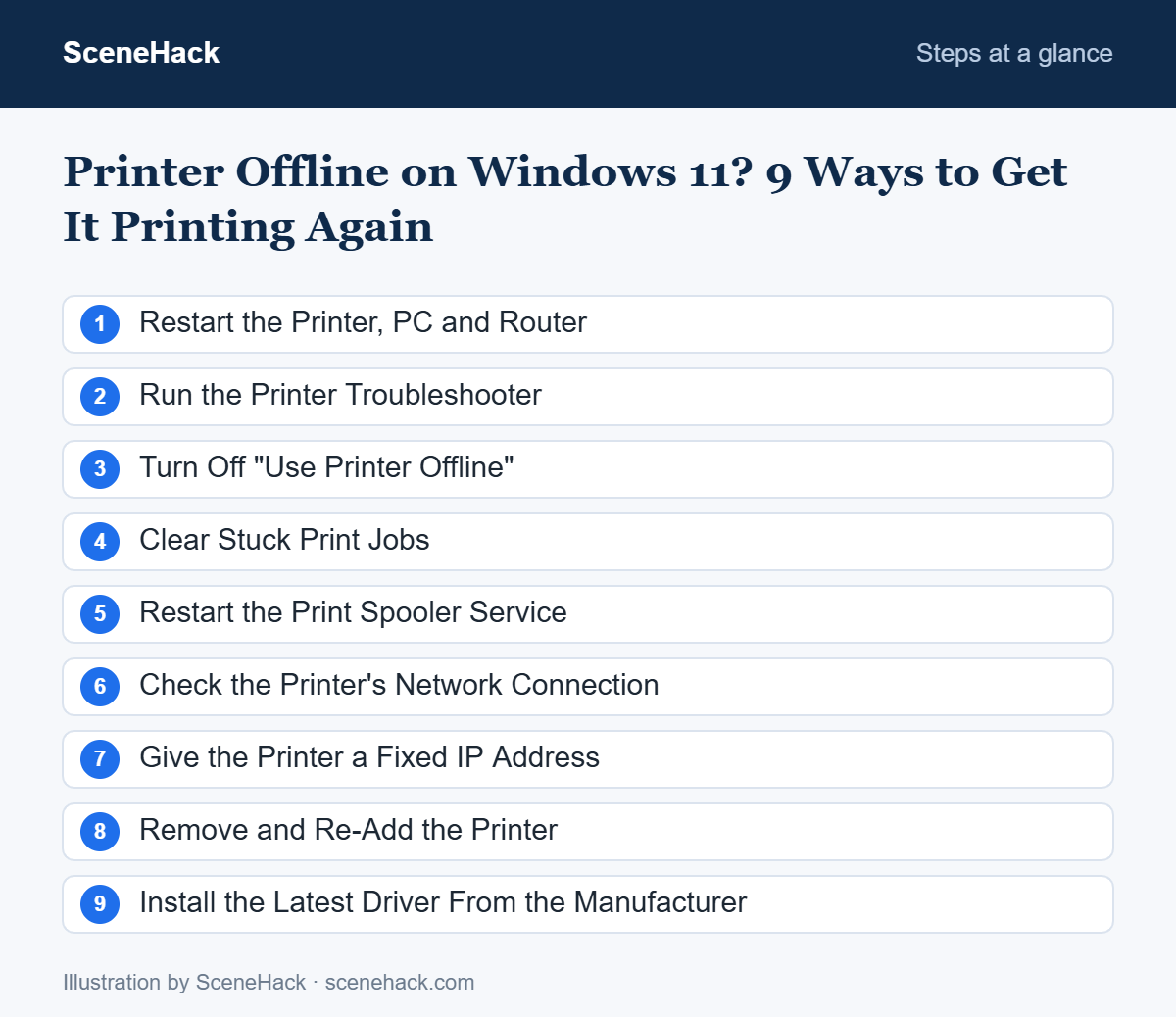
1. Restart the Printer, PC and Router
Turn the printer off, unplug it for 30 seconds, and turn it back on. Restart your PC. If it’s a Wi-Fi printer, restart the router too. This alone fixes a large share of printer offline problems.
2. Run the Printer Troubleshooter
Go to Settings > System > Troubleshoot > Other troubleshooters and run Printer. It checks the spooler, driver and connection and can fix common issues automatically.
3. Turn Off “Use Printer Offline”
- Open Settings > Bluetooth & devices > Printers & scanners and select your printer.
- Click Open print queue.
- In the queue window, open the Printer menu (or the three dots) and make sure Use Printer Offline is not ticked.
4. Clear Stuck Print Jobs
A single failed job can block everything behind it. In the print queue, select all jobs and choose Cancel. If they won’t clear, go to Fix 5.
5. Restart the Print Spooler Service
- Press Win + R, type services.msc and press Enter.
- Right-click Print Spooler and choose Stop.
- Open C:\Windows\System32\spool\PRINTERS in File Explorer and delete the files inside (not the folder itself). Approve the admin prompt if asked.
- Go back to Services, right-click Print Spooler and choose Start.
6. Check the Printer’s Network Connection
For Wi-Fi printers, print a network configuration page from the printer’s own menu (often by holding the Wi-Fi or info button). It shows whether the printer is connected and its current IP address. If it’s not connected, run the printer’s Wi-Fi setup again from its screen or the manufacturer’s app, and make sure it joins the same network as your PC — many printers only support 2.4 GHz Wi-Fi.
7. Give the Printer a Fixed IP Address
If the printer goes offline every time the router restarts, its IP address is probably changing. In your router’s admin page, look for DHCP reservation (sometimes “address reservation” or “static lease”) and reserve the printer’s current IP address. Then remove and re-add the printer in Windows so it uses that address.
8. Remove and Re-Add the Printer
- In Settings > Bluetooth & devices > Printers & scanners, select the printer and click Remove.
- Restart the PC.
- Click Add device and let Windows find the printer. If it doesn’t appear, choose Add manually and enter its IP address.
9. Install the Latest Driver From the Manufacturer
Download the current Windows 11 driver or software package from the printer maker’s official support site (HP, Canon, Epson, Brother and others). Avoid third-party “driver download” sites. Our guide on updating drivers safely explains why.
What Microsoft Recommends First for an Offline Printer
Microsoft’s offline printer guide follows a clear order, and it starts with the simplest things. After the automated troubleshooter in the Get Help app, the first real step is a power cycle: turn the printer off, unplug it, wait 30 seconds and plug it back in. Next comes checking that the printer and PC are on the same Wi-Fi network, setting the printer as default, clearing the print queue, and restarting the Print Spooler service.
Removing and re-adding the printer comes near the end of Microsoft’s list, not the start. That matches the order in this guide: most “offline” messages are a communication problem between the PC and the printer, so a restart of both and a network check are worth doing before you reinstall anything.
Printer Offline Errors: Common Questions
Why does my printer keep going offline?
The most common reasons are the printer’s sleep mode dropping its Wi-Fi connection and a changing IP address. Reserving its IP address (Fix 7) and updating the printer’s firmware usually stop it.
My printer works from my phone but not my PC. Why?
Your phone may be on a different band or network, or your PC’s print queue is stuck. Clear the queue, restart the spooler and confirm both devices are on the same Wi-Fi.
Do I need the manufacturer’s app to print?
Not always — Windows 11 can print to many printers with its built-in driver. However, the maker’s software is often needed for scanning and advanced features.
Sources and further reading: Microsoft Support: Troubleshooting offline printer problems in Windows.
Keeping Your Printer Online
A printer offline message almost always means a lost connection, not a dead printer. Restart everything, clear the queue and the spooler, and check the printer’s network settings. If it keeps happening, a fixed IP address is the long-term fix we recommend.

