Your laptop was working fine yesterday. Then Windows 11 installed an update overnight, and now there is no sound at all — no system chimes, no YouTube audio, and maybe a red X on the speaker icon. This is one of the most common problems after a Windows update, and it is almost always caused by the audio driver or a settings change rather than broken hardware. If you have no sound after a Windows update, work through the fixes below in order.
Why Windows Updates Break Audio
Windows Update sometimes replaces your laptop maker’s audio driver (usually from Realtek, Conexant or Intel) with a newer generic version. On older laptops in particular, the new driver may not fully support the sound chip. Updates can also switch your default playback device, reset enhancements, or leave the Windows Audio service stuck. Each fix below targets one of these causes.
| Symptom | Most likely cause | Try first |
|---|---|---|
| Red X on speaker icon | Driver problem or service stopped | Fixes 4, 5, 6 |
| Sound plays through the wrong device | Default output changed | Fix 2 |
| Crackling or very quiet audio | Enhancements or wrong driver | Fixes 7, 8 |
| No output device listed | Driver missing or disabled | Fixes 5, 8, 9 |
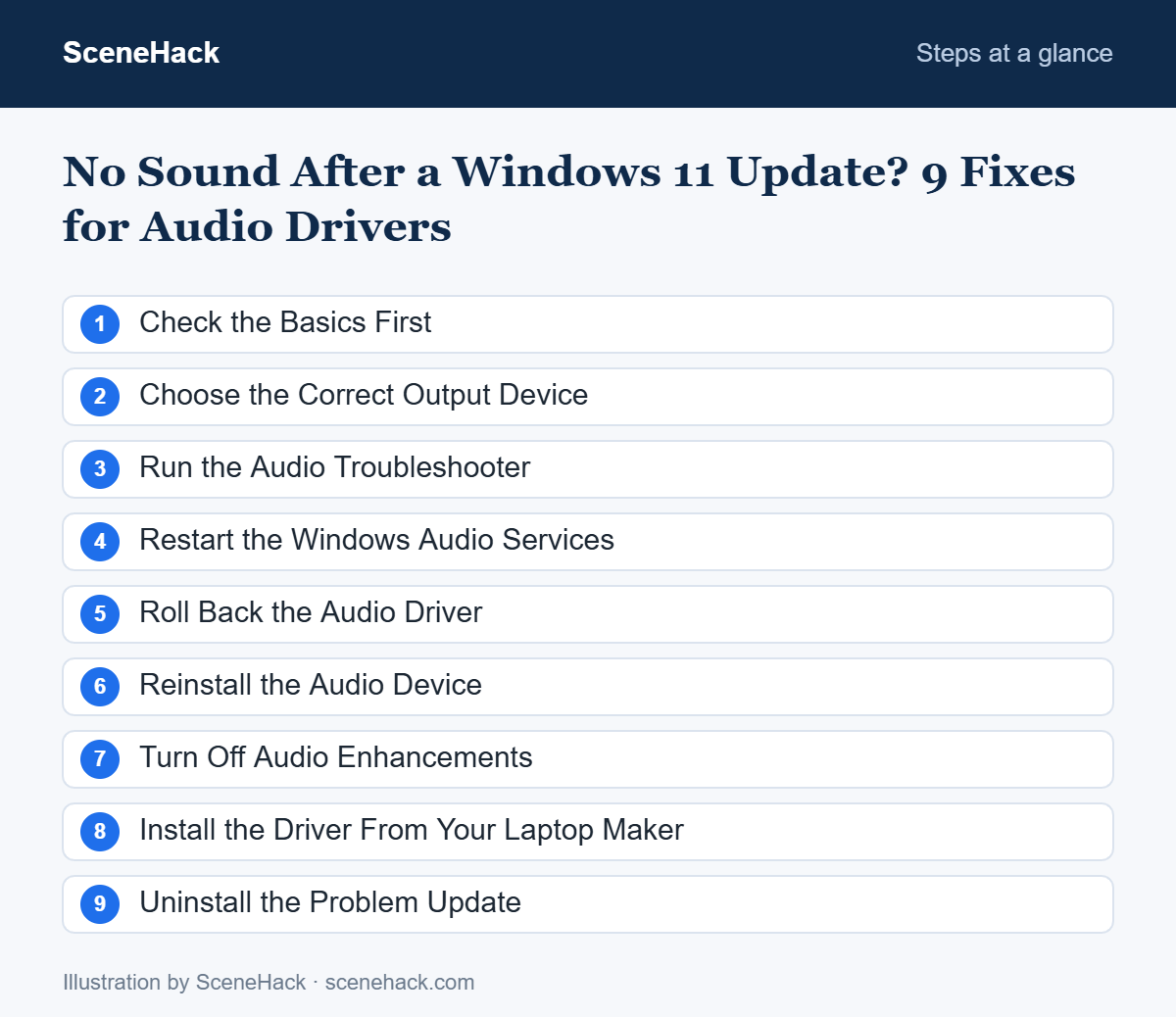
1. Check the Basics First
- Click the speaker icon on the taskbar and make sure the volume isn’t muted or at zero.
- Unplug and reconnect headphones or external speakers. Try both the headphone jack and the laptop speakers.
- Restart your PC — not just sleep — so the updated driver finishes loading.
2. Choose the Correct Output Device
Updates can change the default device to something you’re not using, like a monitor with no speakers or a disconnected Bluetooth headset.
- Open Settings > System > Sound.
- Under Output, select your laptop speakers or headphones.
- Play a sound to test. You can also switch quickly from the arrow next to the volume slider in Quick Settings (Win + A).
3. Run the Audio Troubleshooter
In Settings > System > Sound, scroll down and select Troubleshoot common sound problems for output devices. Windows opens the Get Help troubleshooter, which checks services, drivers and settings automatically and fixes many problems on its own.
4. Restart the Windows Audio Services
- Press Win + R, type services.msc and press Enter.
- Find Windows Audio, right-click it and choose Restart.
- Do the same for Windows Audio Endpoint Builder.
- Make sure both are set to Automatic startup type.
5. Roll Back the Audio Driver
If sound stopped right after an update, going back to the previous driver is often the quickest fix.
- Right-click Start and open Device Manager.
- Expand Sound, video and game controllers.
- Right-click your audio device (for example “Realtek Audio” or “Conexant SmartAudio”) and choose Properties.
- On the Driver tab, click Roll Back Driver and follow the prompts, then restart.
If the button is greyed out, no older driver is stored — continue with the next fixes. For more on drivers, see our guide on how to update drivers in Windows 11 safely.
6. Reinstall the Audio Device
In Device Manager, right-click the audio device and choose Uninstall device. Do not tick the option to delete the driver software. Restart your PC and Windows will reinstall the device automatically.
7. Turn Off Audio Enhancements
Enhancements such as bass boost or spatial sound can conflict with a new driver. Go to Settings > System > Sound, select your speakers, and set Audio enhancements to Off. Test again.
8. Install the Driver From Your Laptop Maker
Laptop makers publish audio drivers tuned for your exact model. Use the official tool — Lenovo Vantage, Dell SupportAssist, HP Support Assistant or MyASUS — or download the driver from the support page on the manufacturer’s website. Older laptops often need this driver instead of the generic one delivered by Windows Update.
Alternative: in Device Manager, choose Update driver > Browse my computer for drivers > Let me pick from a list and select High Definition Audio Device. This basic Microsoft driver works on most sound chips and is a good fallback.
9. Uninstall the Problem Update
If nothing else works, remove the update that caused the problem:
- Open Settings > Windows Update > Update history.
- Scroll down and select Uninstall updates.
- Uninstall the most recent update and restart.
Windows may try to install it again later. You can pause updates for a week or two in Settings > Windows Update while waiting for a fixed version.
What Microsoft Says Causes Audio to Fail After an Update
Microsoft has a support page for exactly this situation, and it names the cause directly: incompatible or partially installed audio drivers can stop Windows audio services from working correctly. Its recommended order has four steps: install any pending Windows updates, update the audio driver, roll back the audio driver, and restart the Windows audio services.
The first step surprises people. Installing more updates feels wrong when an update caused the problem, but Microsoft’s reasoning is that pending updates can replace missing components and fix known audio issues. The rollback option matters most when sound stopped immediately after a driver update: returning to the previous driver is quicker and safer than hunting for a new one.
No Sound on Windows 11: Common Questions
Will rolling back the driver delete my files?
No. Rolling back or reinstalling a driver only affects the driver software, not your personal files.
Why does sound work in headphones but not speakers?
This usually means the wrong output device is selected, or the new driver doesn’t detect the internal speakers properly. Try Fixes 2 and 8.
How do I stop Windows Update from replacing my audio driver again?
Installing the manufacturer’s driver usually stops the problem. If Windows keeps replacing it, pausing updates briefly buys time until a fixed update arrives.
Sources and further reading: Microsoft Support: Fix audio stops working after a Windows update and Fix sound or audio problems in Windows.
Getting Your Audio Back
When there is no sound after a Windows update, the audio driver is the usual suspect. Check the output device first, then roll back or reinstall the driver, and use your laptop maker’s driver if the generic one doesn’t work. In most cases, your sound will be back within 15 minutes.

