“Storage full” — few notifications are more annoying, especially when you’re about to take a photo or install an important update. Low storage also makes Android phones slower, because the system needs free space to run smoothly. These safe methods help you free up storage on Android without deleting anything important.
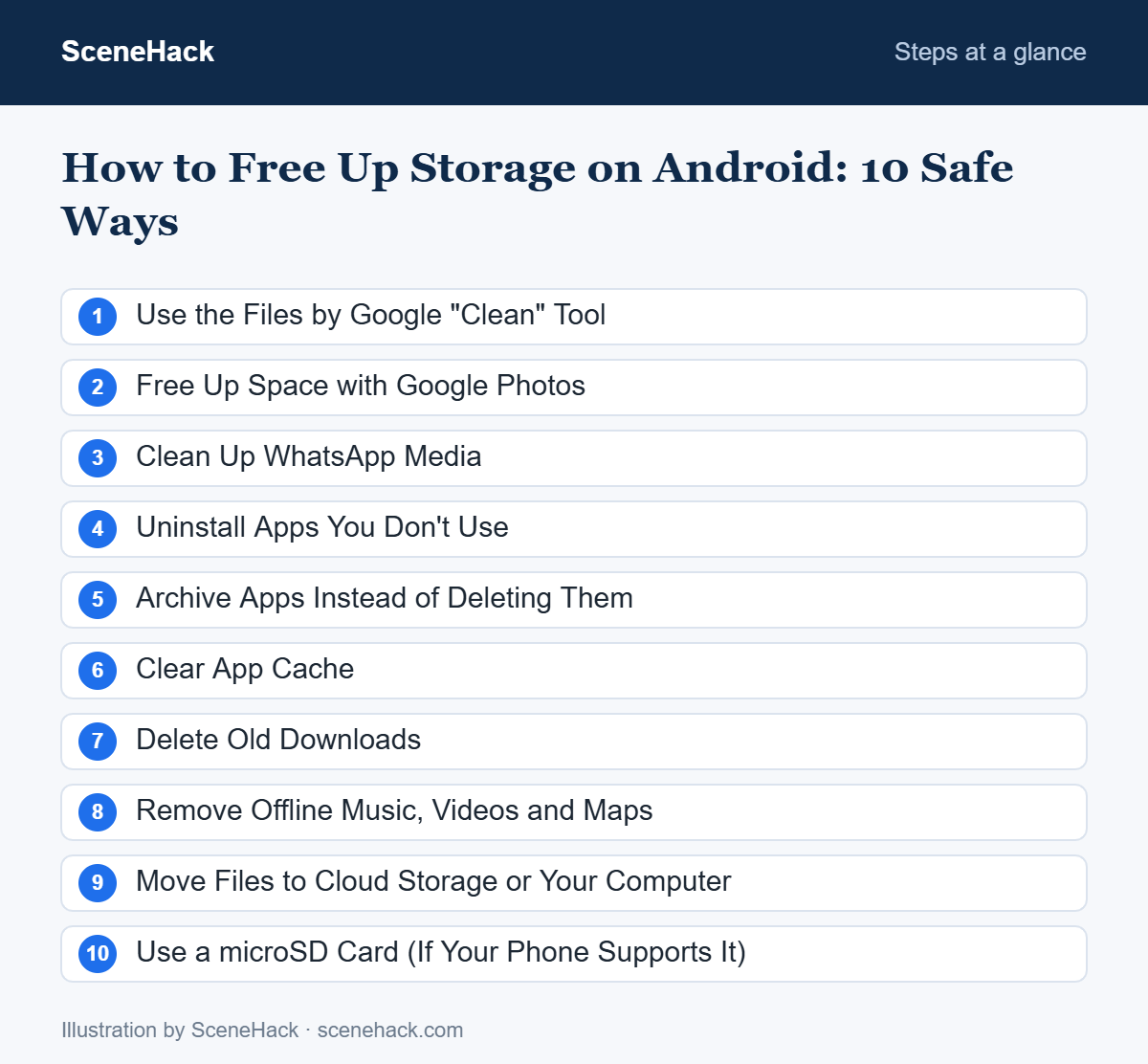
The good news: you can usually free up several gigabytes in 15 minutes without deleting anything important. Here are 10 safe ways to do it, starting with the ones that free the most space.
Step 1: See What’s Using Your Storage
Open Settings → Storage (on Samsung: Settings → Battery and device care → Storage). You’ll see a breakdown by category: apps, images, videos, audio, documents and system. This tells you where to focus. For most people, photos, videos and WhatsApp media are the biggest culprits.
1. Use the Files by Google “Clean” Tool
The free Files by Google app (pre-installed on many phones) has a Clean tab that finds junk files, duplicate files, large files, old screenshots and apps you haven’t used in a while. Review each suggestion and tap to delete. It’s one of the fastest ways to reclaim space safely.
2. Free Up Space with Google Photos
If your photos and videos are already backed up to Google Photos, the copies on your phone are duplicates. Open Google Photos, tap your profile picture, and choose Free up space. It removes only the items that are safely backed up — they remain available in the app and at photos.google.com.
3. Clean Up WhatsApp Media
Group chats quietly fill your phone with forwarded videos, memes and voice notes. In WhatsApp, go to Settings → Storage and data → Manage storage. You’ll see files larger than 5 MB, forwarded-many-times items, and a list of chats sorted by size. Delete what you don’t need.
To stop the problem from coming back, turn off automatic downloads under Settings → Storage and data → Media auto-download, at least for videos on mobile data.
4. Uninstall Apps You Don’t Use
Go to Settings → Apps and look through the list. Games are often the largest apps, sometimes several gigabytes each. If you haven’t opened an app in months, uninstall it — you can always download it again from the Play Store.
5. Archive Apps Instead of Deleting Them
Newer Android versions and the Play Store support app archiving. Archiving removes most of an app’s size but keeps its icon and your data, so you can restore it later with one tap. Look for the Archive option on the app’s info page, or turn on automatic archiving of unused apps in the Play Store settings (if available on your phone).
6. Clear App Cache
Apps store temporary data called cache to load faster. Over time, social media, browsers and streaming apps can build up hundreds of megabytes. Go to Settings → Apps → [app name] → Storage & cache → Clear cache.
Don’t tap Clear storage or Clear data unless you’re sure — that resets the app and may log you out or delete offline content.
7. Delete Old Downloads
Your Download folder is often full of PDFs, APK installers and attachments you opened once. Open Files by Google → Browse → Downloads, sort by size, and delete what you no longer need.
8. Remove Offline Music, Videos and Maps
Streaming apps like Spotify, YouTube and Netflix let you download content for offline use — and those downloads can be huge. Check each app’s downloads section and remove shows or playlists you’ve finished. Offline Google Maps areas can also take up space; manage them under Maps → profile picture → Offline maps.
9. Move Files to Cloud Storage or Your Computer
Documents, old videos and recordings you want to keep but rarely need can live elsewhere. Upload them to Google Drive, or connect your phone to your computer with a USB cable and copy them over. Then delete them from the phone.
10. Use a microSD Card (If Your Phone Supports It)
Some phones — especially budget and mid-range models — have a microSD card slot. You can set your camera to save photos directly to the card and move large files there, freeing internal storage for apps.
What Is “System” Storage, and Can I Delete It?
The “System” category contains Android itself and space reserved for updates. You can’t safely delete it. Its size varies between phones and can grow slightly after major updates — this is normal.
Troubleshooting: Common Problems and Fixes
Deleted files but no space was freed
Many apps move files to a trash folder first. Empty the trash in Files by Google, your Gallery app and Google Photos, then restart the phone so the storage figure refreshes.
Storage fills up again within days
Google Photos keeps a local copy of backed-up photos until you use its Free up space option. Messaging apps such as Telegram also build a large cache; set a cache size limit in their storage settings.
“Insufficient storage” when updating apps
An app update needs room for both the download and the install, so it can fail even when some space is free. Aim to keep at least 1 to 2 GB free, and clear the Google Play Store cache in Settings → Apps.
Your microSD card isn’t detected
Remove and reinsert the card with the phone switched off. If it still doesn’t show, test it in a computer. Note that many apps can’t be moved to a card at all, and a card set up as internal storage only works in that one phone.
What Google Recommends for Freeing Up Storage
Google’s Android storage help page starts in one place: Settings > Storage > Free up space. From there you can review files by category and move them to Trash. The same screen offers Smart Storage, which automatically removes photos and videos from the phone once they are backed up and storage is nearly full.
Google’s other suggestions match the methods in this guide: remove photos that are already backed up, delete downloaded movies and music, uninstall unused apps, clear app cache, and move files to a computer over USB. Google also makes a distinction that clears up a common confusion: storage is where you keep data such as music and photos, while memory is where apps run. Freeing storage will not fix an app that is slow because the phone is short of memory.
Android Storage: Common Questions
How much free storage should I keep?
Try to keep at least 10–15% of your storage free. This leaves room for updates, temporary files and new photos, and helps your phone stay responsive.
Are cleaner or “booster” apps from the Play Store worth it?
Generally no. Android’s built-in tools and Files by Google do the same job without ads or background processes. Some third-party cleaners even slow your phone down.
Sources and further reading: Android Help: Free up storage on your Android device.
Keeping Your Android Storage Free
Start with the big wins: Google Photos “Free up space,” WhatsApp media cleanup and unused apps. Then make it a habit to review your storage once a month. For more ways to keep your phone running smoothly, check out our list of hidden Android settings you should change. Repeat these steps every few months to free up storage on Android before it runs out again.