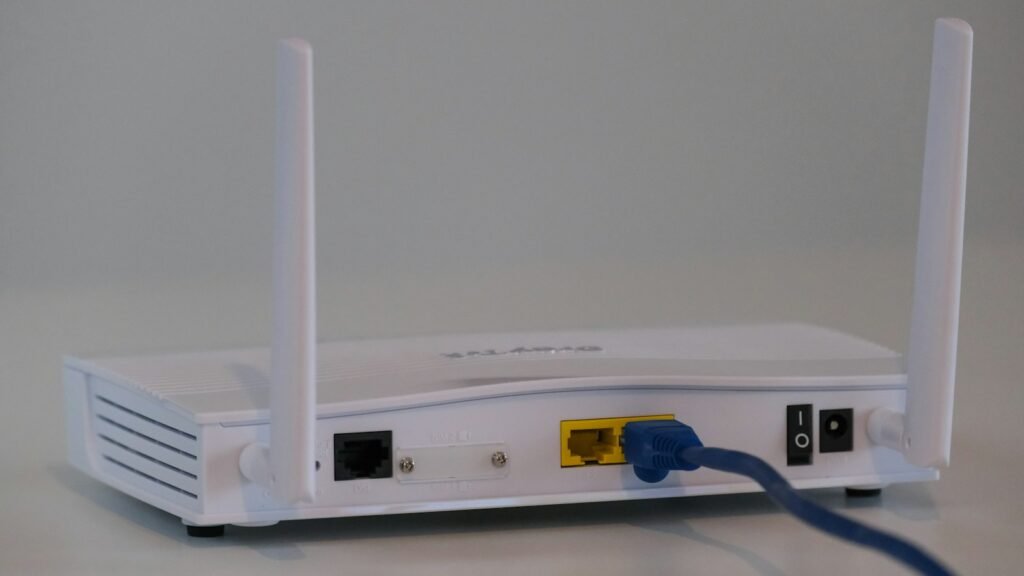
Few things are more frustrating than seeing the Wi-Fi icon show full bars while every web page refuses to load. Windows 11 may say “No internet, secured” or simply spin forever. The good news: this problem is almost always fixable in a few minutes. This guide walks you through 11 fixes, starting with the quickest and most common solutions. If your Wi-Fi is connected but there is no internet, work through the fixes below in order.
Tested by Ayzaz Khan: I followed the steps in this guide on my Lenovo ThinkPad (Intel Core i7, 5th generation) running Windows 11, and they worked as described. Last checked: September 2026.
Why Does This Happen?
Being “connected to Wi-Fi” only means your PC is talking to your router. Getting onto the internet is a second step: the router must be online, your PC needs a valid IP address, and DNS has to turn website names into addresses. A problem at any of these points gives you the classic “connected but no internet” error.
| Likely cause | Quick check |
|---|---|
| Router or ISP outage | Do other devices also have no internet? |
| IP address conflict | Only one PC affected, others work fine |
| DNS problem | Apps like WhatsApp work but websites do not load |
| Driver or settings issue | Problem started after a Windows update |
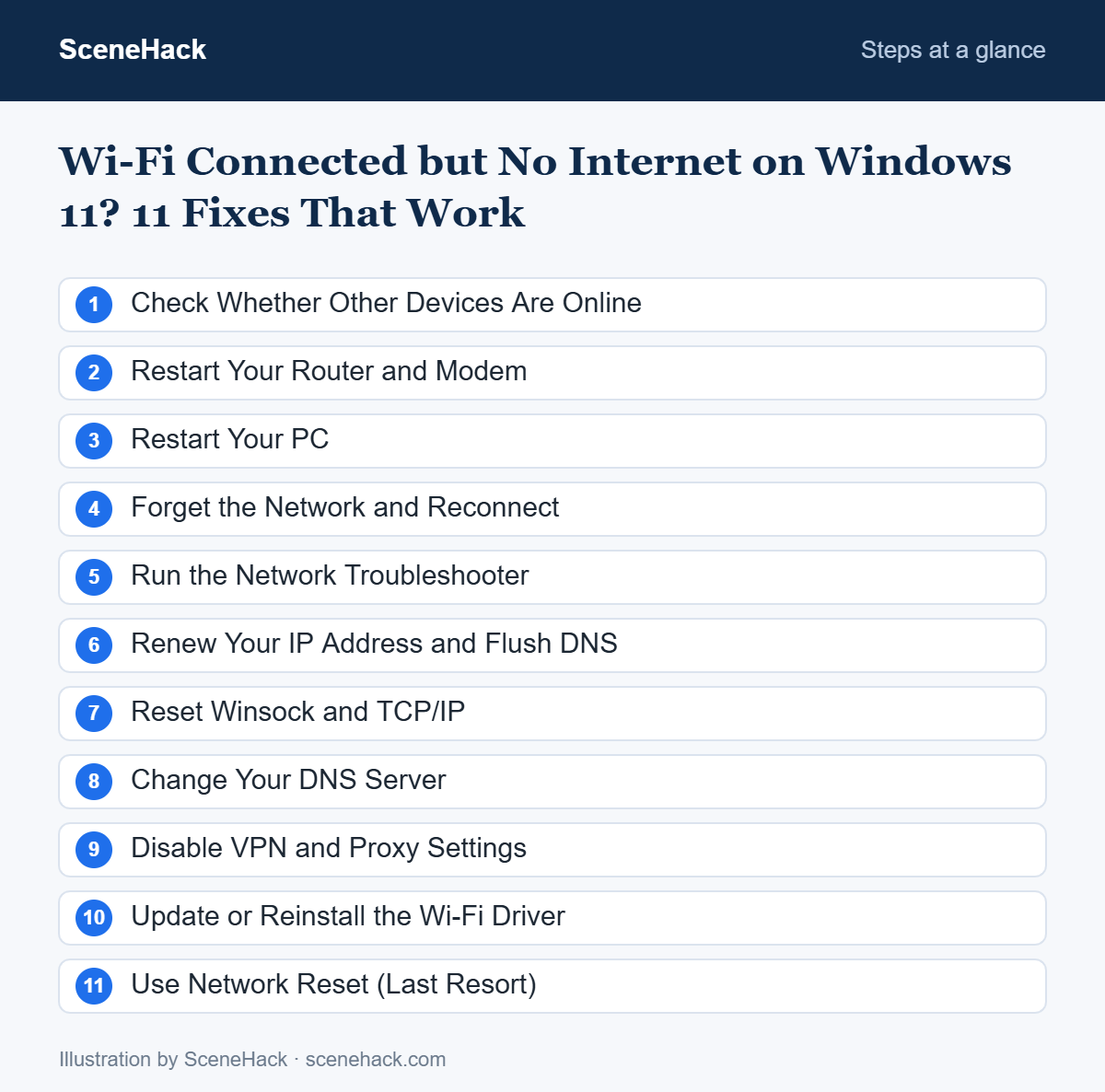
1. Check Whether Other Devices Are Online
Before changing anything on your PC, open a website on your phone using the same Wi-Fi. If your phone also has no internet, the problem is your router or your internet provider, not Windows. Skip to Fix 2. If the phone works, the issue is on your PC and you can jump to Fix 3.
2. Restart Your Router and Modem
Unplug the router (and the modem, if separate) from power, wait 30 seconds, then plug it back in. Give it two to three minutes to fully reconnect. This clears temporary glitches and is the single most effective fix. If the internet light on the router stays red or off, contact your ISP — there may be an outage in your area. For more router tips, see our guide on how to speed up your home Wi-Fi.
3. Restart Your PC
A full restart (not shut down with Fast Startup) resets the network stack. Click Start > Power > Restart.
4. Forget the Network and Reconnect
- Open Settings > Network & internet > Wi-Fi.
- Click Manage known networks.
- Select your network and click Forget.
- Reconnect and enter your Wi-Fi password again.
5. Run the Network Troubleshooter
Windows 11 includes a built-in troubleshooter that can detect and repair many common problems automatically. Go to Settings > System > Troubleshoot > Other troubleshooters and run Network and Internet. On newer builds, this opens the Get Help app, which runs the same checks.
6. Renew Your IP Address and Flush DNS
This fixes IP conflicts and stale DNS entries. Search for Command Prompt, right-click it and choose Run as administrator, then type these commands one at a time, pressing Enter after each:
ipconfig /release
ipconfig /renew
ipconfig /flushdns
If you see an address starting with 169.254 after renewing, your PC is not getting an address from the router — restart the router again or try Fix 10.
7. Reset Winsock and TCP/IP
Corrupted network settings, often left behind by VPNs or security software, can block your connection. In an administrator Command Prompt, run:
netsh winsock reset
netsh int ip reset
Restart your PC afterwards.
8. Change Your DNS Server
If apps work but websites won’t load, your ISP’s DNS may be failing. Switching to a public DNS often solves it instantly.
- Go to Settings > Network & internet > Wi-Fi > Hardware properties.
- Next to DNS server assignment, click Edit and choose Manual.
- Turn on IPv4 and enter 1.1.1.1 (Cloudflare) or 8.8.8.8 (Google) as the preferred DNS, with 1.0.0.1 or 8.8.4.4 as the alternate.
- Click Save.
9. Disable VPN and Proxy Settings
A VPN that failed to connect, or a leftover proxy setting, can block all traffic. Disconnect any VPN app, then open Settings > Network & internet > Proxy and make sure Use a proxy server is turned off unless your workplace requires it. Not sure what a VPN does? Read what a VPN is and whether you need one.
10. Update or Reinstall the Wi-Fi Driver
- Right-click Start and open Device Manager.
- Expand Network adapters.
- Right-click your Wi-Fi adapter (it usually contains “Wireless” or “Wi-Fi”) and choose Update driver.
- If that does not help, choose Uninstall device, then restart — Windows will reinstall the driver automatically.
You can also check Settings > Windows Update > Advanced options > Optional updates for a newer network driver, or download one from your laptop maker’s support site.
11. Use Network Reset (Last Resort)
Network reset removes and reinstalls all network adapters and returns networking settings to default. You will need to re-enter Wi-Fi passwords and reinstall VPN software afterwards.
- Open Settings > Network & internet > Advanced network settings.
- Click Network reset, then Reset now.
- Your PC will restart in about five minutes.
What We Found When Testing
We walked through every step in this guide on our ThinkPad running Windows 11 to confirm the menu paths and commands are current. The quick fixes at the top — restarting the router and renewing the IP address — are the ones that most often bring a connection back in the typical case.
Wi-Fi Connected but No Internet: Common Questions
Why does only my laptop have no internet while my phone works?
This usually points to an IP address conflict, a DNS issue or a driver problem on the laptop itself. Fixes 6, 7, 8 and 10 are the most likely to help.
Can a Windows update cause “No internet, secured”?
Yes. Updates occasionally install a driver that doesn’t work well with your adapter. Rolling back the driver in Device Manager (Properties > Driver > Roll Back Driver) often fixes it.
Will network reset delete my files?
No. It only resets network adapters and settings. Your personal files and apps are not touched.
Sources and further reading: Microsoft Support: Fix Wi-Fi connection issues in Windows.
Which Fix to Try First
In most cases, restarting the router, renewing your IP address or switching DNS will get you back online within minutes. Work through the fixes in order and stop as soon as your connection returns. If your PC is also running slowly in general, check out our guide on how to speed up a slow Windows 11 PC. Most Wi-Fi connected but no internet problems are solved by the first few fixes.

