You click Check for updates, Windows 11 downloads an update, and then installation fails with error 0x800f0922. Sometimes it retries and fails again every day. This error has a few specific causes, and once you know which one applies to your PC, fixing Windows Update error 0x800f0922 is usually simple.
What Does Error 0x800f0922 Mean?
According to Microsoft, error 0x800f0922 usually appears for one of two reasons:
- Windows can’t reach the update servers during installation — often because of a VPN, proxy or unstable connection.
- The System Reserved partition is too full. This small hidden partition holds boot files, and some updates need free space there to install.
It can also appear when an update that depends on a Windows feature, such as .NET Framework, fails to install that feature. Corrupted system files or a stuck update cache can cause the same result.
Quick Checklist Before You Start
| Check | Why it matters |
|---|---|
| At least 20 GB free on drive C: | Large updates need room to unpack |
| VPN disconnected | VPNs commonly block the update servers |
| Laptop plugged into power | Some updates pause or fail on battery |
| Stable internet connection | Downloads resume during install |
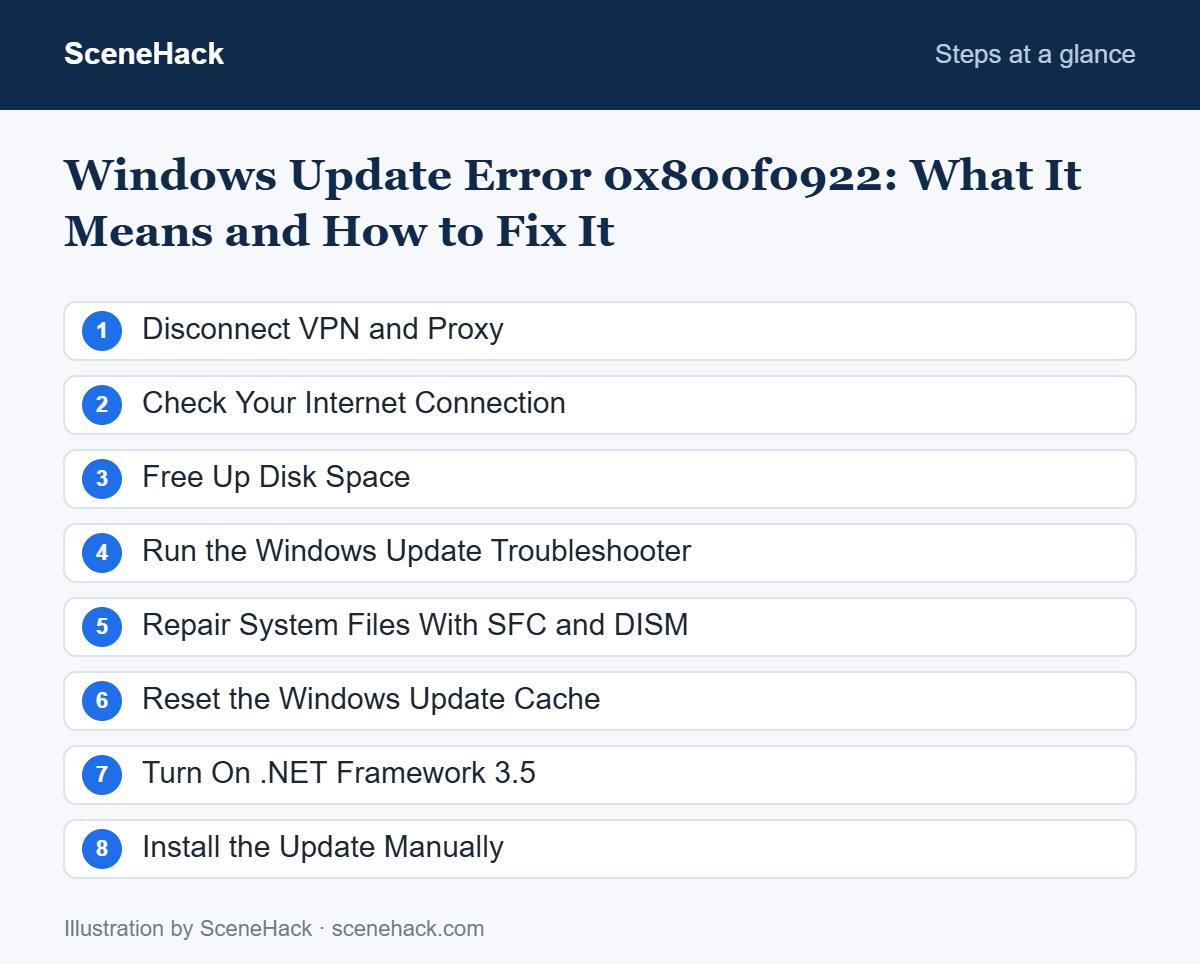
1. Disconnect VPN and Proxy
This is the most common cause on home PCs. Close or disconnect any VPN app completely, then open Settings > Network & internet > Proxy and make sure Use a proxy server is off (unless your workplace requires it). Restart and try the update again. Not sure what a VPN does? See what a VPN is.
2. Check Your Internet Connection
If your Wi-Fi keeps dropping, the update can fail halfway through. Try a wired connection or move closer to the router. If Windows shows “No internet”, fix that first with our guide to Wi-Fi connected but no internet.
3. Free Up Disk Space
Open Settings > System > Storage and turn on Storage Sense, then open Cleanup recommendations to remove temporary files and old downloads. Aim for at least 20 GB free on drive C:.
4. Run the Windows Update Troubleshooter
Go to Settings > System > Troubleshoot > Other troubleshooters and run Windows Update. On newer versions this opens the Get Help app, which checks update services and settings and repairs common problems automatically.
5. Repair System Files With SFC and DISM
Corrupted system files can stop updates from installing. Open Command Prompt as administrator (search for it, right-click and choose Run as administrator) and run these commands one at a time:
DISM /Online /Cleanup-Image /RestoreHealth
sfc /scannow
Each can take 10–20 minutes. Restart when both finish, then try Windows Update again.
6. Reset the Windows Update Cache
A corrupted download cache can make the same update fail repeatedly. In an administrator Command Prompt, run:
net stop wuauserv
net stop bits
ren C:\Windows\SoftwareDistribution SoftwareDistribution.old
net start bits
net start wuauserv
Windows creates a fresh cache and downloads the update again. You can delete the SoftwareDistribution.old folder later.
7. Turn On .NET Framework 3.5
If the failing update is a .NET Framework update, make sure the feature is available:
- Press Win + R, type optionalfeatures and press Enter.
- Tick .NET Framework 3.5 (includes .NET 2.0 and 3.0) and click OK.
- Let Windows download the files, restart and try the update again.
8. Install the Update Manually
Note the update’s KB number from Settings > Windows Update > Update history. Search for that KB number on the official Microsoft Update Catalog website (catalog.update.microsoft.com), download the version for your system, and run it. Only download updates from Microsoft’s own site.
What About the System Reserved Partition?
If none of the steps above work, the System Reserved partition may be too small. Resizing partitions is an advanced task that carries a real risk of making your PC unbootable. Back up your important files first, and consider asking a technician or following Microsoft’s official guidance linked below rather than using third-party partition tools you don’t know.
What Microsoft’s Support Forum Points To
Microsoft has no single official article for this code, so we checked the answers on its Microsoft Q&A support forum. The causes named there are consistent: corrupted system files, too little free space in the System Reserved partition, driver or firmware conflicts, and security software interfering with the installation.
The suggested fixes follow from those causes: run sfc /scannow and DISM /Online /Cleanup-Image /RestoreHealth to repair system files, check the System Reserved partition, update drivers and BIOS, and temporarily turn off third-party antivirus. In the thread we reviewed, the user finally solved it with an in-place upgrade from the Windows 11 ISO using the “Keep files and apps” option. Treat that as the last resort when the repair commands do not help.
Update Error 0x800f0922: Common Questions
Is it safe to skip the update?
Security updates protect your PC, so fix the error rather than ignoring it. You can pause updates briefly while troubleshooting.
Why does 0x800f0922 appear only on my older laptop?
Older PCs often have small System Reserved partitions, little free disk space or outdated drivers, which make this error more likely.
Will these fixes delete my files?
No. Freeing space removes only what you choose, and SFC, DISM and resetting the update cache don’t touch personal files.
Sources and further reading: Microsoft Learn: Error code 0x800F0922 when installing Windows updates.
Getting Windows Update Working Again
In most cases, Windows Update error 0x800f0922 is fixed by disconnecting a VPN, freeing disk space, or repairing the update cache. Work through the steps in order, and only move to the advanced partition fix if everything else fails.

