You type a web address into Google Chrome and instead of the site you get a grey page saying “This site can’t be reached” with the code DNS_PROBE_FINISHED_NXDOMAIN. Other apps may still work, which makes the error even more confusing. The good news is that the DNS_PROBE_FINISHED_NXDOMAIN error is almost always fixable on your own PC in a few minutes.
What Does DNS_PROBE_FINISHED_NXDOMAIN Mean?
Every website name, like scenehack.com, has to be translated into a numeric IP address before your browser can connect. This lookup is done by a DNS server. “NXDOMAIN” means “non-existent domain”: the DNS lookup came back saying the name doesn’t exist. That can happen because:
- The web address is mistyped, or the website really is offline or expired.
- Your PC or browser has a stale, cached DNS answer.
- Your internet provider’s DNS server is having problems.
- A VPN, proxy, security app or edited hosts file is interfering.
First: Is It Just One Website?
| What you see | What it means |
|---|---|
| Only one site fails, on every device | The site itself is probably down or the address is wrong |
| One site fails only on your PC | Local DNS cache, hosts file or extension issue |
| Every site fails on your PC | DNS settings, VPN or network problem on the PC |
| Every site fails on all devices | Router or internet provider problem |
Open the same site on your phone using mobile data. If it works there, the problem is on your PC or network and the fixes below will help.
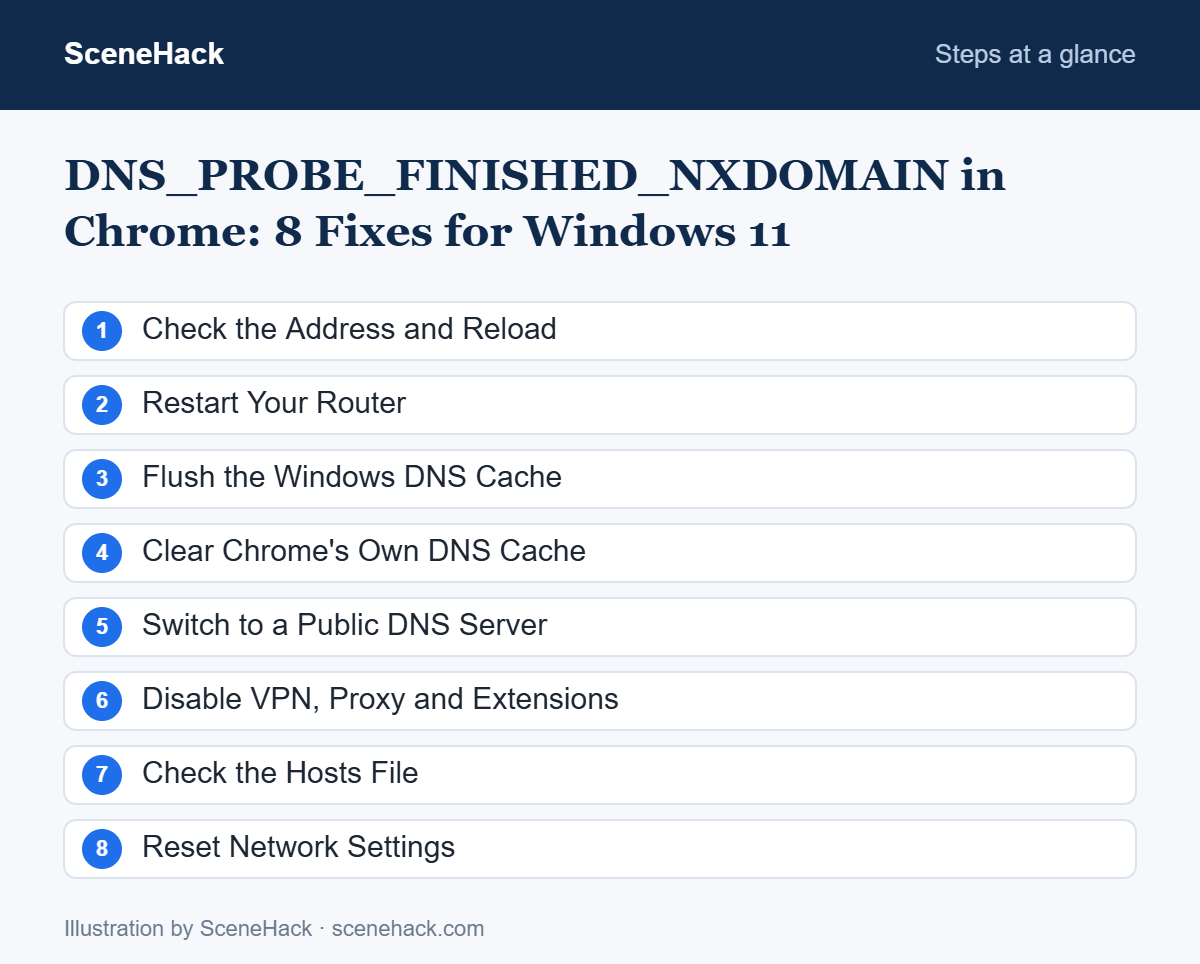
1. Check the Address and Reload
Look carefully for typos, such as “.con” instead of “.com”. Then press Ctrl + Shift + R to reload without the cache.
2. Restart Your Router
Unplug the router for 30 seconds and plug it back in. Routers also cache DNS answers and can pass on stale results.
3. Flush the Windows DNS Cache
Open Command Prompt as administrator and run:
ipconfig /flushdns
ipconfig /release
ipconfig /renew
4. Clear Chrome’s Own DNS Cache
- In Chrome’s address bar, type chrome://net-internals/#dns and press Enter.
- Click Clear host cache.
- Then go to chrome://net-internals/#sockets and click Flush socket pools.
5. Switch to a Public DNS Server
If your provider’s DNS is failing, switching usually fixes the error instantly.
- Open Settings > Network & internet > Wi-Fi (or Ethernet) > Hardware properties.
- Next to DNS server assignment, click Edit and choose Manual.
- Turn on IPv4 and enter 1.1.1.1 and 1.0.0.1 (Cloudflare) or 8.8.8.8 and 8.8.4.4 (Google), then save.
Chrome also has its own setting: Settings > Privacy and security > Security > Use secure DNS. Try turning it off, or choose a provider such as Cloudflare or Google from the list, and test again.
6. Disable VPN, Proxy and Extensions
Disconnect any VPN and check Settings > Network & internet > Proxy. In Chrome, open an Incognito window (Ctrl + Shift + N) — extensions are off there by default. If the site loads in Incognito, disable your extensions one by one at chrome://extensions to find the culprit. Our guide on fixing a slow Chrome explains how to manage extensions safely.
7. Check the Hosts File
Some apps and malware add entries to the Windows hosts file that block or redirect websites. Open Notepad as administrator, then open C:\Windows\System32\drivers\etc\hosts. Lines that don’t start with # and mention the site you’re trying to reach may be the cause. If you find entries you didn’t add, run a full scan with Windows Security as well.
8. Reset Network Settings
As a last resort, reset the network stack. In an administrator Command Prompt run netsh winsock reset and netsh int ip reset, then restart. Or use Settings > Network & internet > Advanced network settings > Network reset.
How This Compares With Chrome’s Official Advice
Google’s Chrome help page on connection and loading errors does not cover this error code specifically, but its general order still applies: check the address for typos and reload, confirm your internet connection works, update and restart Chrome, try the page in an Incognito window, turn off extensions, and clear browsing data.
Those steps tell you where the problem is. If the site opens in Incognito, an extension or cached data is the cause. If no site opens in any browser, the problem is your connection or DNS, not Chrome. NXDOMAIN means the domain name could not be resolved, so once Chrome itself is ruled out, the DNS steps in this guide (flushing the DNS cache and changing the DNS server) are the ones that address the cause directly.
DNS_PROBE_FINISHED_NXDOMAIN: Common Questions
Why do other browsers work but not Chrome?
Chrome has its own DNS cache and a “secure DNS” setting. Clearing the host cache (Fix 4) and checking secure DNS (Fix 5) usually solve it.
Can I fix DNS_PROBE_FINISHED_NXDOMAIN if the website is down?
No. If the site fails on every device and network, the problem is on the website’s side — wait or contact its owner.
Is it safe to change DNS servers?
Yes. Public DNS services from well-known providers are safe and often faster. You can switch back to automatic at any time.
Sources and further reading: Google Chrome Help: Fix connection errors.
Which DNS Fix to Try First
The DNS_PROBE_FINISHED_NXDOMAIN error looks technical, but it’s usually a stale cache or a DNS server problem. Flush the caches, switch to a public DNS server, and check your VPN and extensions — most people are back online after the first three fixes.