Google Chrome is the world’s most popular browser, but it has a reputation for slowing down over time — especially with many tabs and extensions. If Chrome feels sluggish, freezes or eats up your memory, these 10 fixes will make it fast again. If you are wondering why Google Chrome is so slow, the causes are usually simple to fix.
Tested by Ayzaz Khan: I followed the steps in this guide on my Lenovo ThinkPad (Intel Core i7, 5th generation) running Windows 11 using Google Chrome, and they worked as described. Last checked: September 2026.
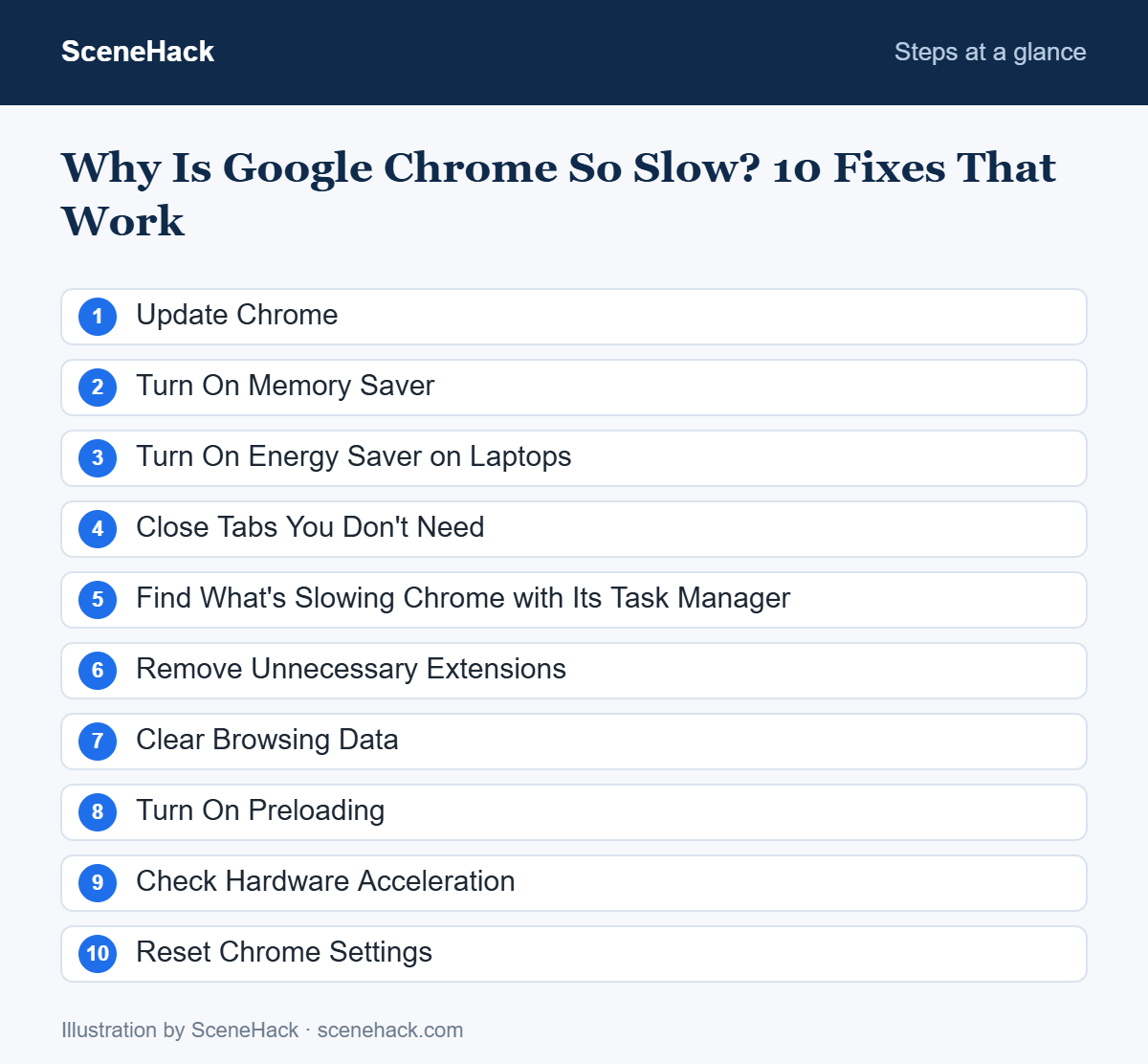
1. Update Chrome
Updates include speed improvements and security fixes. Click the three-dot menu → Help → About Google Chrome. Chrome checks for updates automatically; click Relaunch if one is waiting.
2. Turn On Memory Saver
Memory Saver frees up memory from tabs you’re not using, then reloads them when you return. Go to Settings → Performance and turn on Memory Saver. This is one of the most effective fixes for computers with limited RAM.
3. Turn On Energy Saver on Laptops
In the same Performance section, Energy Saver limits background activity and visual effects when your battery is low or when unplugged, helping your laptop last longer.
4. Close Tabs You Don’t Need
Every open tab uses memory and processing power. If you keep tabs open “to read later,” use bookmarks or Chrome’s Reading list instead, and group related tabs with Tab groups (right-click a tab → Add tab to new group).
5. Find What’s Slowing Chrome with Its Task Manager
Chrome has its own Task Manager. Press Shift + Esc on Windows (or open the three-dot menu → More tools → Task manager). It shows how much memory and CPU each tab and extension uses. Select any heavy item and click End process.
6. Remove Unnecessary Extensions
Extensions run in the background and can slow Chrome significantly. Open chrome://extensions in the address bar, then turn off or remove anything you don’t use regularly. Be especially wary of extensions you don’t remember installing — they can also be a security risk.
7. Clear Browsing Data
A very large cache can sometimes cause pages to load incorrectly. Press Ctrl + Shift + Delete, choose a time range, and select Cached images and files. You can also clear cookies, but that will sign you out of most websites.
8. Turn On Preloading
Chrome can preload pages it thinks you’re likely to visit, so they open almost instantly. Go to Settings → Performance and make sure Preload pages is turned on.
9. Check Hardware Acceleration
Hardware acceleration lets Chrome use your graphics card for smoother video and scrolling. Go to Settings → System and make sure Use graphics acceleration when available is on. If you experience flickering or crashes, try turning it off and restarting Chrome to see if it helps.
10. Reset Chrome Settings
If nothing else works, a reset returns Chrome to its default settings, disables extensions and clears temporary data — without deleting your bookmarks, history or saved passwords. Go to Settings → Reset settings → Restore settings to their original defaults.
Bonus: Use Separate Profiles
If you use Chrome for both work and personal browsing, create separate profiles (click your profile picture → Add). Each profile has its own extensions, bookmarks and tabs, which keeps each one lighter and more organized.
Troubleshooting: Common Problems and Fixes
Chrome is slow only on one website
Open the site in an Incognito window, where extensions are off by default. If it is fast there, an extension is the cause. If it is still slow, click the icon to the left of the address bar, open Site settings and clear that site’s data only.
Pages load slowly, but other browsers are fine
Try changing the secure DNS setting in Settings → Privacy and security → Security, then flush Windows’ DNS cache by running ipconfig /flushdns in Command Prompt.
Chrome says it is “managed by your organisation” on a personal PC
On a home computer this often means software has added browser policies, sometimes adware. Type chrome://policy in the address bar to see what is set, uninstall unfamiliar programs from Windows Settings, and run a full Microsoft Defender scan.
Chrome crashes or won’t open
Restart the PC first. If the problem continues, add a new Chrome profile to test whether your current profile is damaged, then reinstall Chrome. If you are signed in with sync on, your bookmarks and passwords will come back.
What We Found When Testing
We ran through these fixes in Google Chrome on our ThinkPad (Windows 11). Removing extensions we no longer used and turning on Memory Saver made the biggest difference, especially with many tabs open — the typical improvement you should expect on an older laptop with limited memory.
Slow Chrome: Common Questions
Why does Chrome use so much RAM?
Chrome runs each tab and extension in its own process for stability and security. This uses more memory, but it means one crashing tab doesn’t take down the whole browser. Memory Saver helps manage this.
Will clearing cookies delete my passwords?
No. Saved passwords are separate — just leave Passwords and other sign-in data unchecked when clearing browsing data.
Sources and further reading: Chrome Help: Fix Chrome if it crashes or won’t open; Chrome Help: Personalize Chrome performance.
Keeping Chrome Fast
For most people, turning on Memory Saver, removing unused extensions and closing extra tabs makes the biggest difference. Keep Chrome updated, and it will stay fast and secure. The next time Google Chrome is so slow, run through this checklist first.