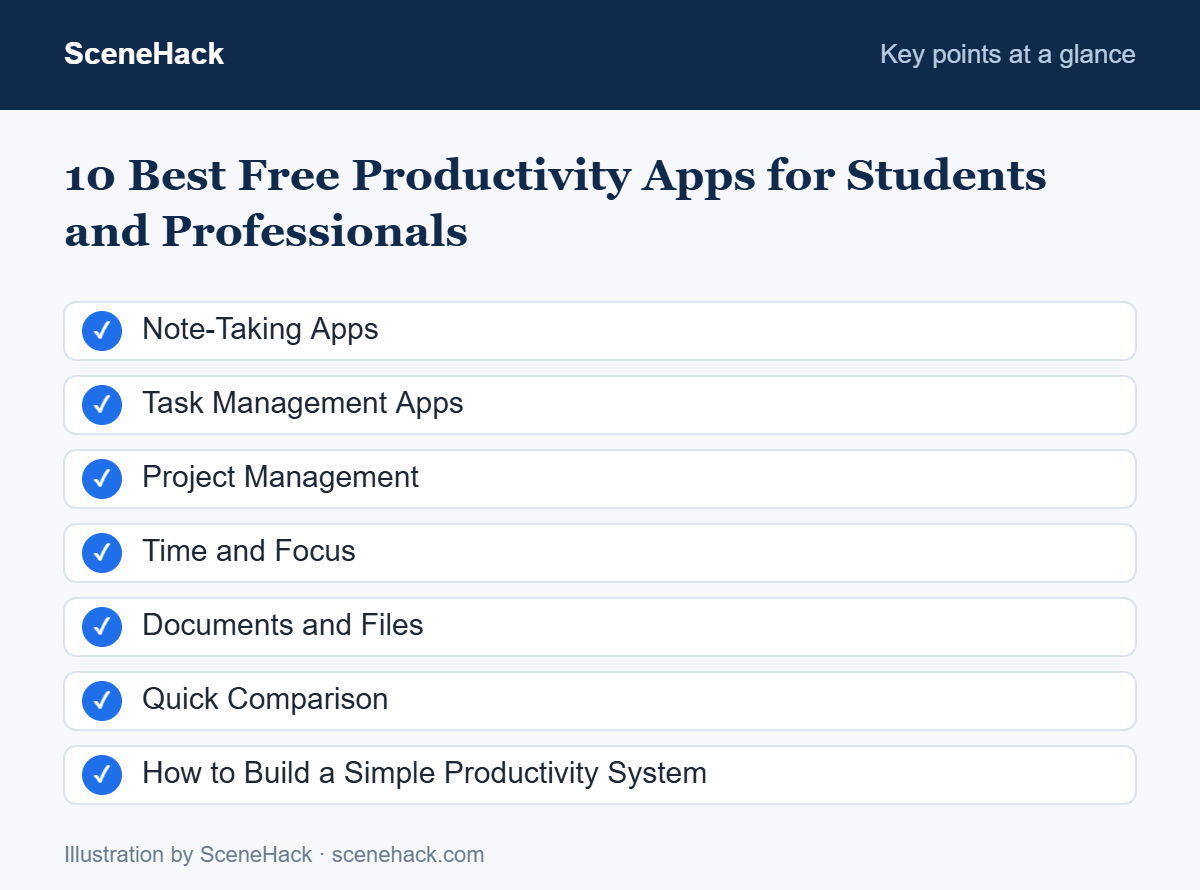
How we chose: Each app is well established, works on multiple devices, and is useful on its free plan — not just a limited trial. Free-plan limits can change, so check each app’s website for the current details.
Note-Taking Apps
1. Google Keep — Best for Quick Notes
Google Keep is the digital version of sticky notes. It opens instantly, syncs across your phone and computer, and supports checklists, voice notes, photos and color-coded labels. Location- and time-based reminders make it great for grocery lists and quick to-dos.Best for: fast capture, shopping lists, quick ideas. Works on: Android, iPhone, web.2. Notion — Best All-in-One Workspace
Notion combines notes, databases, wikis and task boards in one flexible app. Students use it for class notes and study planners; teams use it for project documentation. It has a learning curve, but thousands of free templates help you get started quickly.Best for: organized notes, study planners, personal wikis. Works on: Windows, Mac, Android, iPhone, web.3. Obsidian — Best for Private, Offline Notes
Obsidian stores your notes as plain Markdown files on your own device, so you own your data and can work fully offline. Its standout feature is linking notes together to build a personal “second brain.” It’s free for personal use.Best for: researchers, writers, anyone who values privacy. Works on: Windows, Mac, Linux, Android, iPhone.Task Management Apps
4. Microsoft To Do — Best Simple To-Do List
Microsoft To Do is clean, completely free and syncs with Outlook tasks. Its My Day feature asks you to choose what to focus on each morning, which is a surprisingly effective habit.Best for: daily planning, Microsoft 365 users. Works on: Windows, Mac, Android, iPhone, web.5. Todoist — Best for Natural-Language Tasks
Type “Submit report every Friday at 5pm” and Todoist creates a recurring task automatically. Projects, labels and priority levels keep things organized, and the free plan covers most personal needs.Best for: people with lots of recurring tasks. Works on: all major platforms and browsers.Project Management
6. Trello — Best Visual Boards
Trello organizes work into boards, lists and cards that you drag from “To Do” to “Doing” to “Done.” It’s perfect for group assignments, content calendars and small team projects because everyone can see progress at a glance.Best for: group projects, visual thinkers. Works on: web, desktop and mobile.Time and Focus
7. Google Calendar — Best for Time Blocking
Time blocking — scheduling specific blocks of time for specific tasks — is one of the most effective productivity techniques. Google Calendar makes it easy with color-coded calendars, reminders and the ability to share schedules with classmates or colleagues.Best for: planning your week, shared schedules. Works on: Android, iPhone, web.8. Your Phone’s Built-In Focus Tools
You may not need a separate app to beat distractions. Android’s Digital Wellbeing (with Focus mode and app timers) and iPhone’s Focus and Screen Time features can block distracting apps during study or work hours — for free.Documents and Files
9. Google Drive and Google Docs — Best for Collaboration
Google Docs, Sheets and Slides let several people edit the same file at the same time, with automatic saving and version history. In addition, Google Drive stores everything in the cloud with a generous free storage allowance shared across your Google account.Best for: group assignments, shared documents. Works on: any browser, plus mobile apps.10. LibreOffice — Best Free Office Suite for Your Computer
LibreOffice is a free, open-source office suite with a word processor, spreadsheet and presentation tool. It opens and saves Microsoft Office formats (.docx, .xlsx, .pptx) and works completely offline.Best for: offline work without an Office subscription. Works on: Windows, Mac, Linux.Quick Comparison
| App | Category | Best For |
|---|---|---|
| Google Keep | Notes | Quick capture |
| Notion | Workspace | All-in-one organization |
| Obsidian | Notes | Private, linked notes |
| Microsoft To Do | Tasks | Simple daily planning |
| Todoist | Tasks | Recurring tasks |
| Trello | Projects | Visual team boards |
| Google Calendar | Time | Time blocking |
| Google Docs | Documents | Real-time collaboration |
| LibreOffice | Documents | Offline office work |
How to Build a Simple Productivity System
Installing apps doesn’t make you productive — using a few of them consistently does. Here’s a simple setup that works for most people:- One place to capture: Google Keep or your notes app for every idea and to-do.
- One task list: Move real tasks into Microsoft To Do or Todoist with due dates.
- One calendar: Block time in Google Calendar for your most important tasks.
- Weekly review: Every Sunday, spend 15 minutes clearing your notes and planning the week.
Troubleshooting: Common Problems and Fixes
Notes aren’t syncing between phone and PC
Confirm you are signed in to the same account on both devices and that each device is online. Obsidian stores notes as local files, so it only syncs if you set up Obsidian Sync or place the vault in a cloud-storage folder.Calendar events appear twice
This usually means the same calendar is added through two accounts or apps. Check the list of calendars in your calendar app’s settings and hide or remove the duplicate.You want to switch apps without losing data
Export before you leave: Google Keep data can be downloaded with Google Takeout, and Notion can export pages as Markdown or CSV. Most task apps offer an export or import option too.The app has become slow
Large workspaces slow down over time. Archive finished projects, clear completed tasks, and keep the app updated.What We Found When Testing
We installed and used these apps on our ThinkPad (Windows 11) and our iPhone 14 Pro Max to check that the free plans still include the features we describe. Sync between the laptop and phone worked as expected for notes, tasks and calendars. Our advice from testing: pick two or three apps and give them a couple of weeks before adding more.