A touchpad that suddenly stops responding can make a laptop almost unusable, especially if you don’t have a mouse nearby. The cursor might freeze, two-finger scrolling might stop working, or the touchpad might not respond at all. In most cases when a touchpad is not working, it has simply been turned off, or its driver has a problem. Below are the fixes we try, starting with the quickest.
Tip: Navigate Without a Touchpad
If you have no mouse, you can still reach every setting with the keyboard:
- Win opens Start; type to search and press Enter to open.
- Tab and the arrow keys move between options; Space toggles switches.
- Win + I opens Settings directly.
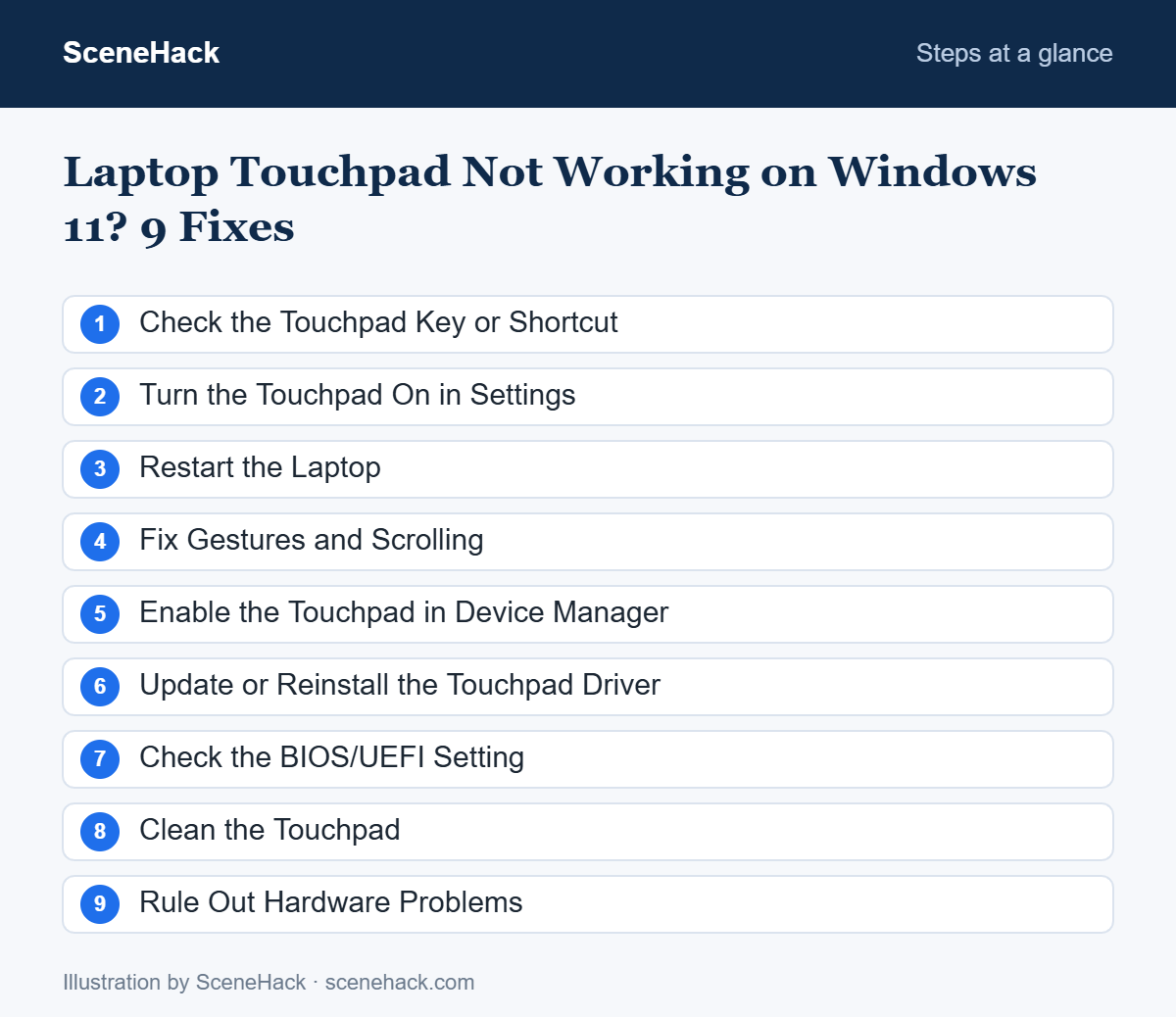
1. Check the Touchpad Key or Shortcut
Many laptops have a function key that turns the touchpad on and off, often with a touchpad icon on F5, F6, F7 or F9. Press it once, or together with the Fn key. Some HP laptops use a double-tap in the top-left corner of the touchpad to toggle it.
2. Turn the Touchpad On in Settings
- Press Win + I and go to Bluetooth & devices > Touchpad.
- Make sure the Touchpad switch is On.
- Expand the Touchpad section and check whether Leave touchpad on when a mouse is connected is ticked. If it’s off and a mouse (or a wireless receiver) is plugged in, the touchpad is disabled automatically.
3. Restart the Laptop
A full restart reloads the touchpad driver. Use Start > Power > Restart rather than shutting down.
4. Fix Gestures and Scrolling
If the cursor moves but scrolling or gestures don’t work, open Settings > Bluetooth & devices > Touchpad and check Scroll & zoom and Three-finger gestures. Click Reset under Touchpad settings to restore defaults. If these options are missing entirely, Windows is using a basic driver — see Fix 6.
5. Enable the Touchpad in Device Manager
- Right-click Start (or press Win + X) and open Device Manager.
- Expand Mice and other pointing devices and Human Interface Devices.
- Look for entries such as “HID-compliant touch pad”, “Synaptics”, “ELAN” or “Precision Touchpad”. If one shows a down arrow, right-click it and choose Enable device.
6. Update or Reinstall the Touchpad Driver
Right-click the touchpad device and choose Update driver. If that doesn’t help, choose Uninstall device and restart; Windows will reinstall it. The best touchpad driver usually comes from your laptop maker, through tools like Lenovo Vantage, Dell SupportAssist, HP Support Assistant or MyASUS. If the touchpad stopped after an update, try Roll Back Driver in the device’s Properties. More in our driver update guide.
7. Check the BIOS/UEFI Setting
Some laptops let you disable the internal pointing device in the BIOS. Restart and press the BIOS key shown at startup (often F2, F1, Del or Enter on ThinkPads). Look for “Internal Pointing Device”, “Touchpad” or “TrackPad” and make sure it’s Enabled. Don’t change other settings you’re unsure about.
8. Clean the Touchpad
Grease, moisture or dirt can make a touchpad jumpy or unresponsive. Shut down the laptop and wipe the touchpad with a soft, slightly damp microfibre cloth. Our laptop cleaning guide explains how to do this safely.
9. Rule Out Hardware Problems
If the touchpad doesn’t work in the BIOS menus either, the problem is likely hardware. One important warning sign: a swollen battery can push up from below and make the touchpad hard to click or unresponsive. If your touchpad feels raised or the case is bulging, stop using the laptop on battery and get it checked by a service centre.
What Microsoft Says Usually Fixes a Dead Touchpad
We checked this guide against Microsoft’s own touchpad troubleshooting page. Microsoft points to one cause above all others: a missing or out-of-date driver. Its recommended order is short: update the touchpad driver through Windows Update, then update it in Device Manager (look under Human Interface Devices or Mice and other pointing devices), then uninstall the device so Windows reinstalls a fresh driver on restart.
In practice, that means the driver fixes in this guide deserve your attention before anything more drastic. Rule out the quick causes first (the touchpad toggle in Settings and the function-key shortcut), then go straight to the driver steps. If a clean driver reinstall changes nothing, Microsoft’s advice is to contact the laptop manufacturer, because at that point a hardware fault is likely.
Windows 11 Touchpad Problems: Common Questions
Why does my touchpad stop working when I plug in a mouse?
Windows can disable the touchpad automatically when a mouse is connected. Tick Leave touchpad on when a mouse is connected in Touchpad settings.
Why is my touchpad cursor jumping around?
Dirt, moisture, a very sensitive setting or resting your palm on the pad can cause this. Clean the pad and lower Touchpad sensitivity in Settings.
Can I use my laptop with a touchpad that doesn’t work?
Yes — connect any USB or Bluetooth mouse. If you need to fix Bluetooth first, see Bluetooth not working on Windows 11.
Sources and further reading: Microsoft Support: Fix touchpad problems in Windows.
Getting Your Touchpad Working Again
When a laptop touchpad is not working, check the function key and the Touchpad switch in Settings first — that solves the problem more often than you’d expect. If it’s still dead, the driver and BIOS settings are the next stop, and a service visit is only needed if the touchpad fails even outside Windows.

