Keyboard shortcuts are the easiest way to work faster on Windows. Instead of hunting through menus with your mouse, one quick key combination gets the job done in a second. Learn even five of the shortcuts below and you’ll save real time every day. These Windows 11 keyboard shortcuts work on any PC or laptop.
Tested by Ayzaz Khan: I followed the steps in this guide on my Lenovo ThinkPad (Intel Core i7, 5th generation) running Windows 11, and they worked as described. Last checked: September 2026.
All of these work on Windows 11, and most also work on Windows 10. The Win key is the one with the Windows logo.
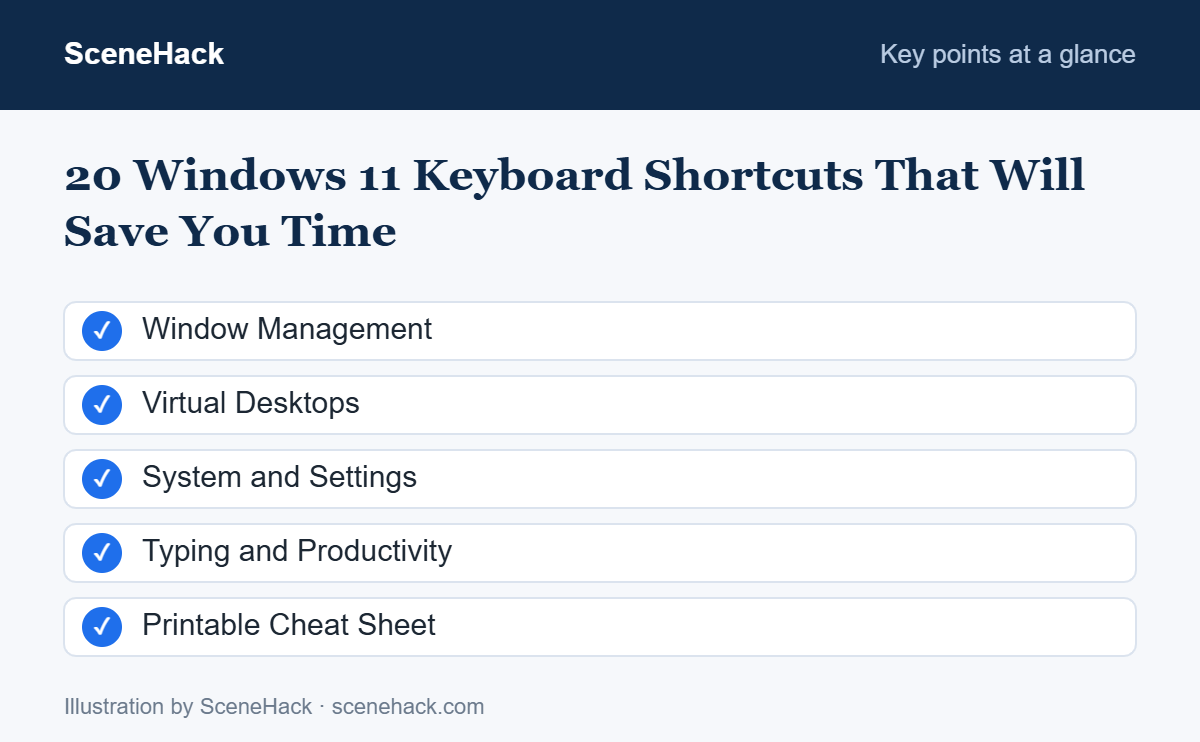
Window Management
1. Win + D — Show the Desktop
Instantly minimizes everything to show your desktop. Press it again to bring all your windows back.
2. Win + Arrow keys — Snap Windows
Press Win + ← or Win + → to snap a window to half of the screen — perfect for comparing two documents side by side. Win + ↑ maximizes and Win + ↓ restores or minimizes.
3. Win + Z — Snap Layouts
Opens Windows 11’s Snap Layouts menu, letting you arrange windows in grids of two, three or four with a single click.
4. Alt + Tab — Switch Between Apps
Hold Alt and tap Tab to cycle through open windows. Release to switch.
5. Win + Tab — Task View
Shows all open windows and your virtual desktops in one view.
Virtual Desktops
6. Win + Ctrl + D — Create a New Desktop
Virtual desktops let you separate work, study and personal apps. This shortcut creates a fresh, empty desktop.
7. Win + Ctrl + ← / Win + Ctrl + → — Switch Desktops
Move between your virtual desktops instantly.
8. Win + Ctrl + F4 — Close the Current Desktop
Closes the virtual desktop you’re on. Open apps move to the neighboring desktop — nothing is lost.
System and Settings
9. Win + I — Open Settings
Jumps straight to the Settings app.
10. Win + E — Open File Explorer
Opens File Explorer so you can get to your files quickly.
11. Win + L — Lock Your PC
Locks your computer instantly. Make this a habit every time you step away, especially at work or in a library.
12. Ctrl + Shift + Esc — Open Task Manager
Opens Task Manager directly, useful when an app freezes or your PC slows down. Our guide on speeding up a slow Windows 11 PC explains what to look for.
13. Win + X — Quick Link Menu
Opens a hidden power-user menu with shortcuts to Device Manager, Disk Management, Terminal and more.
14. Win + A — Quick Settings
Opens the panel for Wi-Fi, Bluetooth, volume, brightness and other quick toggles.
Typing and Productivity
15. Win + V — Clipboard History
One of the most useful shortcuts in Windows. It shows the last several items you copied, so you can paste something you copied earlier. Turn it on the first time you use it.
16. Win + . — Emoji Panel
Opens a panel with emoji, symbols and GIFs you can insert into any text box.
17. Win + H — Voice Typing
Speak instead of typing. Windows converts your voice to text in any text field. Great for long emails or notes.
18. Win + Shift + S — Screenshot a Selected Area
Captures any part of your screen and copies it to the clipboard. See every method in our guide to taking screenshots on Windows 11.
19. Win + Number — Open Taskbar Apps
Win + 1 opens the first app pinned to your taskbar, Win + 2 the second, and so on. Pin your favorite apps in order and launch them without the mouse.
20. Ctrl + Shift + T — Reopen a Closed Browser Tab
Closed a tab by accident? This shortcut reopens it in Chrome, Edge and Firefox. Press it again to reopen earlier tabs.
Printable Cheat Sheet
| Shortcut | Action |
|---|---|
| Win + D | Show desktop |
| Win + ←/→ | Snap window left/right |
| Win + Z | Snap layouts |
| Alt + Tab | Switch apps |
| Win + Tab | Task view |
| Win + Ctrl + D | New virtual desktop |
| Win + I | Settings |
| Win + E | File Explorer |
| Win + L | Lock PC |
| Ctrl + Shift + Esc | Task Manager |
| Win + V | Clipboard history |
| Win + . | Emoji panel |
| Win + H | Voice typing |
| Win + Shift + S | Screenshot area |
| Ctrl + Shift + T | Reopen closed tab |
Troubleshooting: Common Problems and Fixes
The Windows key does nothing
Many gaming keyboards have a Windows-key lock or “game mode” that disables it to prevent accidental presses. Look for a key with a lock or joystick icon, or check your keyboard’s software.
Shortcuts go to the wrong PC in Remote Desktop
By default, Remote Desktop sends Windows key combinations to the remote computer only when the session is full screen. Maximise the session, or change the keyboard option in Remote Desktop Connection’s Local Resources tab.
Your typing language keeps changing
Win + Space and Alt + Shift switch keyboard layouts. If you don’t need a second layout, remove it in Settings → Time & language → Language & region.
A Sticky Keys box pops up
Pressing Shift five times turns on Sticky Keys. Turn off the shortcut in Settings → Accessibility → Keyboard if it keeps interrupting you.
What We Found When Testing
We use these shortcuts daily on our ThinkPad running Windows 11, and we confirmed each one works as described. The ones that saved us the most time were Win + V for clipboard history, Win + Z for snap layouts and Win + Shift + S for screenshots.
Windows 11 Shortcuts: Common Questions
Why isn’t a shortcut working?
Some apps override certain shortcuts, and features like clipboard history need to be turned on first. On some laptops, you may need to hold the Fn key for function-row shortcuts.
Can I create my own shortcuts?
Yes. Microsoft’s free PowerToys app includes a Keyboard Manager that lets you remap keys and create custom shortcuts.
Sources and further reading: Microsoft Support: Keyboard shortcuts in Windows.
Which Shortcuts to Learn First
Don’t try to memorize all 20 at once. Pick three — we suggest Win + V, Win + Arrow and Win + L — and use them for a week. Once they become habit, add a few more. Practise a few Windows 11 keyboard shortcuts each week until they become second nature.