Your Android phone is packed with useful settings that most people never discover. Some make your phone faster, some protect your privacy, and some just make everyday use easier. In this guide, we cover 15 hidden or overlooked Android settings that are worth changing today. These hidden Android settings take only a few minutes to change.
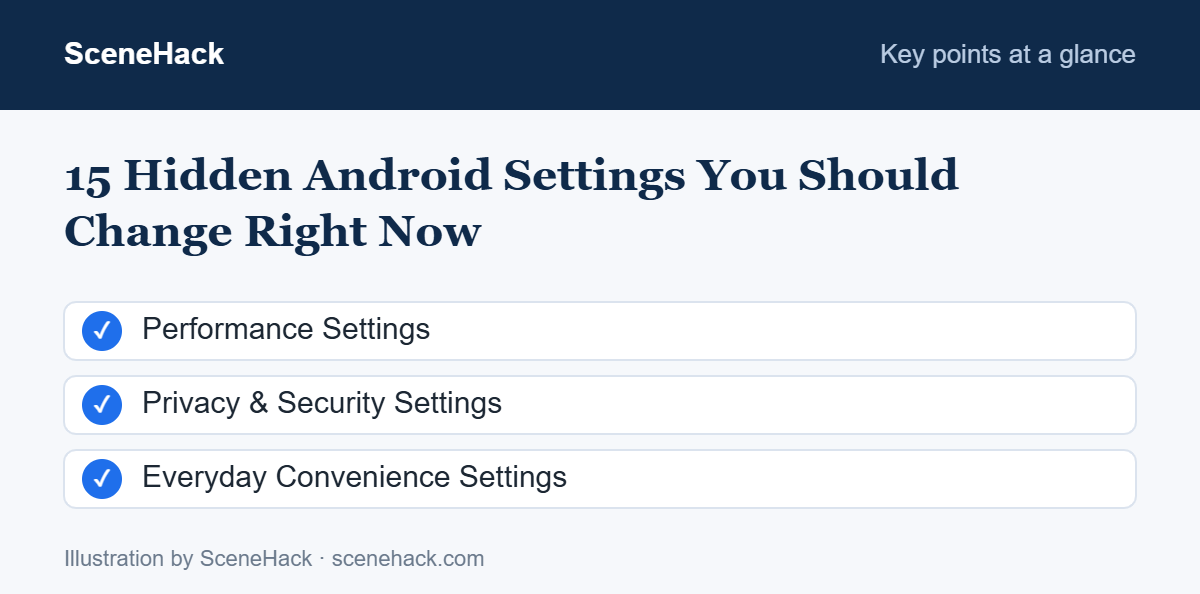
Performance Settings
1. Speed Up Animations with Developer Options
This is the classic trick for making any Android phone feel faster. First, unlock Developer options: go to Settings → About phone and tap Build number seven times (on Samsung it’s under About phone → Software information). Enter your PIN when asked.
Then open Settings → System → Developer options (or search “Developer options”), scroll to the Drawing section and set these three to 0.5x:
- Window animation scale
- Transition animation scale
- Animator duration scale
2. Turn On Adaptive Battery
Settings → Battery → Adaptive battery (on some phones under Battery → Adaptive preferences) learns which apps you use most and limits battery use for the ones you rarely open.
3. Enable Dark Theme
On phones with OLED or AMOLED screens, dark pixels use less power. Go to Settings → Display → Dark theme. It’s also easier on the eyes at night.
4. Adjust Screen Timeout
The screen is the biggest battery drain on most phones. Set Settings → Display → Screen timeout to 30 seconds or 1 minute instead of 5 or 10 minutes.
Privacy & Security Settings
5. Set Up Private DNS
Private DNS encrypts the lookups your phone makes when you visit websites, so they are harder to snoop on over public Wi-Fi. Go to Settings → Network & internet → Private DNS, choose Private DNS provider hostname, and enter a trusted provider such as dns.google.
6. Review the Privacy Dashboard
On Android 12 and newer, Settings → Security & privacy → Privacy → Privacy dashboard shows which apps accessed your location, camera and microphone in the last 24 hours. If a flashlight app is using your microphone, that’s a red flag.
7. Give Apps Approximate Location Only
Weather and shopping apps don’t need your exact location. Go to Settings → Location → App location permissions, pick an app, and turn off Use precise location.
8. Remove Permissions from Unused Apps
Android can automatically remove permissions from apps you haven’t opened in months. Open any app’s info page (Settings → Apps → [app name]) and make sure Pause app activity if unused (or Remove permissions if app isn’t used) is turned on.
9. Hide Sensitive Content on the Lock Screen
Anyone who picks up your phone can read your message previews. Go to Settings → Notifications → Notifications on lock screen (or Lock screen settings) and choose to hide sensitive content or show it only when unlocked.
10. Make Sure Find My Device Is On
If you lose your phone, Google’s Find My Device can ring it, show it on a map, or erase it remotely. Check that it’s enabled under Settings → Security & privacy → Device finders (or search “Find My Device”). Test it once at google.com/android/find so you know how it works before you need it.
11. Check Google Play Protect
Play Protect scans your apps for harmful behavior. Open the Play Store, tap your profile picture, then Play Protect, and make sure Scan apps with Play Protect is on.
Everyday Convenience Settings
12. Turn On Notification History
Accidentally swiped away a notification before reading it? Enable Settings → Notifications → Notification history. From then on, you can see every notification from the last 24 hours — even dismissed ones.
13. Use App Pinning Before Handing Over Your Phone
App pinning locks your phone to one app, so a friend or child can’t wander into your messages or photos. Turn it on under Settings → Security & privacy → More security settings → App pinning. Then open the Recents screen, tap the app’s icon and choose Pin.
14. Set Your Default Apps
Choose which browser, phone app, SMS app and launcher open by default in Settings → Apps → Default apps. This stops the “Open with…” prompt from appearing all the time.
15. Adjust Font and Display Size
If text feels too small or too large, go to Settings → Display → Display size and text (or Font size and style). Increasing display size also makes buttons bigger and easier to tap.
Troubleshooting: Common Problems and Fixes
You can’t find Developer options
Go to Settings → About phone (on Samsung, then Software information) and tap Build number seven times. Developer options then appear in the main or System settings menu.
A setting isn’t where the guide says
Samsung, Xiaomi and other brands arrange menus differently. Use the search bar at the top of Settings and type the setting’s name.
A banking app won’t open
Some banking and payment apps refuse to run while Developer options or USB debugging is on. Turn off the Developer options switch and open the app again.
Apps restart every time you switch back
Check that Don’t keep activities is turned off in Developer options. It closes every app as soon as you leave it and is meant only for app testing.
Android Settings: Common Questions
Is enabling Developer options safe?
Yes. Simply unlocking Developer options doesn’t change anything. Only change the settings you understand, like the animation scales above. You can turn Developer options off again at the top of that menu.
Will these settings work on Samsung phones?
Yes, nearly all of them exist on Samsung’s One UI, though names and locations may differ. Use the Settings search bar to find them quickly.
Sources and further reading: Android Developers: Configure on-device developer options.
Related guides: 14 Tips to Make Your Phone Battery Last Longer and How to Back Up Your Android Phone Completely (Step-by-Step).
Which Settings to Change First
Spend ten minutes going through this list and your phone will feel faster, last longer on a charge, and keep your personal information safer. Bookmark this page and come back to it whenever you set up a new phone. Revisit these hidden Android settings after every major update, since new versions sometimes reset them.

Pingback: How to Back Up Your Android Phone Completely (Step-by-Step) - SceneHack