Is your Windows 11 computer taking forever to boot, freezing when you open a few browser tabs, or making you wait every time you click something? You are not alone. A slow PC is one of the most common tech frustrations, and the good news is that most of the time you can fix it yourself — for free, in under an hour. If you want to speed up a slow Windows 11 PC without spending money, these fixes are the place to start.
Tested by Ayzaz Khan: I followed the steps in this guide on my Lenovo ThinkPad (Intel Core i7, 5th generation) running Windows 11, and they worked as described. Last checked: September 2026.
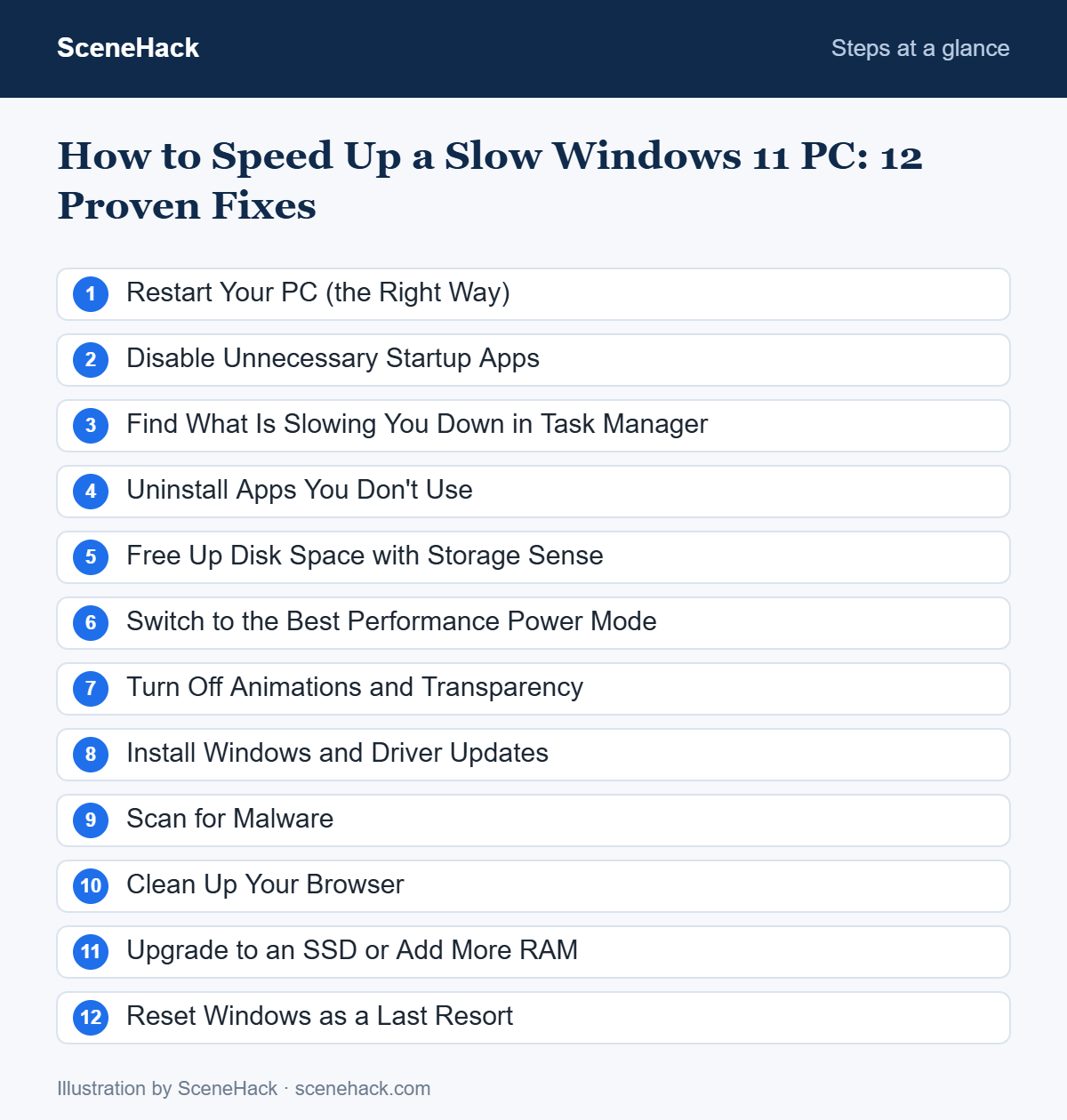
In this guide, we walk through 12 proven fixes, starting with the quickest wins and ending with the bigger changes. You do not need to be a tech expert. Just follow the steps in order and check how your PC feels after each one.
In this guide
1. Restart Your PC (the Right Way)
It sounds too simple, but many people only ever close the laptop lid or use Sleep. Over days and weeks, memory leaks and stuck background processes build up. A proper restart clears them out.
Click Start → Power → Restart. Note that Shut down is not the same as Restart on many PCs, because of a feature called Fast Startup that saves part of the system state. Restart gives you a genuinely fresh start.
2. Disable Unnecessary Startup Apps
Every app that launches when Windows starts adds to your boot time and keeps using memory in the background. Chat apps, game launchers, cloud sync tools and updaters are the usual suspects.
- Open Settings → Apps → Startup.
- Look at the Startup impact label next to each app.
- Turn off anything marked High impact that you don’t need the moment your PC turns on.
You can also do this in Task Manager: press Ctrl + Shift + Esc and open the Startup apps tab.
3. Find What Is Slowing You Down in Task Manager
Before changing anything else, find out what is actually using your resources. Press Ctrl + Shift + Esc, open the Processes tab, and click the CPU, Memory and Disk column headers to sort them.
If one app is constantly using a large share of CPU or memory, that is your culprit. Close it, update it, or replace it with a lighter alternative. If Disk is stuck near 100% all the time on an older hard drive, jump to fix #11.
4. Uninstall Apps You Don’t Use
New laptops often come with trial software, and over time we all install tools we used once. Go to Settings → Apps → Installed apps, sort by size or install date, and uninstall anything you don’t recognize as useful. Fewer apps means fewer background services, fewer updaters and more free space.
5. Free Up Disk Space with Storage Sense
When your system drive is nearly full, Windows has less room for temporary files and updates, and performance can drop. Aim to keep at least 15–20% of your drive free.
- Go to Settings → System → Storage.
- Open Cleanup recommendations to remove temporary files, old downloads and large unused files.
- Turn on Storage Sense so Windows automatically cleans temporary files and empties the Recycle Bin on a schedule.
6. Switch to the Best Performance Power Mode
Laptops often default to a balanced or battery-saving mode that limits speed. When you’re plugged in, open Settings → System → Power & battery and set Power mode to Best performance. You’ll use a little more battery, but the difference in responsiveness can be noticeable.
7. Turn Off Animations and Transparency
Windows 11 looks great, but its animations and transparency effects need extra graphics work. On older or budget PCs, turning them off makes everything feel snappier.
- Go to Settings → Accessibility → Visual effects and turn off Transparency effects and Animation effects.
- For even more control, press Win + R, type
sysdm.cpl, go to Advanced → Performance → Settings, and choose Adjust for best performance.
8. Install Windows and Driver Updates
Updates are not just about security. They often include performance improvements and bug fixes for issues that cause slowdowns. Open Settings → Windows Update and click Check for updates. Also check Advanced options → Optional updates for driver updates, and visit your graphics card maker’s website for the latest graphics driver.
9. Scan for Malware
Malware, adware and crypto-miners can quietly eat your CPU. Windows includes a capable antivirus called Microsoft Defender.
- Open the Windows Security app.
- Go to Virus & threat protection → Scan options.
- Choose Full scan and click Scan now. If you suspect something stubborn, run the Microsoft Defender Offline scan, which restarts your PC and scans before Windows loads.
10. Clean Up Your Browser
For many people, “my PC is slow” really means “my browser is slow.” Every open tab uses memory, and some extensions run constantly in the background.
- Close tabs you aren’t using, or use your browser’s tab sleeping feature (Edge calls it Sleeping tabs, Chrome calls it Memory Saver).
- Remove extensions you don’t actively use.
- Clear cached data if pages behave oddly.
11. Upgrade to an SSD or Add More RAM
If your PC still uses a traditional spinning hard drive (HDD), upgrading to a solid-state drive (SSD) is the single biggest speed boost you can buy. Boot times often drop from minutes to seconds.
To check your drive type, search for Defragment and Optimize Drives in the Start menu and look at the Media type column. If it says Hard disk drive, an SSD will transform your experience.
For memory, 8 GB of RAM is the practical minimum for Windows 11 today, and 16 GB is comfortable for multitasking. Check what you have under Settings → System → About.
12. Reset Windows as a Last Resort
If nothing else works, a fresh start can bring an old PC back to life. Go to Settings → System → Recovery → Reset this PC. You can choose Keep my files, which removes apps and settings but keeps your personal files.
Troubleshooting: Common Problems and Fixes
The PC got slow right after a Windows update
Give Windows a few hours to finish background tasks after a big update. If it is still slow, go to Settings → Windows Update → Update history → Uninstall updates to remove the latest one, and check your PC maker’s website for updated drivers.
Fans are loud and CPU usage is high with nothing open
Open Task Manager (Ctrl + Shift + Esc) and sort by CPU. If you see an unfamiliar process, run a full scan in Windows Security. A Defender scan in progress can also cause temporary high usage.
Windows feels unstable as well as slow
Run sfc /scannow in an administrator Command Prompt, then DISM /Online /Cleanup-Image /RestoreHealth, and restart. These commands check and repair damaged system files.
Only your user account is slow
Create a new local user account in Settings → Accounts → Other users and sign in to it. If it runs smoothly, your old profile is the problem and moving your files to the new account is often faster than repairing it.
What We Found When Testing
We worked through this checklist on our own Lenovo ThinkPad (Intel Core i7, 5th generation) running Windows 11. The biggest improvements came from the simplest steps: turning off unneeded startup apps and clearing temporary files with Storage Sense made the laptop start up and open apps more responsively. That matches what you can realistically expect on an older laptop — these fixes remove slowdowns caused by software, but they won’t turn old hardware into a new PC.
Slow Windows 11 PC: Common Questions
Why is my new laptop already slow?
New laptops often ship with pre-installed trial software and start many apps at boot. Fixes #2 and #4 usually solve this.
Do PC cleaner apps help?
Most of what paid “cleaner” apps do is already built into Windows (Storage Sense, Startup apps, Defender). Some cleaners even add their own background processes. We recommend sticking with the built-in tools.
Should I defragment my SSD?
No manual defrag is needed. Windows automatically detects SSDs and runs the right optimization (called TRIM) on a schedule.
Sources and further reading: Microsoft Support: Tips to improve PC performance in Windows.
Related guides: How to Take a Screenshot on Windows 11: Every Method Explained and How to Speed Up Your Home Wi-Fi: 10 Practical Fixes.
Where to Start With a Slow PC
Start with the free, quick fixes — restart, trim your startup apps, and free up disk space. For most people, those three steps alone make a clear difference. If your PC is several years old and still uses a hard drive, an SSD upgrade is the best money you can spend on it. Try these steps one by one and you can speed up a slow Windows 11 PC in under an hour.