A blue screen error is one of the most alarming things a Windows user can see. The screen turns blue, a sad face appears with the message “Your device ran into a problem and needs to restart”, and your PC reboots — sometimes over and over. In our experience working with Windows machines, most blue screens come down to a small number of causes: a bad driver, a problematic update, failing memory or storage, or overheating. In this guide we walk through how we diagnose and fix a blue screen error on Windows 11, step by step.
What Is a Blue Screen Error?
A blue screen error (officially a stop error or bug check, often called BSOD) happens when Windows hits a problem it can’t safely recover from. To protect your data, it stops everything and restarts. Newer builds of Windows 11 may show this screen in black instead of blue, but it’s the same error.
The most useful detail is the stop code near the bottom of the screen, such as IRQL_NOT_LESS_OR_EQUAL or MEMORY_MANAGEMENT. Take a photo of it with your phone — it points you toward the cause.
Common Stop Codes and What They Usually Mean
| Stop code | Usual cause | Start with |
|---|---|---|
| IRQL_NOT_LESS_OR_EQUAL | Faulty or incompatible driver | Fixes 3 and 4 |
| MEMORY_MANAGEMENT | RAM problem or corrupted system files | Fixes 5 and 6 |
| CRITICAL_PROCESS_DIED | Corrupted system files or failing disk | Fixes 6 and 7 |
| PAGE_FAULT_IN_NONPAGED_AREA | Driver, RAM or antivirus conflict | Fixes 3, 5 and 8 |
| WHEA_UNCORRECTABLE_ERROR | Hardware problem, often heat or overclocking | Fix 9 |
| DRIVER_POWER_STATE_FAILURE | Driver problem during sleep or wake | Fixes 3 and 4 |
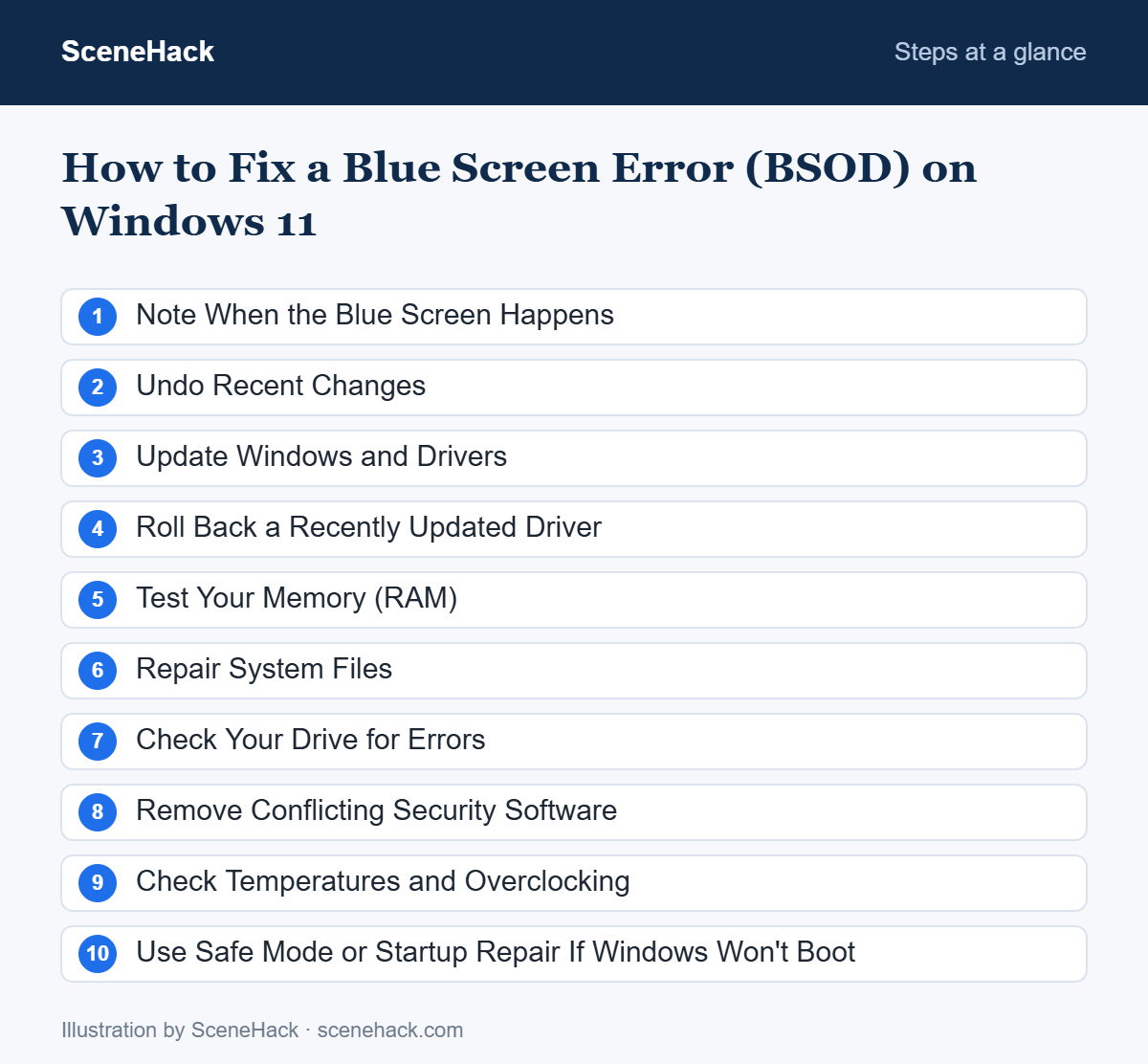
1. Note When the Blue Screen Happens
Before changing anything, look for a pattern. Does the blue screen error appear right after a Windows update, when you plug in a device, while gaming, or when the laptop wakes from sleep? A clear trigger usually tells you which fix to try first.
2. Undo Recent Changes
If the crashes started after you installed new software, a driver or a hardware accessory, remove it. Unplug non-essential USB devices such as external drives, docks and printers, then restart and see whether the crashes stop.
3. Update Windows and Drivers
Many blue screens are fixed by updates. Open Settings > Windows Update, install everything available, and check Advanced options > Optional updates for driver updates. For graphics drivers, use the official NVIDIA, AMD or Intel tool, or your laptop maker’s support app. Our guide on updating drivers in Windows 11 safely covers each method.
4. Roll Back a Recently Updated Driver
If the crashes began right after a driver update, go back to the previous version. Open Device Manager, right-click the device (graphics, Wi-Fi and storage drivers are common culprits), choose Properties > Driver > Roll Back Driver, then restart.
5. Test Your Memory (RAM)
Faulty RAM causes random, hard-to-explain crashes. Windows includes a free test:
- Press Win + R, type mdsched.exe and press Enter.
- Choose Restart now and check for problems.
- The test runs before Windows loads and shows the result after you sign in.
If errors are reported, the memory module needs replacing. On laptops with removable RAM, reseating the module can sometimes help.
6. Repair System Files
Corrupted Windows files are another frequent cause. Open Command Prompt as administrator and run these commands one at a time:
DISM /Online /Cleanup-Image /RestoreHealth
sfc /scannow
Let both finish completely, then restart.
7. Check Your Drive for Errors
A failing hard drive or SSD can crash Windows when it can’t read important files. In an administrator Command Prompt, run chkdsk C: /scan. Then check the drive’s health in PowerShell with Get-PhysicalDisk. If the status isn’t Healthy, back up your files right away.
8. Remove Conflicting Security Software
Running two antivirus programs at once, or an outdated third-party security suite, can cause crashes. Uninstall any extra antivirus and let Windows Security protect the PC while you test.
9. Check Temperatures and Overclocking
If you see WHEA_UNCORRECTABLE_ERROR or crashes during games, heat may be the cause. Clean dust out of the vents, use the laptop on a hard surface, and reset any overclocking settings in your BIOS or tuning software to default.
10. Use Safe Mode or Startup Repair If Windows Won’t Boot
If the blue screen error appears before you can reach the desktop, Windows usually opens the recovery environment after a few failed starts. From there, choose Troubleshoot > Advanced options and try, in order:
- Startup Repair — fixes common boot problems automatically.
- Startup Settings > Safe Mode — starts Windows with minimal drivers so you can remove a bad driver or app.
- Uninstall Updates — removes the latest quality or feature update.
- System Restore — returns system files to an earlier restore point without touching personal files.
How to Find the Cause After a Crash
Windows records every crash. Search for Reliability Monitor (or “View reliability history”) in the Start menu. Red X icons mark critical events; click one to see which driver or program was involved. This is often the fastest way to spot a pattern.
What Microsoft Recommends After a Blue Screen
Microsoft’s guide to blue screen and stop code errors starts with a question worth asking yourself first: did you add new hardware just before the crashes began? If so, shut down, remove it and test again. If Windows will not start normally, Microsoft’s next step is safe mode, followed by installing the latest updates.
If the crashes continue, Microsoft recommends System Restore to return Windows to a point before the problem started. It notes that System Restore does not change your personal files, but it can remove recently installed apps and drivers. That is why it is listed after the lighter steps. The pattern to remember: undo the most recent change first, whether that is hardware, a driver or an update.
Blue Screen Errors: Common Questions
Is a single blue screen something to worry about?
One crash after an update isn’t unusual. Repeated blue screens, especially with the same stop code, mean something needs fixing.
Will fixing a blue screen delete my files?
None of the fixes above delete personal files. Still, if crashes are frequent, back up important files first in case the drive is failing.
When should I reset Windows?
Only after the steps above fail. Use Settings > System > Recovery > Reset this PC and choose Keep my files. If crashes continue after a reset, the problem is almost certainly hardware.
Sources and further reading: Microsoft Support: Troubleshooting Windows unexpected restarts and stop code errors.
What to Do After a Blue Screen
A blue screen error looks scary, but it’s Windows protecting itself. Note the stop code, undo recent changes, update or roll back drivers, and test your memory and drive. Working through these steps in order, we find most BSOD problems can be solved without reinstalling Windows.

