“iPhone Storage Full” is one of the most annoying messages on an iPhone. You delete a few photos, but the warning comes back — and in Settings a mysterious grey bar called System Data seems to take up far more space than it should. This guide explains what System Data is, and the safest ways to free up space when your iPhone storage is full.
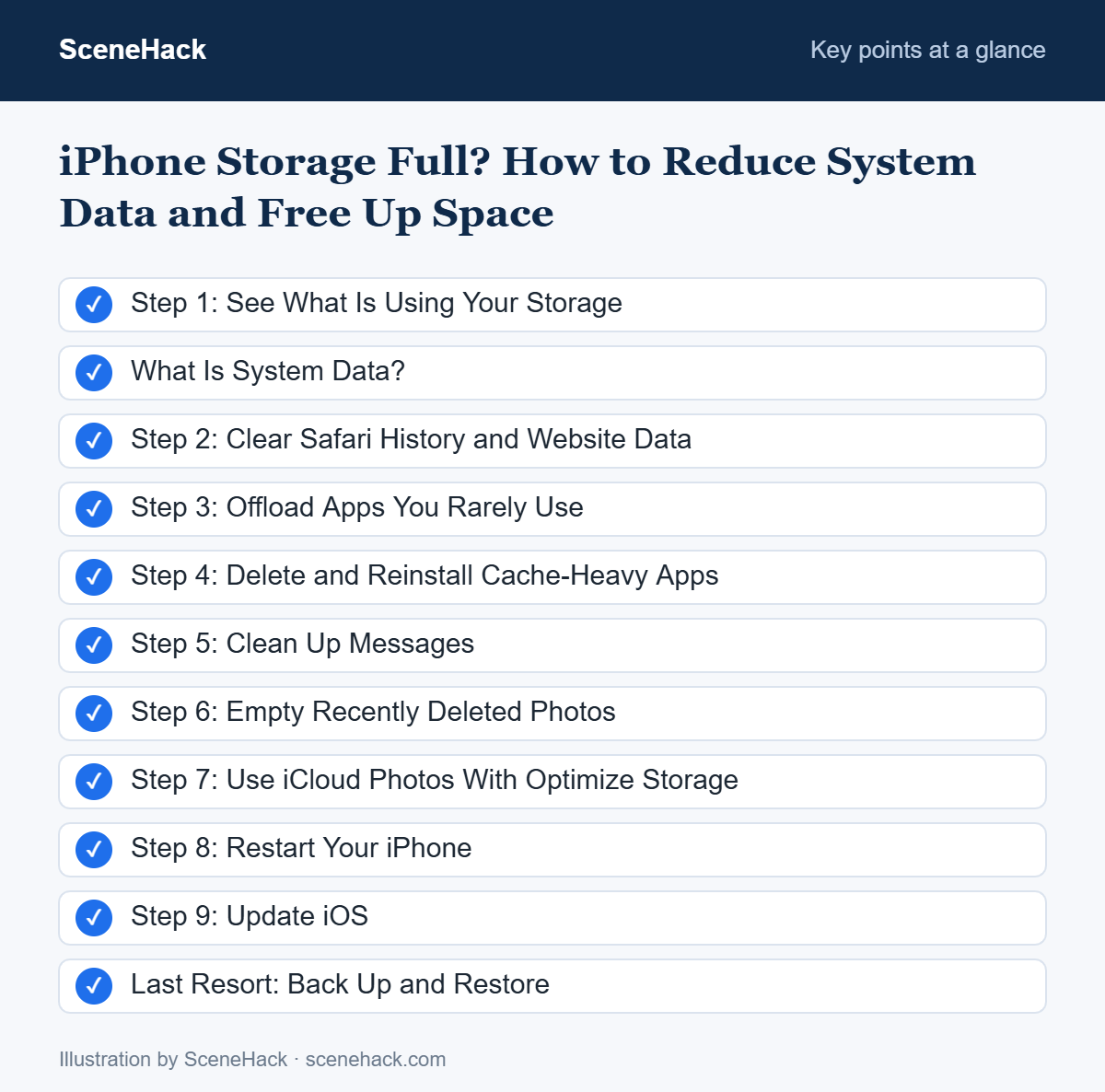
Step 1: See What Is Using Your Storage
- Open Settings > General > iPhone Storage.
- Wait a moment while the coloured bar loads.
- Scroll down to see every app sorted by size, plus iOS and System Data at the bottom.
iPhone Storage also shows recommendations, such as offloading unused apps or reviewing large attachments. These are a good place to start.
What Is System Data?
System Data (called “Other” in older iOS versions) contains caches, logs, temporary files and other resources the system uses. It grows and shrinks automatically, and you can’t delete it directly. However, several habits — like heavy video streaming, lots of Safari browsing or big message threads — make it grow, and the steps below help bring it down.
| Storage category | What’s inside | Can you reduce it? |
|---|---|---|
| Photos | Photos, videos, Recently Deleted | Yes — delete, empty Recently Deleted, use iCloud |
| Apps | App files and their documents | Yes — offload or delete |
| Messages | Texts, photos and videos in chats | Yes — delete old threads and attachments |
| System Data | Caches, logs, temporary data | Indirectly — clear caches, restart |
| iOS | The operating system | No |
Step 2: Clear Safari History and Website Data
Safari’s cache is one of the biggest contributors to System Data. Open Settings > Apps > Safari (on older iOS: Settings > Safari) and tap Clear History and Website Data. You’ll be signed out of some websites.
Step 3: Offload Apps You Rarely Use
Offloading removes the app but keeps its documents and data, so you can reinstall it later and pick up where you left off. In iPhone Storage, tap an app and choose Offload App, or enable Offload Unused Apps to let iOS do it automatically.
Step 4: Delete and Reinstall Cache-Heavy Apps
Apps such as social media, streaming and messaging apps can store gigabytes of cached data inside “Documents & Data”. If an app’s documents are much larger than the app itself, deleting and reinstalling it clears that cache. Make sure your chats are backed up first — for WhatsApp, use its built-in iCloud backup in Settings > Chats > Chat Backup.
Step 5: Clean Up Messages
- Open Settings > Apps > Messages and set Keep Messages to 1 Year or 30 Days.
- In iPhone Storage > Messages, use Review Large Attachments to delete big videos and files you no longer need.
Step 6: Empty Recently Deleted Photos
Deleted photos stay on your iPhone for about 30 days in Photos > Albums > Recently Deleted. Open that album, tap Select and Delete All to free the space immediately.
Step 7: Use iCloud Photos With Optimize Storage
If you pay for iCloud storage, turn on Settings > [your name] > iCloud > Photos and choose Optimize iPhone Storage. Full-quality originals stay in iCloud, and your iPhone keeps smaller versions. Learn more in our guide on what cloud storage is.
Step 8: Restart Your iPhone
Restarting clears temporary files that System Data may be holding onto. Turn the iPhone off, wait 30 seconds, and turn it back on. Check iPhone Storage again after a few minutes.
Step 9: Update iOS
Go to Settings > General > Software Update. Updates sometimes fix bugs that cause System Data to grow abnormally.
Last Resort: Back Up and Restore
If System Data remains huge after everything above, backing up your iPhone to iCloud or a computer, erasing it and restoring from the backup rebuilds the system storage from scratch. This takes time, so only do it once you have a complete, verified backup.
What Apple Says About System Data
Apple’s storage support page explains two things that change how you should approach this problem. First, you cannot manually delete cached files on an iPhone. iOS manages them itself, and when storage runs low it frees space by removing items that can be downloaded again or are no longer needed, such as unused apps and temporary files.
Second, part of what you see is not removable at all: Apple describes assets such as Siri voices, fonts and dictionaries as non-removable. So the realistic goal is to shrink System Data, not to bring it to zero. Apple’s recommended starting point is Settings > General > iPhone Storage, where the recommendations at the top of the screen (tap Show All) are the safest way to recover space before you try anything more involved.
iPhone Storage and System Data: Common Questions
Why does System Data keep changing size?
iOS adds and removes caches and temporary files automatically, so its size naturally goes up and down over the day.
Do “cleaner” apps from the App Store remove System Data?
No. iPhone apps can’t access other apps’ caches or system files, so they can’t clear System Data. Stick to the built-in steps above.
How much free space should I keep?
Try to keep at least a few gigabytes free so iOS can install updates and the camera can record video without interruptions.
Sources and further reading: Apple Support: How to check the storage on your iPhone and iPad and Manage storage on iPhone.
Keeping Your iPhone Storage Free
When your iPhone storage is full, start with the built-in iPhone Storage recommendations, then clear Safari data, offload unused apps and clean up Messages and Photos. Those steps free up several gigabytes on most iPhones and keep System Data under control.