Unknown numbers, fake bank alerts, “you’ve won a prize” messages — spam calls and texts are more than annoying; many are scams designed to steal your money or personal information. Luckily, Android includes strong tools to stop most of them. Here are 8 easy methods to block spam calls and texts on Android. Here are the easiest ways to block spam calls and scam texts on any Android phone.
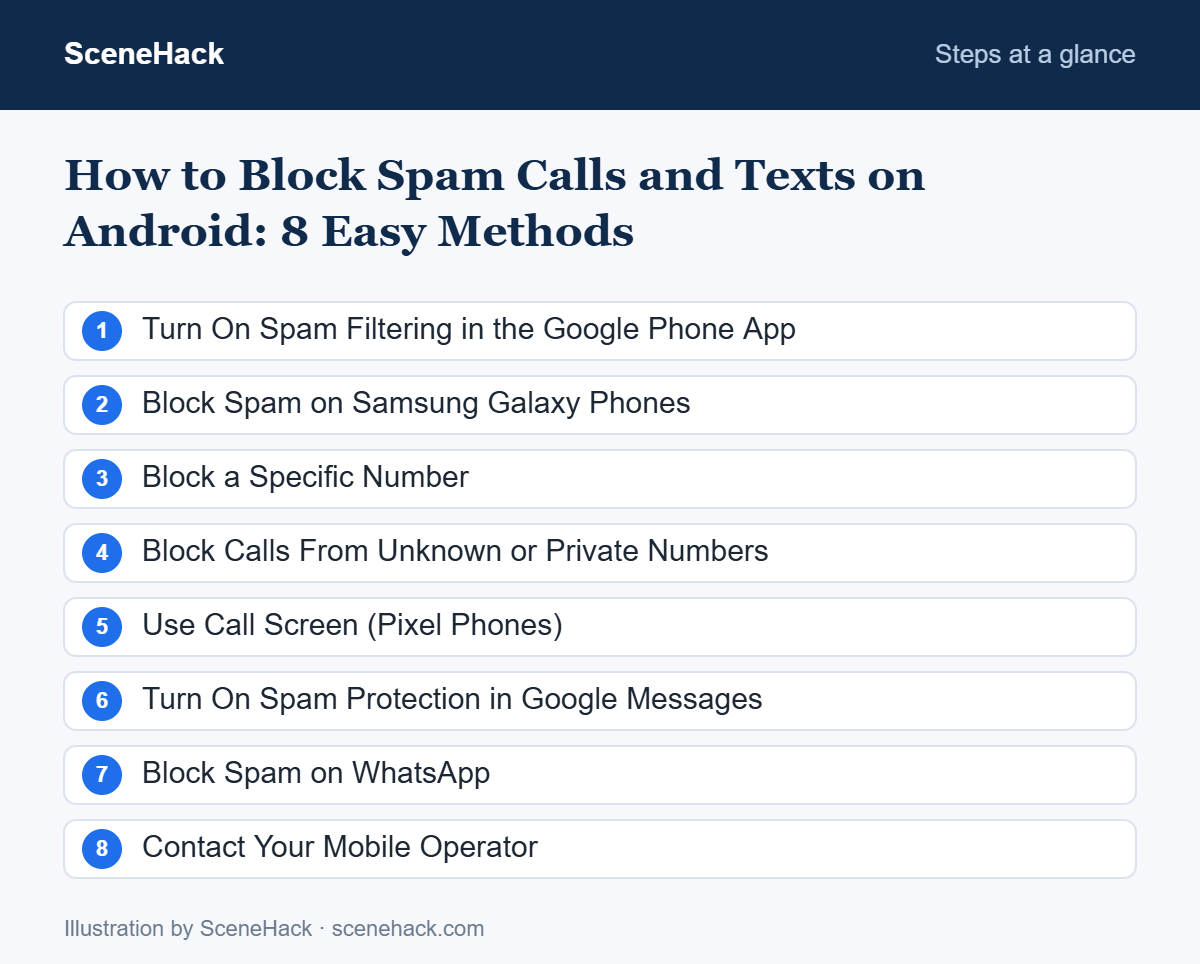
1. Turn On Spam Filtering in the Google Phone App
Most Android phones (including Pixel, Motorola, Nokia and many others) use the Phone by Google app, which has built-in caller ID and spam protection.
- Open the Phone app and tap the three dots (top right) > Settings.
- Tap Caller ID & spam.
- Turn on See caller & spam ID.
- Turn on Filter spam calls so suspected spam calls never ring your phone.
2. Block Spam on Samsung Galaxy Phones
- Open the Samsung Phone app and tap the three dots > Settings.
- Tap Caller ID and spam protection and turn it on.
- Choose to block high-risk scam and spam calls or all spam and scam calls.
3. Block a Specific Number
Keep getting calls from the same number?
- Open the Phone app and go to Recents.
- Tap (or long-press) the number.
- Select Block / report spam (or Block on Samsung) and confirm.
Reporting the number as spam also helps protect other users.
4. Block Calls From Unknown or Private Numbers
If you rarely get legitimate calls from hidden numbers, block them. In the Phone app, go to Settings > Blocked numbers and turn on Unknown (called “Block unknown/private numbers” on Samsung). This blocks calls with no caller ID — regular numbers not in your contacts will still get through.
5. Use Call Screen (Pixel Phones)
On supported Pixel phones in some countries, Google Assistant can answer unknown callers for you and show a live transcript, so you can decide whether to pick up. Open Phone > Settings > Call Screen (sometimes under Caller ID & spam) to set it to screen spam calls automatically.
6. Turn On Spam Protection in Google Messages
- Open Google Messages, tap your profile picture > Messages settings.
- Tap Spam protection (or Protection & Safety) and turn on Enable spam protection.
- Suspected spam goes to the Spam & blocked folder instead of your inbox.
To block a sender, open the conversation, tap the three dots and choose Details > Block & report spam.
7. Block Spam on WhatsApp
Scam messages increasingly arrive on WhatsApp. Open the chat and tap Block or Report. Then go to Settings > Privacy > Calls and turn on Silence unknown callers. More tips are in our WhatsApp security guide.
8. Contact Your Mobile Operator
Many mobile operators offer free spam-blocking services, “do not call” registries or SMS short codes to report spam. Check your operator’s website or app. Using an official service is safer than installing unknown call-blocking apps, which may ask for access to all your contacts.
Warning Signs of a Scam Call or Text
| Red flag | Example |
|---|---|
| Urgency or threats | “Your account will be blocked in 24 hours” |
| Requests for codes or passwords | “Tell me the OTP we just sent you” |
| Too-good-to-be-true offers | Lottery wins, prizes, job offers you never applied for |
| Strange links | Shortened or misspelled website addresses |
| Payment by unusual methods | Gift cards, crypto or wire transfers |
Never share a one-time code (OTP) with anyone. Learn more in our guide on how to spot phishing messages, and protect your accounts with two-factor authentication.
What Google’s Own Spam Protection Does (and Does Not Do)
Google’s Phone app help page confirms that caller ID and spam protection is on by default, but the stronger option, Filter spam calls, is something you turn on yourself. Once it is on, suspected spam calls do not ring. Google notes that you get no missed-call or voicemail notification for them, although they still appear in your call history.
That detail is worth knowing: check your call history now and then, in case a real call was filtered. Google also states that the feature works by sending call information to Google, and that it does not take phone numbers from your contact list. Reporting a number with Block or Report spam stops that number and improves spam detection for others. Some phones with automatic Call Screen do not show a separate filter option.
Blocking Spam Calls and Texts: Common Questions
Will blocked callers know I blocked them?
No. Blocked calls usually go straight to voicemail or are silently rejected, and blocked texts are not delivered to your inbox. The sender isn’t notified.
Can I unblock a number later?
Yes. Go to Phone > Settings > Blocked numbers and tap the X or minus next to the number.
Why do I still get some spam calls?
Scammers constantly change numbers and “spoof” local-looking numbers. Filters catch most, but not all — so reporting spam and staying alert still matters.
Sources and further reading: Phone app Help: Use caller ID & spam protection.
Staying Ahead of Spam
Turning on spam filtering in your Phone and Messages apps takes less than two minutes and blocks the majority of unwanted calls and texts. Combine it with blocking repeat offenders and a healthy suspicion of urgent requests, and you’ll be far safer from scams. Take two minutes to block spam calls today and enjoy a quieter phone.