Nothing hurts productivity like a “battery low” warning in the middle of a class, meeting or flight. The good news: Windows 11 has plenty of built-in settings that can noticeably extend your laptop’s battery life. Here are 12 practical ways to make your laptop battery last longer, plus tips to keep the battery healthy for years. These laptop battery tips work on any Windows 11 laptop.
Tested by Ayzaz Khan: I followed the steps in this guide on my Lenovo ThinkPad (Intel Core i7, 5th generation) running Windows 11, and they worked as described. Last checked: September 2026.
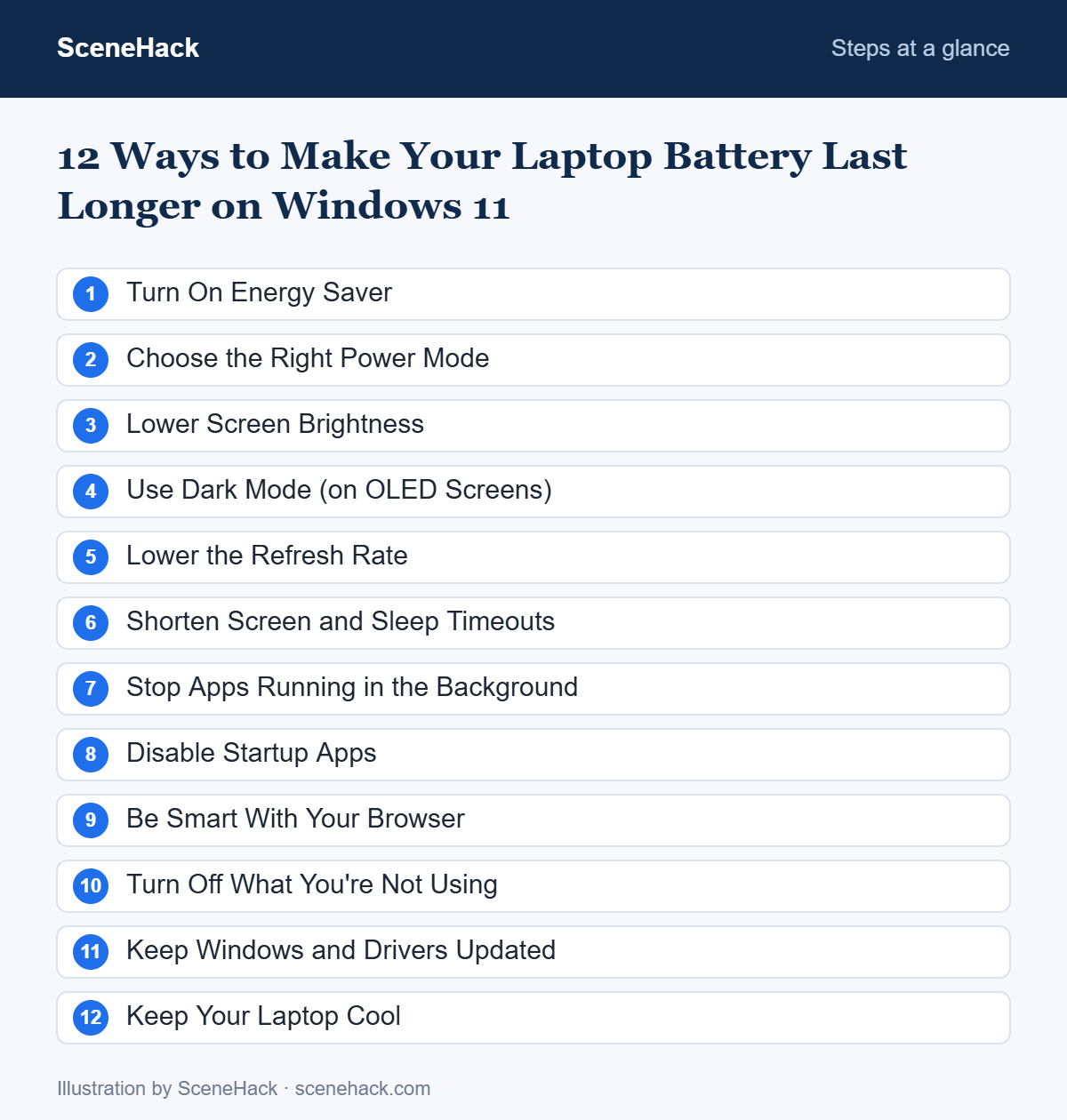
1. Turn On Energy Saver
On recent versions of Windows 11, Energy Saver replaced the older Battery Saver. It lowers background activity and reduces screen brightness to stretch your battery.
- Open Settings > System > Power & battery.
- Under Energy saver, turn it on now or set it to turn on automatically at a battery level such as 30%.
You can also toggle it quickly from the Quick Settings panel (press Win + A).
2. Choose the Right Power Mode
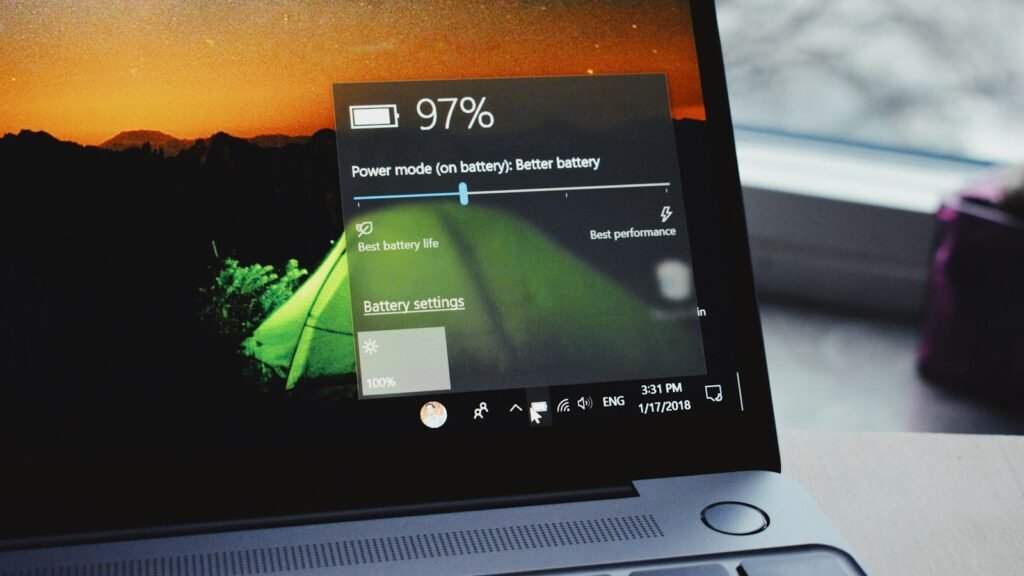
In Settings > System > Power & battery, find Power mode and set it to Best power efficiency when on battery. Use “Best performance” only when plugged in.
3. Lower Screen Brightness
The display is usually the biggest battery drain. Drop brightness to a comfortable level using the brightness slider in Quick Settings. Around 40–60% is fine indoors for most screens.
4. Use Dark Mode (on OLED Screens)
If your laptop has an OLED display, dark pixels use less power. Go to Settings > Personalization > Colors and choose Dark. On standard LCD screens, the saving is minimal, but it’s still easier on the eyes at night.
5. Lower the Refresh Rate
High refresh rate screens (90 Hz, 120 Hz or more) look smooth but use more power. Go to Settings > System > Display > Advanced display and choose 60 Hz when on battery, or enable Dynamic refresh rate if available.
6. Shorten Screen and Sleep Timeouts
In Settings > System > Power & battery > Screen, sleep & hibernate timeouts, set the screen to turn off after 2–3 minutes and sleep after 5–10 minutes on battery.
7. Stop Apps Running in the Background
Go to Settings > System > Power & battery > Battery usage to see which apps use the most power. For apps you don’t need in the background, open Settings > Apps > Installed apps, click the three dots next to the app, choose Advanced options and set Background apps permissions to Never (available for many Store apps).
8. Disable Startup Apps
Fewer programs running means less battery used. Open Settings > Apps > Startup and turn off anything you don’t need at boot, like chat apps, game launchers and updaters. This also makes your PC faster — see our guide to speeding up a slow Windows 11 PC.
9. Be Smart With Your Browser
Dozens of open tabs quietly drain power. Close tabs you don’t need and turn on your browser’s efficiency features: Efficiency mode in Microsoft Edge or Energy Saver in Google Chrome (Settings > Performance). For more, read why Chrome is slow and how to fix it.
10. Turn Off What You’re Not Using
Switch off Bluetooth when you’re not using wireless devices, turn off keyboard backlighting, and unplug USB devices like external drives that draw power. If you don’t need the internet at all, Airplane mode saves even more.
11. Keep Windows and Drivers Updated
Updates often include power-management improvements and fixes for bugs that drain battery. Check Settings > Windows Update regularly and learn how to update drivers safely.
12. Keep Your Laptop Cool
Heat makes batteries drain faster and age faster. Use your laptop on a hard, flat surface — not a bed or pillow — and keep the vents clean. Our guide to cleaning your laptop safely can help.
Long-Term Battery Health Tips
| Do | Avoid |
|---|---|
| Keep charge mostly between 20% and 80% | Regularly draining to 0% |
| Turn on your maker’s battery-care or charge-limit feature (e.g. in Lenovo Vantage, MyASUS, Dell or HP tools) if you’re often plugged in | Leaving it at 100% on the charger all day, every day, in a hot place |
| Use the original or a good-quality charger | Cheap, unbranded chargers |
| Store at around 50% if unused for weeks | Storing it fully drained |
Check your battery health: open Command Prompt and run powercfg /batteryreport. Windows saves an HTML report showing your battery’s design capacity versus its current full-charge capacity.
What We Found When Testing
We applied these settings on our ThinkPad running Windows 11. Turning on Energy Saver, lowering screen brightness and closing unused browser tabs gave the most noticeable gain in battery time — the typical result you can expect from these changes, especially on an older laptop battery.
How This Compares With Microsoft’s Battery Advice
Microsoft’s battery saving tips for Windows begin where this guide does: the Energy recommendations screen in Settings, followed by Energy Saver, which manages system processes and power use automatically. After that, Microsoft’s list is almost entirely about the display: a shorter screen-off time, lower brightness, a dark theme, and a lower refresh rate.
The refresh rate tip is the one most people miss. Microsoft notes that a higher refresh rate gives smoother motion but uses more power, so a laptop running at 120 Hz or more on battery is spending charge on smoothness you may not need for documents and browsing. Switching to 60 Hz, or to a dynamic refresh rate where the laptop supports it, is a single setting. Microsoft also recommends checking battery usage per app and limiting background activity for the heaviest ones.
Laptop Battery Life: Common Questions
Is it bad to keep my laptop plugged in all the time?
Modern laptops stop charging when full, but sitting at 100% while warm still ages the battery faster. If available, use your manufacturer’s charge-limit setting (often 80%).
Why is my new laptop’s battery life worse than advertised?
Advertised figures come from light tests like video playback at low brightness. Real use with a browser, video calls and high brightness uses much more power.
When should I replace my laptop battery?
If the battery report shows full-charge capacity well below design capacity (for example, under about 60–70%) and runtime no longer meets your needs, consider a replacement from an authorized service centre.
Sources and further reading: Microsoft Support: Battery saving tips for Windows.
Getting More Hours From Every Charge
Turning on Energy Saver, choosing the efficiency power mode and dimming your screen will give you the biggest gains in seconds. Add good charging habits, and your laptop battery will last longer each day — and for more years overall. Look after your laptop battery with these habits and it will serve you well for years.