That sinking feeling when you reach for your phone and it isn’t there is something everyone knows. Fortunately, Android has a powerful built-in tool to help: Google Find Hub (previously called Find My Device). This guide shows you how to find your lost Android phone, what to do if it has been stolen, and which settings to turn on today so you’re prepared. Here is exactly what to do when you have a lost Android phone.
What Is Google Find Hub?
Find Hub is Google’s free service for locating Android phones, tablets, earbuds, watches and compatible Bluetooth trackers. It is built into Android and linked to your Google account. You can use it from the Find Hub app on another Android device or from a web browser at google.com/android/find.
Step 1: Locate Your Phone
- On any computer or phone, go to google.com/android/find (or open the Find Hub app on another Android device).
- Sign in with the same Google account used on your lost phone.
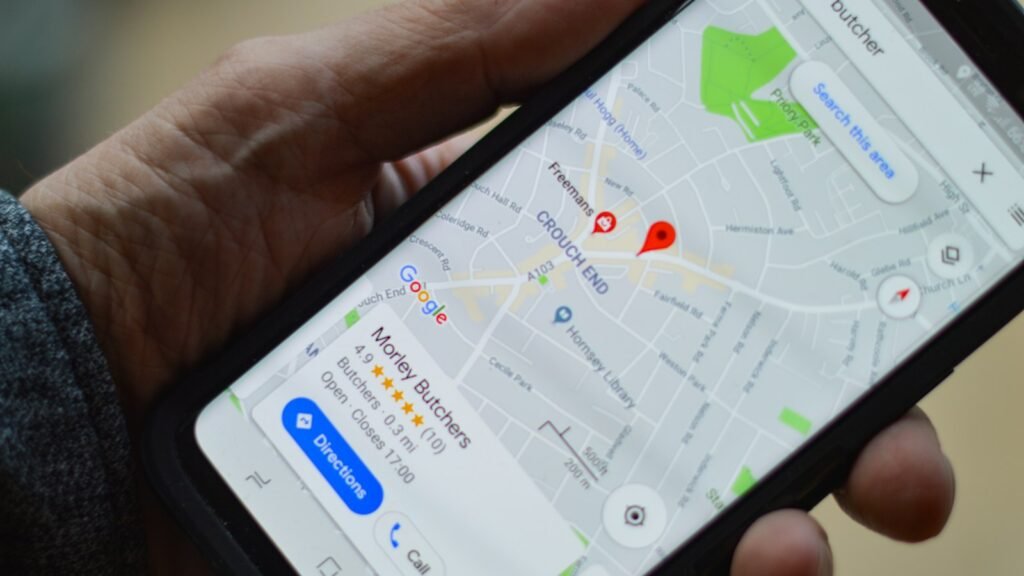
- Select your phone from the list. Its location appears on the map, along with the battery level and when it was last seen.
Borrowing a friend’s phone? In the Find Hub app, they can tap their profile and choose Help a friend, or you can use a browser in guest/incognito mode so you don’t leave your account signed in.
Step 2: Choose the Right Action
| Option | What it does | When to use it |
|---|---|---|
| Play sound | Rings for 5 minutes at full volume, even on silent | Phone is probably nearby — at home, in the car, under a cushion |
| Secure device / Mark as lost | Locks the phone, signs out of your Google account, and shows a message or contact number on the lock screen | Left somewhere or you suspect it was taken |
| Factory reset device | Erases everything on the phone | You’re sure it won’t come back and want to protect your data |
Important: after a factory reset, you can no longer locate the phone. Only erase it when you’ve given up on getting it back.
Can You Find a Phone That’s Switched Off?
Often, yes. Google’s Find Hub network uses other nearby Android devices to securely detect your phone and report its location, and some newer phones (such as recent Pixel models) can still be found for a while after being turned off or when the battery dies. If location isn’t available, Find Hub shows the last known location, which is still a great starting point.
Turn On These Settings Now (Before You Lose Your Phone)
- Find Hub: go to Settings > Google > All services > Find Hub (on some phones: Settings > Security > Find My Device) and make sure it’s on.
- Find Hub network: in the same menu, turn on network participation so your phone can be found offline.
- Location: keep Location turned on in quick settings.
- Screen lock: use a PIN, pattern or fingerprint. Without one, anyone who finds your phone can use it.
- Theft protection: on Android 10 and later, look for Theft protection in Settings > Google > All services (or Security settings) and turn on Theft Detection Lock, which locks the screen if someone snatches the phone and runs.
- Backup: make sure your photos and contacts are backed up — see how to back up your Android phone.
Samsung users: you can also use SmartThings Find with your Samsung account for an extra way to locate your Galaxy phone.
What to Do If Your Phone Was Stolen
- Don’t try to recover it yourself. If the map shows it at an unknown address, contact the police and share the location with them.
- Lock it immediately using “Secure device” in Find Hub.
- Call your mobile operator to block your SIM so no one can use your number or receive your verification codes.
- Change important passwords — especially Google, email and banking — from another device.
- Tell your bank if you had banking or payment apps on the phone.
- Note your IMEI number (from the phone’s box or your Google account’s devices page) — operators and police may need it.
What Google Requires for a Lost Phone to Be Found
Every method in this guide depends on settings that must be in place before the phone goes missing. Google’s Find Hub setup page lists them: the phone must be signed in to a Google Account, Location must be on, and Allow device to be located must be enabled under Settings > Security > Find Hub.
For finding a phone that is offline, Google adds one more requirement that is easy to miss: a screen lock (PIN, pattern or password) must be set before the phone can use the Find Hub network. The offline setting has four levels, from Off to With network everywhere. Google also says that supported devices such as the Pixel 8 series can be located for several hours after they power off, if Bluetooth and Location were left on. Most other phones do not have that ability, so check these settings today.
Finding a Lost Android Phone: Common Questions
Can I find my phone without the Google account password?
No. You need to sign in to the Google account linked to the phone. Keep your password in a safe place or password manager.
Why does Find Hub say “Can’t reach device”?
The phone may be off, out of battery, have no internet, or Find Hub may be disabled. Check the last known location instead.
Does Find Hub work on all Android phones?
It works on nearly all Android phones with Google Play services. Some features, like finding a phone when it’s switched off, depend on the model.
Sources and further reading: Android Help: Find, secure, or erase a lost Android device.
Set It Up Before You Need It
Take two minutes today to check that Find Hub, Location and a screen lock are turned on. If your phone ever goes missing, you’ll be able to ring it, lock it or erase it from any browser — and greatly improve your chances of getting it back. With these settings on, a lost Android phone is much easier to recover.