Whether you are buying a new laptop or upgrading an old PC, you will face the same question: SSD or HDD? Both store your files, but they work in completely different ways, and the choice has a huge impact on how fast your computer feels. This guide explains the differences in plain English and helps you pick the right drive. Here is our complete SSD vs HDD comparison.
What Is an HDD?
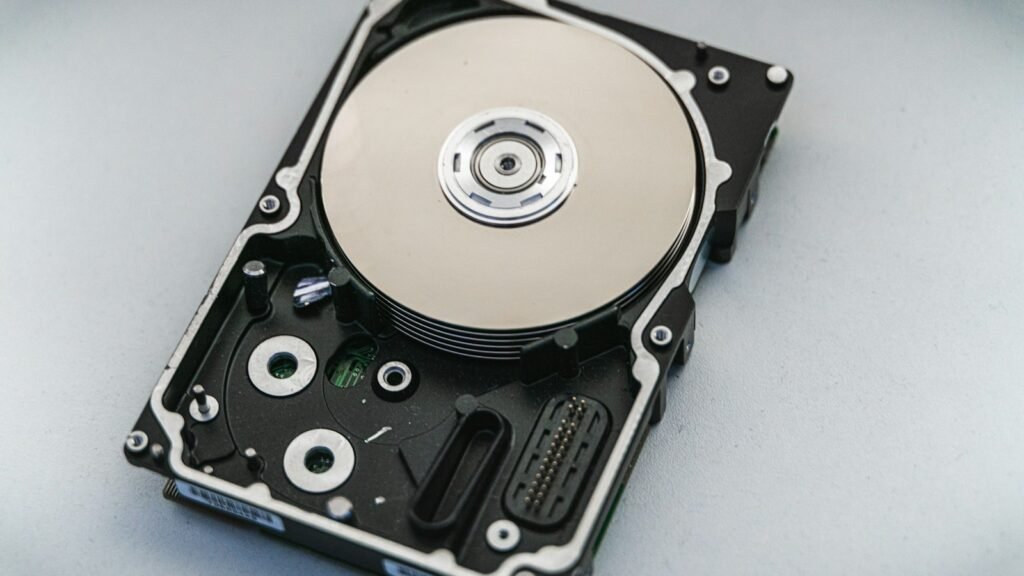
A hard disk drive (HDD) stores data on spinning magnetic platters, with a tiny arm that moves across them to read and write. It is the older technology, but it is still popular because it offers lots of storage for very little money. Because it has moving parts, it is slower and more sensitive to bumps and drops.
What Is an SSD?
A solid-state drive (SSD) stores data on flash memory chips, similar to a USB flash drive or your phone’s storage. There are no moving parts, so it is much faster, quieter and more durable. SSDs come in two main types:
- SATA SSD: uses the same connection as a 2.5-inch laptop hard drive. Easy upgrade for older laptops and PCs.
- NVMe SSD: a small stick (usually M.2) that connects directly over PCIe and is several times faster than SATA.
SSD vs HDD: Side-by-Side Comparison
| Feature | HDD | SATA SSD | NVMe SSD |
|---|---|---|---|
| Typical read speed | 80–200 MB/s | Up to ~550 MB/s | 2,000–7,000+ MB/s |
| Boot time | Slow (often 30s+) | Fast | Fastest |
| Durability | Sensitive to drops | Very durable | Very durable |
| Noise | Audible spinning and clicks | Silent | Silent |
| Power use | Higher | Lower | Low to moderate |
| Cost per GB | Lowest | Higher | Similar to SATA SSD or slightly higher |
| Best for | Bulk storage, backups | Upgrading older PCs | New PCs, gaming, heavy work |
Speed: The Biggest Difference
Speed is where SSDs win by a landslide. Moving from an HDD to even a basic SSD is the single most noticeable upgrade most computers can get. Windows boots in seconds instead of minutes, apps open almost instantly, and file searches are much quicker. If your PC feels slow, check whether it still uses a hard drive — see our guide on speeding up a slow Windows 11 PC.
Lifespan and Reliability
A common myth is that SSDs “wear out quickly”. Every SSD has a write-endurance rating (often listed as TBW, or terabytes written), but for normal home and office use, a modern SSD will typically outlast the computer it’s in. HDDs, meanwhile, can fail mechanically from drops, heat or age. Either way, no drive is immune to failure, so always keep backups — for example with cloud storage.
Capacity and Price
HDDs still offer the most storage for your money, which is why they remain popular for large media libraries, backup drives and network storage. SSD prices have fallen a lot, and for most people a 500 GB to 1 TB SSD is now affordable and enough for Windows, apps and everyday files.
Which Should You Choose?
- For your main (boot) drive: always choose an SSD. NVMe if your computer supports it.
- For gaming: NVMe SSD. Games load faster, and some modern titles list an SSD as a requirement.
- For video editing or large projects: a fast NVMe SSD for active projects, plus a large HDD for archives.
- For backups and bulk storage: an external HDD offers the best value.
- On a tight budget: a smaller SSD for Windows and apps, plus an HDD for photos and videos.
How to Check Which Drive Your PC Has
- Press Ctrl + Shift + Esc to open Task Manager (more handy shortcuts in our Windows 11 shortcuts list).
- Click the Performance tab.
- Select your Disk. Windows shows the type — SSD or HDD — under the disk name.
SSD vs HDD: Common Questions
Can I replace my laptop’s HDD with an SSD?
In most laptops, yes. A 2.5-inch SATA SSD fits where the old hard drive was. You can clone your existing drive with free tools from many SSD makers, or do a fresh Windows install.
Should I defragment an SSD?
No. Windows automatically runs “Optimize” (TRIM) for SSDs instead of defragmenting them. Leave the built-in schedule on.
Is an SSD worth it for an old computer?
Usually yes. An SSD is one of the cheapest ways to make an older PC feel much faster, as long as the rest of the hardware still meets your needs.
Sources and further reading: Microsoft Support: Defragment / optimize your data drives in Windows.
SSD or HDD: The Short Answer
For speed and reliability, the SSD is the clear winner and belongs in every modern computer as the main drive. HDDs still make sense when you need lots of cheap storage for backups and media. Many people get the best of both: an SSD for speed and an HDD for space. In the SSD vs HDD debate, most people are best served by an SSD for speed and an HDD for extra space.