
Your laptop once lasted most of the day, and now it barely survives a long meeting. Before you blame Windows or buy a new machine, check battery health. Windows 11 includes a free report that shows how much capacity the battery has lost since it left the factory. It takes about a minute to create. This guide shows how to run the report, how to read it, and how to decide whether the battery needs replacing or just better habits.
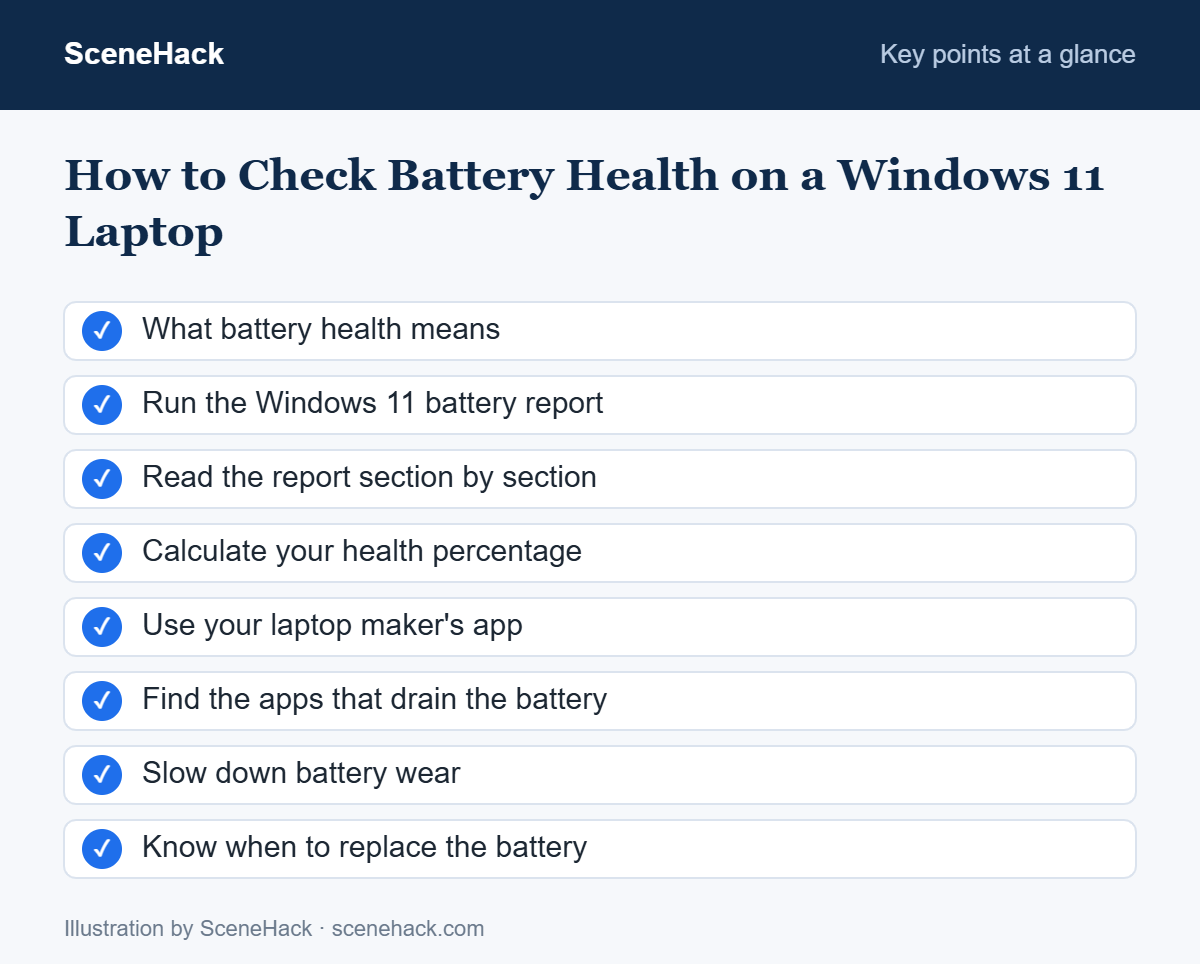
What Battery Health Means
Every laptop battery has two capacity figures. Design capacity is what the battery could hold when it was new. Full charge capacity is what it can hold today. Battery health is simply the second number as a percentage of the first.
The gap between them grows with age. Microsoft’s battery care guidance explains that lithium-ion capacity falls after the battery has been charged and discharged a certain number of times. As a result, an older laptop needs charging more often, even when nothing else is wrong.
How to Check Battery Health With the Windows 11 Battery Report
The battery report is built into Windows, so you do not need to install anything. These are the steps Microsoft gives.
- Select Start and type Command Prompt.
- Right-click Command Prompt, choose Run as administrator, and then select Yes.
- Type
powercfg /batteryreportand press Enter. - Windows shows the folder where it saved the report. Open that folder in File Explorer.
- Double-click battery-report.html. It opens in your browser.
If you would like the file on your desktop instead, use this version of the command:
powercfg /batteryreport /output "%USERPROFILE%\Desktop\battery-report.html"The /output option is documented in Microsoft’s powercfg reference. It only changes where the report is saved.
How to Read the Battery Report
The report is long, but only a few sections matter for most people.
| Section | What it tells you |
|---|---|
| Installed batteries | Design capacity, full charge capacity and, on many laptops, the cycle count |
| Recent usage | When the laptop ran on battery or mains power over the last few days |
| Battery capacity history | How full charge capacity has changed over time |
| Battery life estimates | How long a full charge lasts now, compared with when the battery was new |
Start with Installed batteries, because it contains the two numbers you need. Then scroll to Battery capacity history. A slow, steady decline is normal. In contrast, a sharp drop within a few weeks suggests a failing battery, or a reading that needs a full charge cycle to settle.
Some laptops do not report a cycle count, and the report shows a dash in its place. That is a limit of the hardware and not a fault.
Calculate Your Battery Health Percentage
Divide full charge capacity by design capacity, and then multiply by 100. For example, suppose the report shows a design capacity of 57,000 mWh and a full charge capacity of 45,600 mWh. The battery health is 45,600 ÷ 57,000 × 100, which is 80%.
| Battery health | What it usually means |
|---|---|
| 80% to 100% | Normal wear. No action needed. |
| 60% to 79% | Noticeably shorter runtime. Adjust your habits and plan ahead. |
| Below 60% | Heavy wear. A replacement is worth considering if runtime bothers you. |
These ranges are rules of thumb and not official limits. What matters most is whether the remaining runtime still fits the way you work.
Check Battery Health With Your Laptop Maker’s App
Many manufacturers add their own battery tools, and these often give a plain-language verdict. Look for Lenovo Vantage on Lenovo laptops, MyASUS on ASUS models, HP Support Assistant on HP machines, and the Dell power or support app on Dell laptops. In addition, some of these apps let you cap charging below 100%, which the next sections explain.
Find the Apps That Drain the Battery
A healthy battery can still run down quickly if an app works hard in the background. To check, open Settings > System > Power & battery and expand Battery usage. Windows lists the apps that used the most power over the last 24 hours or 7 days.
For a deeper look, run powercfg /energy in the same administrator Command Prompt. Windows observes the system for 60 seconds and then writes a report of energy problems. Microsoft recommends running it while the PC is idle with no programs open. Once you know the cause, our guide to making a laptop battery last longer covers the settings that make the biggest difference.
How to Slow Down Battery Wear
You cannot stop a battery from ageing. However, Microsoft lists several habits that slow the process.
- Stay in the middle of the range. Microsoft recommends keeping the charge roughly between 20% and 80% when you can, and avoiding frequent deep discharges.
- Avoid heat. Excessive heat permanently reduces capacity. Therefore, do not charge the laptop on a bed or sofa, and keep the vents clean.
- Use Smart charging. On supported laptops, Smart charging stops the battery sitting at 100% while it is plugged in. A heart on the battery icon shows that it is active.
- Store it half full. If the laptop will sit unused for weeks, Microsoft advises leaving the battery at around 40% to 60%, in a cool and dry place.
The same principles apply to phones. See our phone battery tips for the mobile version.
When to Replace a Laptop Battery
A number alone should not decide this. Consider a replacement when one or more of the following is true:
- Battery health is well below 60% and the runtime no longer covers your day.
- The laptop shuts down suddenly while the battery icon still shows charge.
- Windows or the manufacturer’s app displays a battery warning.
- The case, keyboard or touchpad is bulging. A swollen battery is a safety risk, so stop using and charging the laptop and contact the manufacturer or a repair shop.
Use a genuine or manufacturer-approved battery where possible. Cheap unbranded batteries often overstate their capacity and may lack proper protection circuits.
Check Battery Health: Common Questions
Is 80% battery health good?
Yes. A battery at 80% has lost a fifth of its original capacity, which is normal after a couple of years of regular use.
Can I check battery health in Windows 11 Settings?
On most laptops, Settings shows the charge level and which apps use power, but not a health percentage. The battery report is the built-in way to see capacity.
How often should I check battery health?
Every few months is enough. Check sooner if the runtime drops suddenly.
Is it bad to leave a laptop plugged in all the time?
According to Microsoft, keeping a battery at 100% all the time can make it deteriorate faster. Smart charging, or a charge limit in the manufacturer’s app, removes most of that risk.
Keep an Eye on the Numbers
Run the battery report today and save the two capacity figures. Then run it again in a few months. A slow decline is normal, and good charging habits will stretch it further. A fast decline, sudden shutdowns or any swelling mean it is time to replace the battery.

