Your PC freezes for seconds at a time, apps take forever to open, and when you open Task Manager the Disk column shows 100%. High disk usage is especially common on older laptops that still use a traditional hard drive. This guide explains what causes 100% disk usage in Windows 11 and how to fix it, from quick checks to the upgrade that solves it for good.
Step 1: Find What Is Using the Disk
- Press Ctrl + Shift + Esc to open Task Manager.
- On the Processes page, click the Disk column header to sort by disk activity.
- Note which process is at the top. Then open the Performance tab and select your disk — it shows whether it is an HDD or SSD.
| Top process in Task Manager | What it usually means | Go to |
|---|---|---|
| Windows Update / Service Host: Windows Update | Updates downloading or installing | Fix 1 |
| Antimalware Service Executable | Windows Security is scanning | Fix 2 |
| Service Host: SysMain | Windows preloading apps into memory | Fix 5 |
| Windows Search / SearchIndexer | Files being indexed for search | Fix 6 |
| System (with low free RAM) | Heavy use of the page file | Fix 7 |
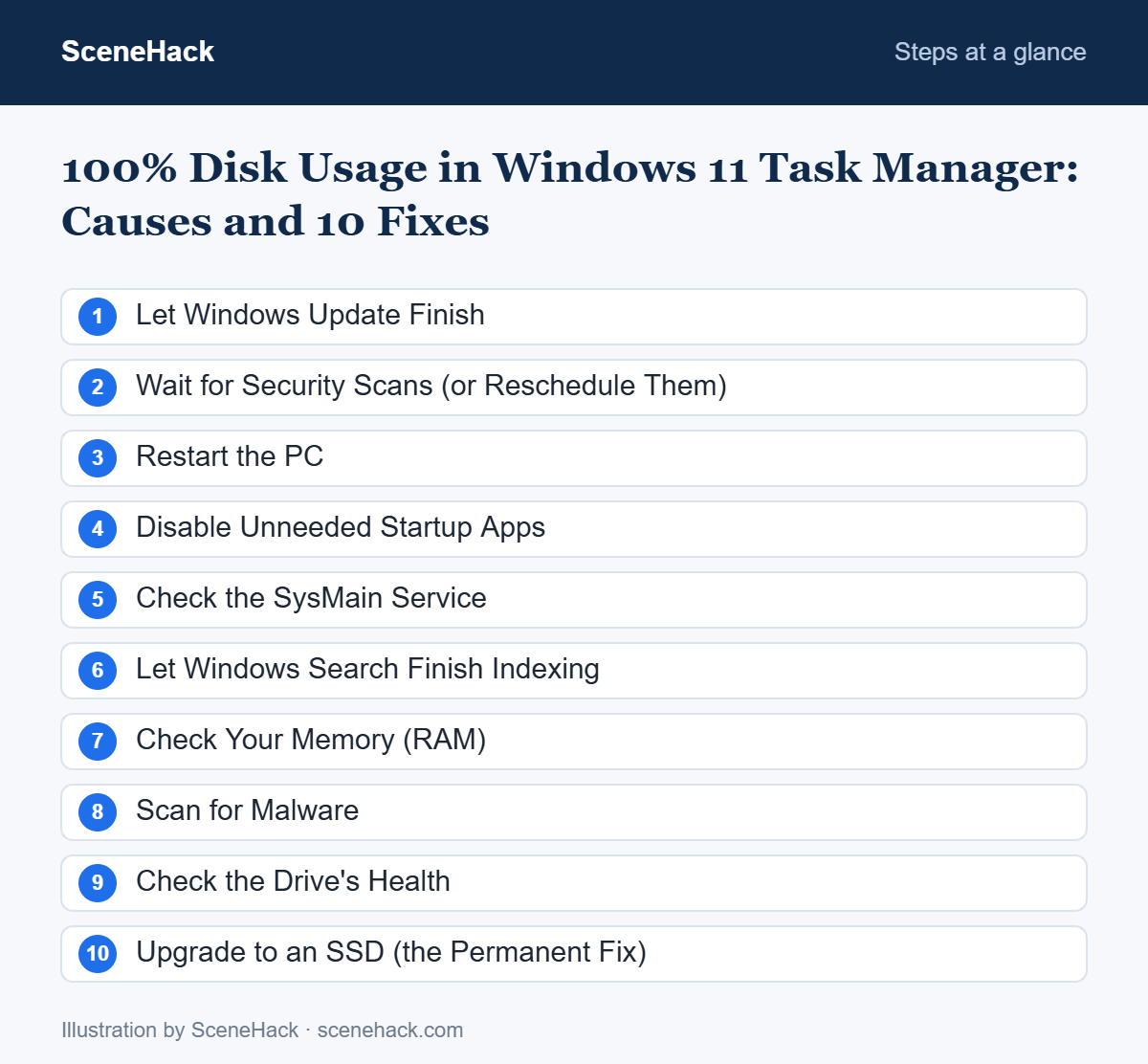
1. Let Windows Update Finish
After a big update, Windows can keep the disk busy for 20–30 minutes. Leave the PC plugged in and idle, then check Settings > Windows Update and restart if asked.
2. Wait for Security Scans (or Reschedule Them)
Windows Security scans the disk regularly. A full scan on a hard drive can take an hour. Let it finish. If you use a second antivirus app, make sure only one is actively scanning — two real-time scanners slow everything down.
3. Restart the PC
Windows 11’s Fast Startup means “Shut down” doesn’t fully reset the system. Use Start > Power > Restart to clear stuck processes.
4. Disable Unneeded Startup Apps
Many apps load at startup and all read from the disk at once. Open Settings > Apps > Startup and turn off anything you don’t need immediately. See our full guide on speeding up a slow Windows 11 PC for more.
5. Check the SysMain Service
SysMain (formerly Superfetch) preloads frequently used apps. On some older hard drives it causes constant disk activity. To test:
- Press Win + R, type services.msc and press Enter.
- Double-click SysMain, click Stop, and watch Task Manager for a few minutes.
- If disk usage drops a lot, you can set its startup type to Manual. If nothing changes, start it again and set it back to Automatic.
6. Let Windows Search Finish Indexing
After updates or when you add many files, Windows re-indexes your drive. Go to Settings > Privacy & security > Searching Windows and choose Classic instead of Enhanced to index fewer locations.
7. Check Your Memory (RAM)
If your PC has little RAM, Windows uses the disk as extra memory (the page file), which keeps it at 100%. In Task Manager’s Performance > Memory view, if memory is regularly above 85–90%, close heavy apps and browser tabs, or consider adding more RAM if your laptop supports it.
8. Scan for Malware
Malware can read and write constantly in the background. Open Windows Security > Virus & threat protection > Scan options and run a Full scan.
9. Check the Drive’s Health
A failing hard drive often shows 100% usage with very slow read speeds. Open PowerShell and run:
Get-PhysicalDisk | Select FriendlyName, MediaType, HealthStatus
If HealthStatus shows anything other than Healthy, back up your files immediately and plan to replace the drive.
10. Upgrade to an SSD (the Permanent Fix)
If Task Manager shows your disk is an HDD, the most effective fix is replacing it with an SSD. Windows 11 is designed around fast storage, and even a basic SATA SSD makes an old laptop dramatically faster. Read our comparison of SSD vs HDD to choose the right drive.
How This Compares With Microsoft’s Performance Advice
Microsoft does not publish a single article for 100% disk usage, but its general PC performance guide covers the same ground, and its order is useful. It begins with installing Windows updates and optional driver updates, then a malware scan, then freeing up disk space, removing unused apps and disabling startup apps.
Two points from that guide are easy to overlook. First, malware is listed second, ahead of every tuning tip, because a threat running in the background can keep both the CPU and the disk busy. Second, Microsoft recommends optimizing (defragmenting) drives only for hard drives. If Task Manager shows 100% on an HDD rather than an SSD, the drive itself is often the limit, and the fixes in this guide reduce the load without removing that limit.
100% Disk Usage: Common Questions
Is 100% disk usage harmful?
Short bursts are normal. Constant 100% usage doesn’t damage a healthy drive by itself, but it makes the PC very slow and can be a sign of a failing disk.
Why does 100% disk usage happen right after startup?
Startup apps, updates, indexing and security scans all start at once. It usually settles after 5–15 minutes on a hard drive.
Should I disable Windows Search or Windows Update permanently?
No. Disabling updates leaves your PC unprotected, and disabling search makes finding files harder. Use the gentler fixes above instead.
Sources and further reading: Microsoft Support: Tips to improve PC performance in Windows.
Keeping Disk Usage Under Control
100% disk usage in Windows 11 is usually caused by updates, scans or indexing on a slow hard drive. Identify the process in Task Manager, apply the matching fix, and if your laptop still uses an HDD, an SSD upgrade will solve the problem for good.

